
Docs
Users
Who signs in to the organization's admin panel — the list, invitations by e-mail, a user's role and projects.
The Users section lists everyone who signs in to the organization's admin panel, with their roles. It is open to the “Administrator” role only: it is the only role with the “Settings → All settings, users and roles” permission. There is no sign-up in the admin panel — new users are invited from here.
What's on the screen
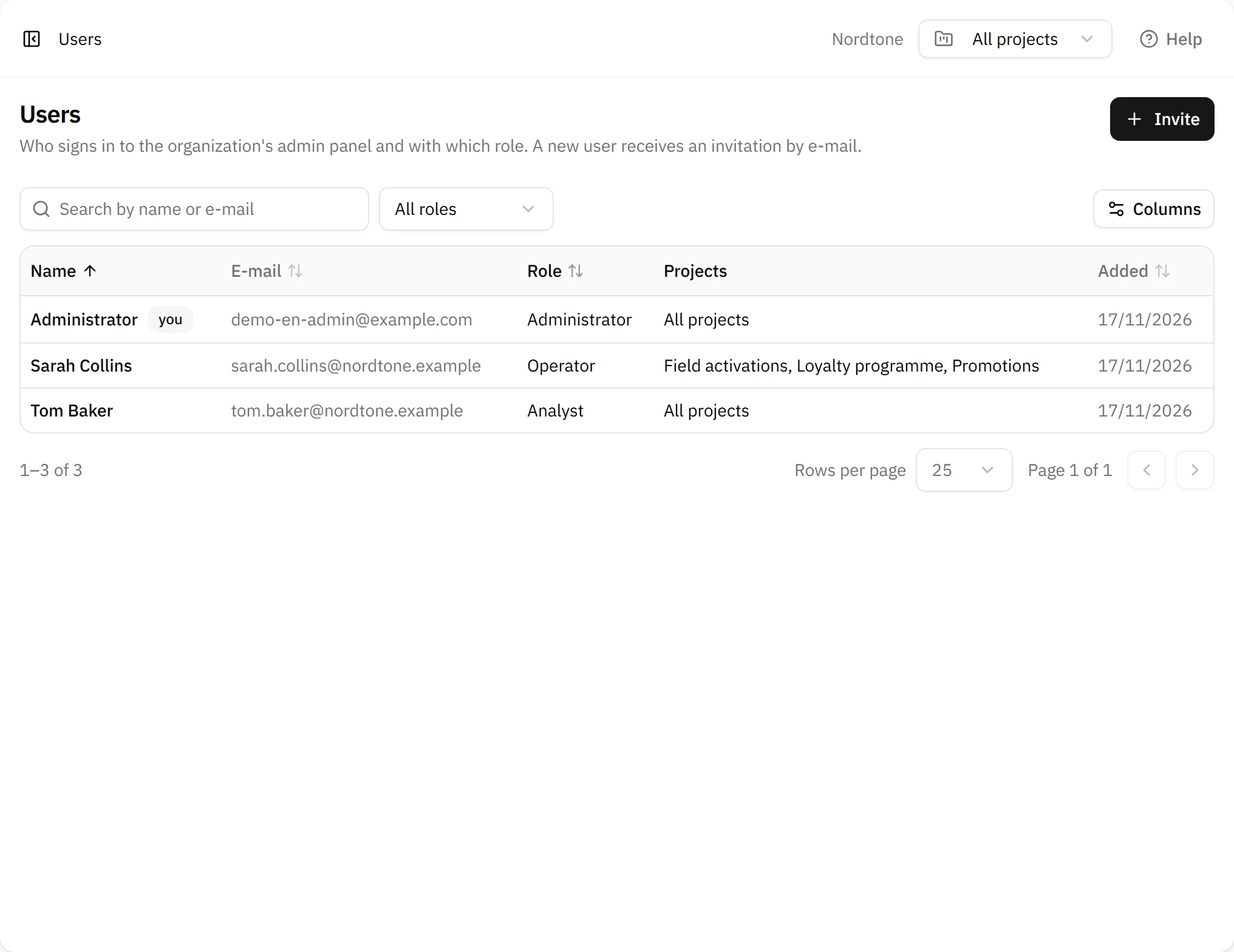
The list columns are name, e-mail, role, projects and date added. Your own row has a “you” badge. In the “Projects” column a role with the “All projects” scope shows “All projects”, and a role with the “Assigned projects” scope shows the assigned active projects, or a dash if there are none.
Search and filters
The search box looks up name and e-mail, and the filter narrows the list by role. You can sort by name, e-mail, role and date added. A row opens the user form.
Invitation
- Press Invite.
- Enter the name and e-mail. The e-mail becomes the user's login.
- Choose a role. “Operator” is selected by default; the text under the field says what the role gives.
- If the role has the “Assigned projects” scope, tick the user's projects.
- Press Send invitation.
The e-mail goes out at once. It has a Set password button: the user sets a password and can then log in — see Log in. The link in the e-mail is valid for 7 days and stops working as soon as the password is set.
User form
The user form changes the name, role and projects. The e-mail is shown but can't be edited: it is the login. Change the fields and press Save.
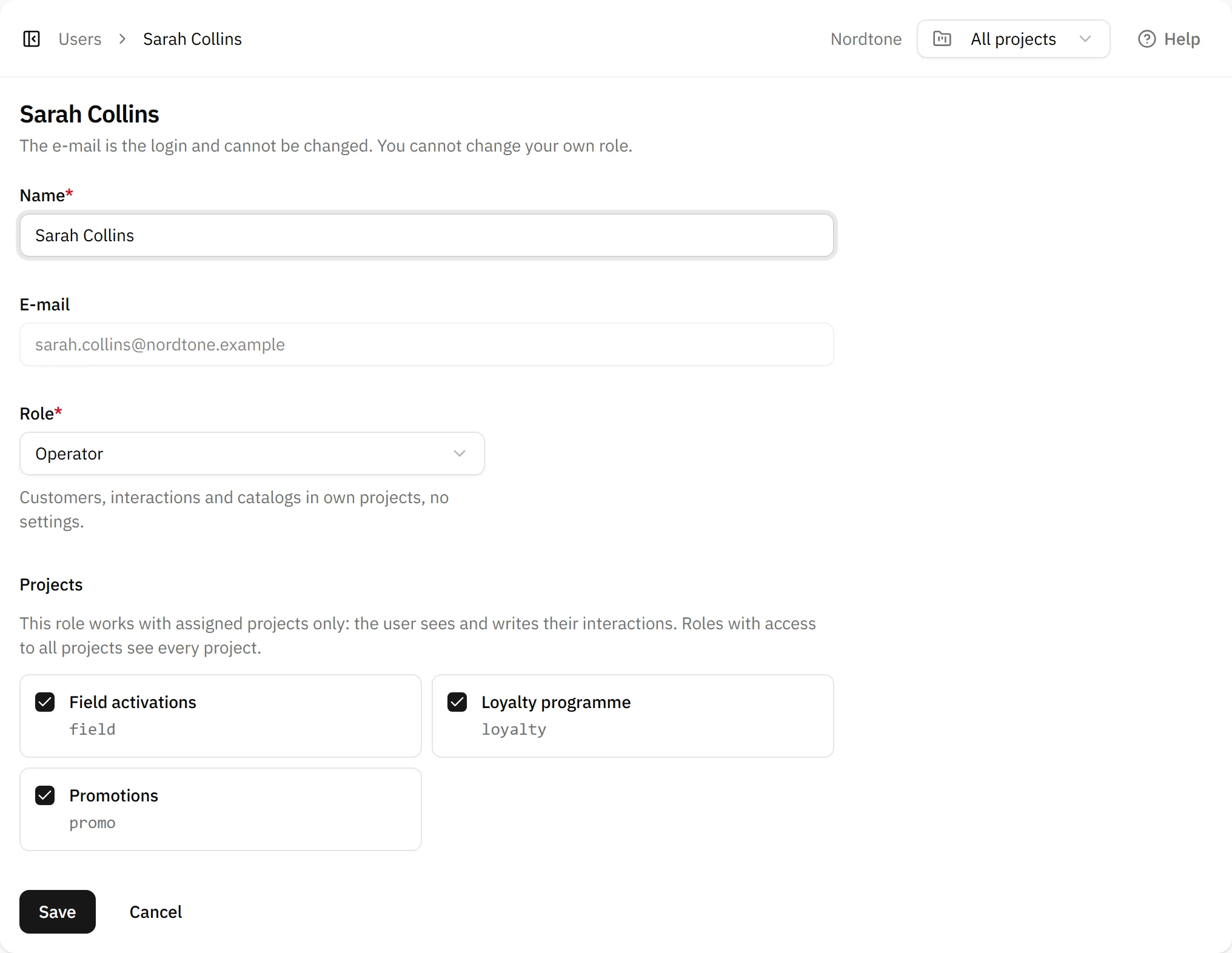
The role list holds the system roles and the organization's own roles, except archived ones. What each role can do is described in Roles.
User projects
The Projects block appears only when the selected role has the “Assigned projects” scope. It has a checkbox for each active project of the organization. The user sees and writes interactions of these projects only; customers, agents and assets are visible in full.
If you switch the user to a role with the “All projects” scope, the assignments are kept but don't apply: the user sees every project. Assignments to a deactivated project are not lost when you edit the user either.
Limits
- You can't change your own role: the role field is disabled on your own form.
- The role of the last user with the “Administrator” role can't be changed. That user can still delete their own account in the profile, leaving the organization without an administrator, so appoint a second one in advance.
- An archived role can't be assigned.
- Other users can't be deleted or disabled in the admin panel (users delete their own account in their profile). To limit access, assign a role with fewer permissions.
- Users choose the interface language themselves in their account.
If the invitation has expired
There is no “resend invitation” button. If the link in the e-mail has expired, the user opens the login page and clicks Forgot your password? — a new link arrives at the same e-mail. The login page suggests this itself when an expired link is opened. See Log in.