
Docs
Merging duplicates
How to find two duplicate customers, check the preview, merge them into one, and what then happens to points, labels and history.
By the end you'll have one customer instead of two: the duplicate's history, identities, labels and points all end up with the primary customer. The Nordtone example: Olivia Bell signed up twice — in a store and with a promoter — using different phone numbers, so the customer list shows two “Olivia Bell” entries with the same date of birth. Only a role with the “Customers → Merge duplicates” permission can merge customers, and only the system “Administrator” role has it.
What you need
- The “Customers → Merge duplicates” permission — that is, the “Administrator” role.
- Two active customers of the same type. An archived customer or one already merged into another can't be merged — the full list of restrictions is under When a merge is refused.
Find the duplicates
- Open Data → Customers.
- Type the surname in the search bar — for example, “Bell”. Names are matched by similar words, phones and documents exactly.
- Compare the customers found using the list columns: full name, date of birth, city. The same name and date of birth with different phone numbers is a common sign of a duplicate.
- Open each card and look at the Fields, Timeline and Accounts tabs.
Decide who stays as the primary. The primary's filled-in fields are kept as they are, and the absorbed customer's values fill only the empty ones. So pick the customer with the correct and more complete data as the primary — for example, the one with the phone number the customer uses now.
Open the merge
- Open the card of the customer who will stay as the primary.
- Press Merge with… in the card header. The Merge customers screen opens.
- In the Customer to absorb field, start typing the duplicate's phone, document or full name — for example, “Bell”.
- Pick the duplicate from the list: next to the name you'll see its first identity, usually the phone number.
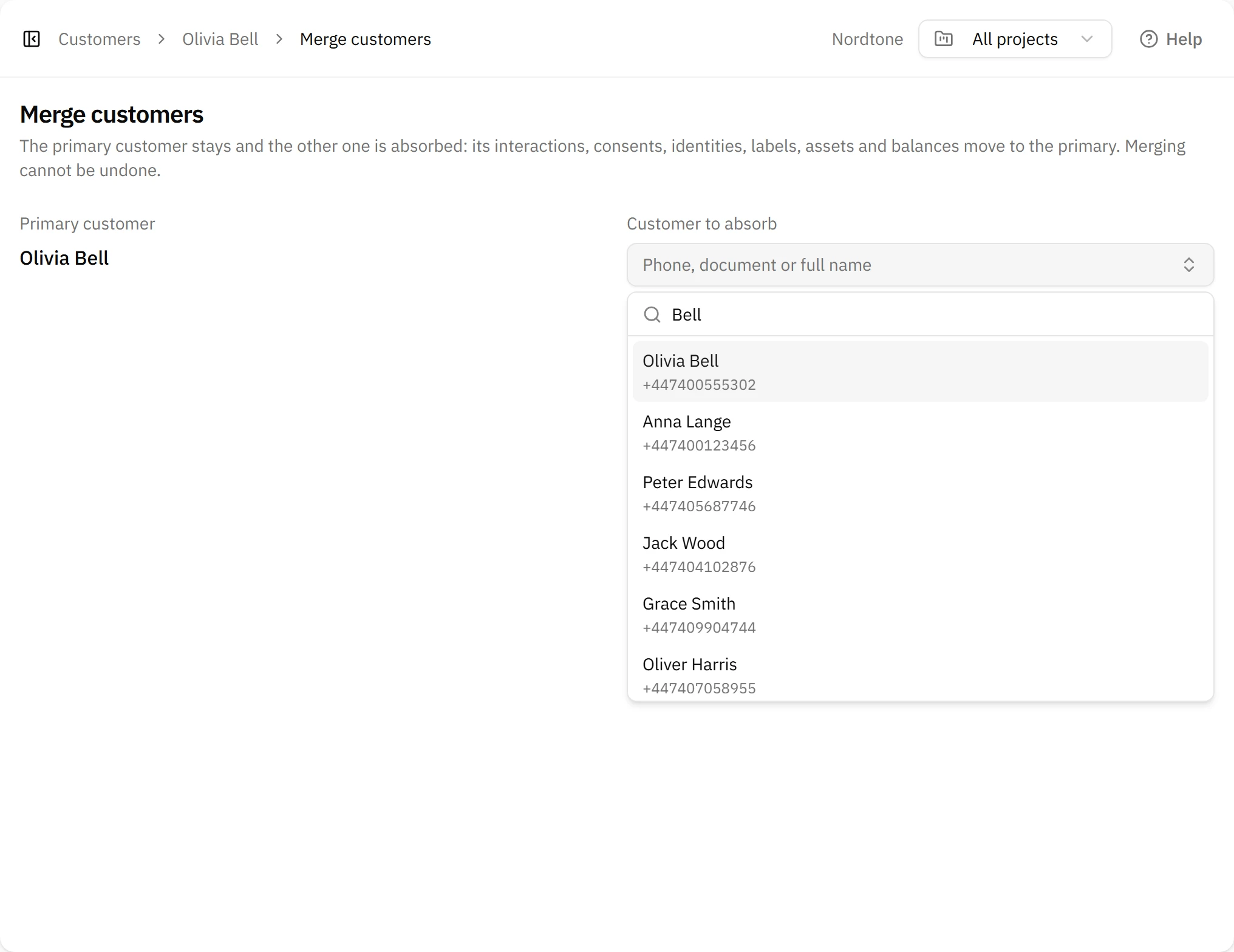
The list offers only active customers of the same type; the primary customer itself isn't in it. As soon as you pick one, the CRM shows a preview.
Check the preview
The preview changes nothing — it's a calculation of the outcome. Go through it top to bottom:
- Fields — the fields where the customers differ. The Result column shows the final value and whose it is.
- Identities to move — for example, the second phone number. The “additional” tag means the primary's field won't change, but the customer can also be found by this value.
- Manual labels — what happens to each of the absorbed customer's labels.
- What moves — how many interactions, consent records, verifications, assets and limit usage records move to the primary.
- Balances — each account's balance before and after the merge.
If the other customer should be the primary, press Swap. If the CRM refuses the merge, the reason is shown right on the screen. Each block is described in detail on the Merge customers page.
Merge the customers
- Press Merge customers at the bottom of the screen.
- In the confirmation dialog, check who absorbs whom and press Merge.
The primary customer's card opens with the message “The customers have been merged.” If the customers' data changed while the preview was open, the CRM won't merge them and shows the preview again — check it and confirm once more.
What happens to points, labels and history
- Points. Every non-zero balance of the absorbed customer is transferred to the primary by a pair of “Merge transfer” entries: a minus for the absorbed customer and a plus for the primary. For example, 1,200 and 300 points make 1,500. The earlier entries stay on the absorbed customer's card.
- Decision table limits. Limit usage records move to the primary, so row limits are counted from the combined history from then on. If both customers have already received a gift in the same campaign, the primary will have two usages.
- Manual labels move to the primary. If both have the same label, the one with the later expiry stays; the absorbed customer's expired labels are deleted.
- Rule labels of the absorbed customer are removed, and the rules are re-evaluated on the primary straight away against the combined history. For example, if each had one purchase, after the merge the “two purchases in 90 days” rule may give the primary the “Active buyer” label.
- History. Interactions from all projects, consent records, verifications and assets move to the primary; duplicate consents are deleted. The absorbed customer's field change history stays on its own card.
- Identities. The absorbed customer's phone numbers and other identities move to the primary; matching ones are deleted.
Check the result
- On the primary customer's card, the Identifiers tab has the duplicate's phone number, the Timeline tab has a “Customers merged” event with the absorbed customer, and the Interactions tab includes its interactions.
- On the primary's Accounts tab, the balance equals the sum of both, and if the duplicate had points, there is a “Merge transfer” entry.
- The absorbed customer's card is read-only: a notice at the top says it was merged into the primary and links to it. The Edit and Merge with… buttons are gone.
- In the customer list, the absorbed customer is marked with the “Merged” status.
What's next
- Merge customers — every preview block and the reasons for a refusal.
- Points for interactions — a manual entry, if a balance needs adjusting after the merge.
- Webhooks — subscribe to the “Customers merged” event so apps learn about the merge.
- Apps merge duplicates through the API too:
POST /customers/{id}/merge. Requests for the absorbed customer's id are redirected to the primary.