
Docs
Customers
The organization's customer list — search, filters, columns, export and creating a customer.
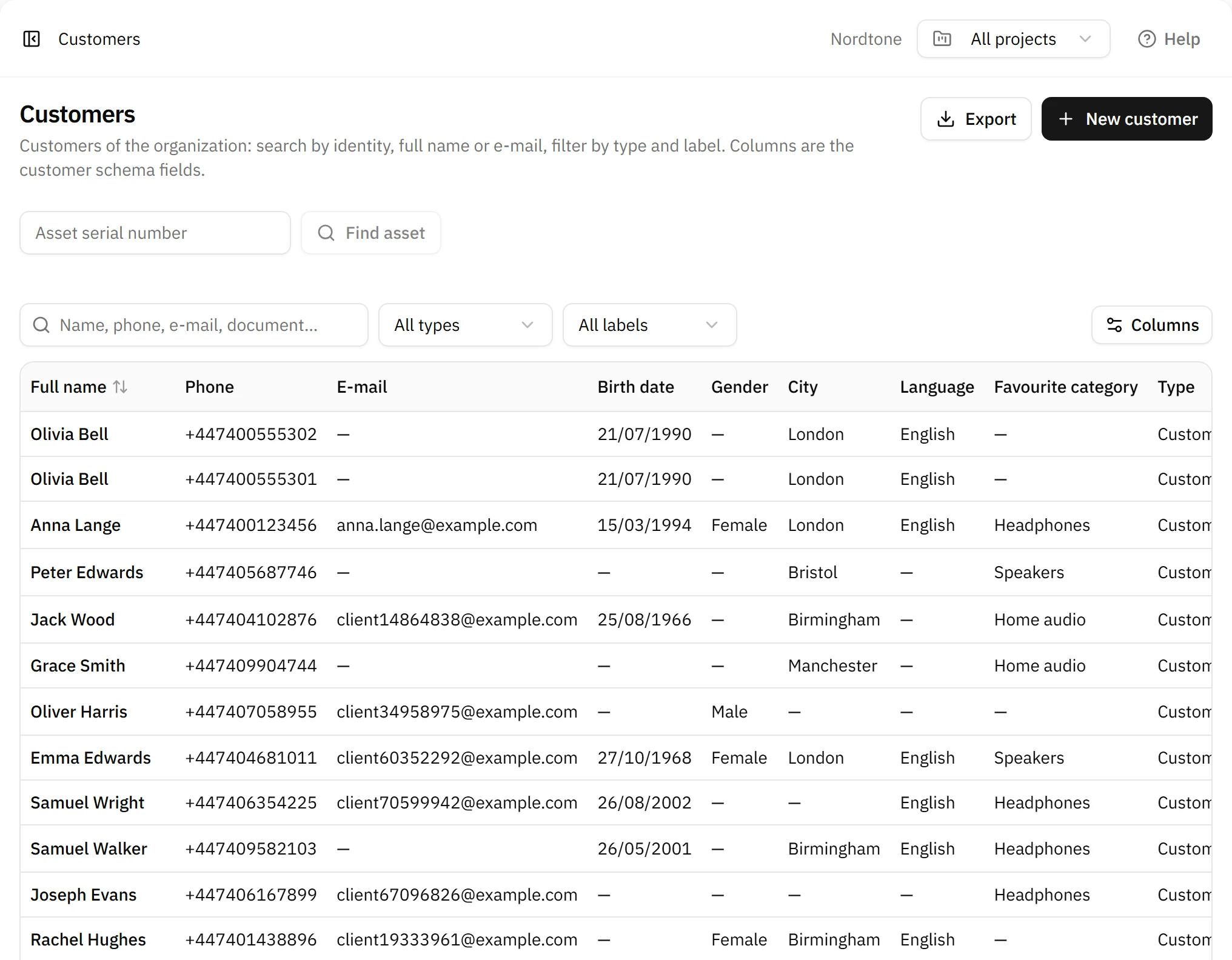
The Customers section lists every customer of the organization. Roles with the “Customers → View” permission can see it. A row opens the customer card.
What's on the screen
The list columns are the customer schema fields visible to your role, plus the customer type, labels and creation date. A row shows two labels; the rest collapse into a “+N” badge with a tooltip. A “block” label is shown in red. An inactive customer — for example, one merged into another during a merge — has a status badge next to the type.
Above the list is the asset lookup: choose the asset type, enter the serial number and press Find asset. Roles with the “Assets → View” permission can see it.
Search and filters
The search box looks up identities, full name and e-mail in one go. Identities — phone, ID document, promo code — match exactly; full name and e-mail match by a similar word. Filters narrow the list by customer type and label. You can sort by full name and by creation date.
Filters and sorting are kept in the page address, so you can send a link to the filtered list to a colleague.
New customer
Roles with the “Customers → Create and edit” permission can create customers.
- Press New customer.
- Fill in the fields. The customer schema sets which fields exist and which are required; phone, e-mail and ID document are fields too.
- Optionally add identities of custom types, such as a QR token or a promo code.
- Press Create customer. The new customer's card opens.
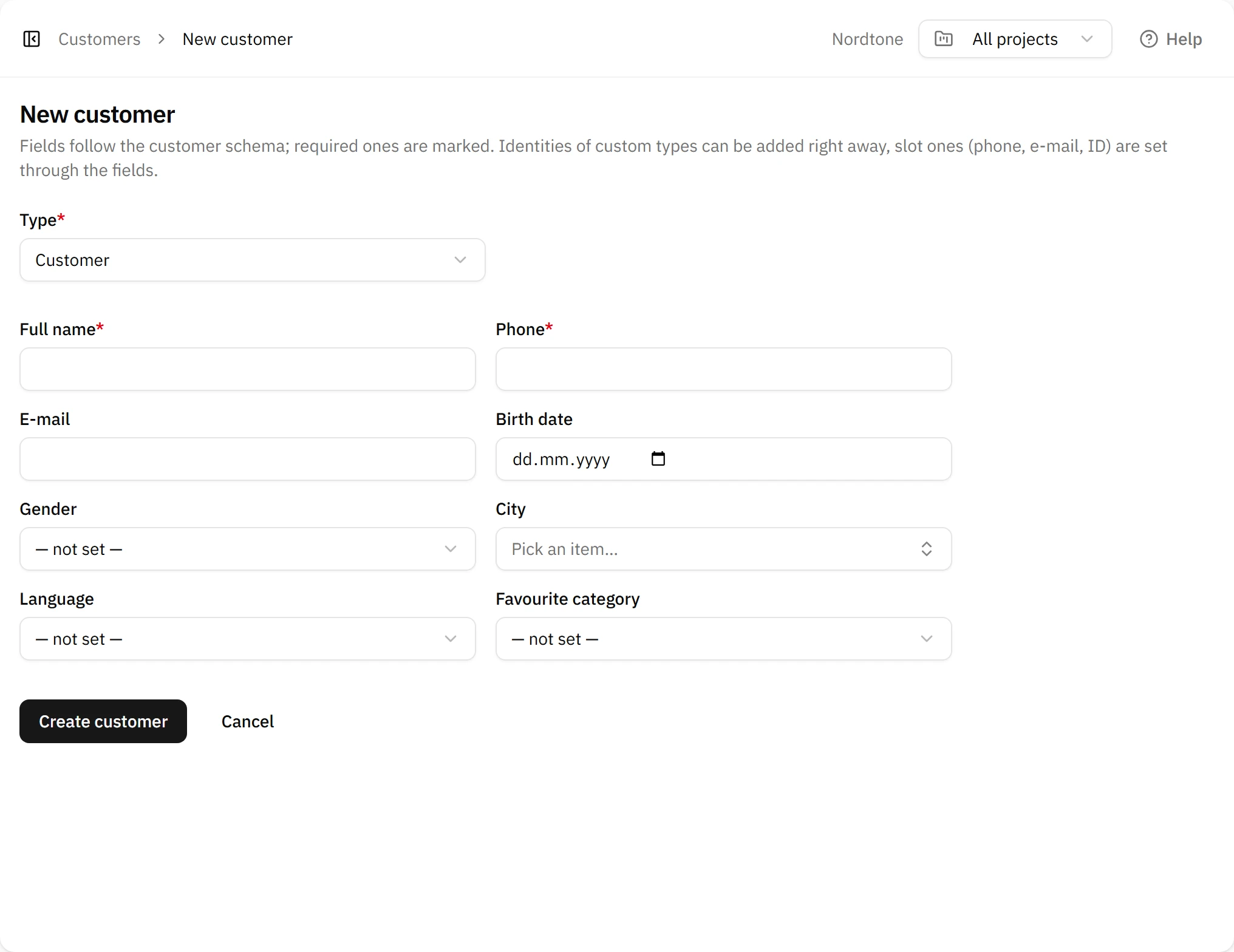
You can't create a customer with an identity that already belongs to someone else: the CRM shows whose identity it is and offers to open the existing customer.
The Edit button on the customer card opens the edit form — the same schema fields, without the type choice and without identities: the customer type is fixed, and identities and labels are managed on the card. A customer merged into another one has no such button.
Customers don't have to come through the admin panel: apps create and look them up through the API, and customers from another system are loaded the same way.
Export
The Export button is shown to roles with the “Customers → Export to file” permission. The file contains every row matching the current filters and sorting, with the columns your role can see, as Excel (XLSX) or CSV. The export runs in the background; the finished file appears in My exports.