
Docs
API log
Incoming requests to the organization's API — filters, request and response, secret masking and request replay.
The API log section keeps incoming requests to /api/v1 from the organization's API clients: who sent what and
when, and what they got back. The log helps you investigate integration errors and replay requests that failed.
Roles with the “API log → View” permission can see the section. Roles with the “API log → Replay a request” permission can replay requests. API clients and their keys are set up in the settings, under API clients.
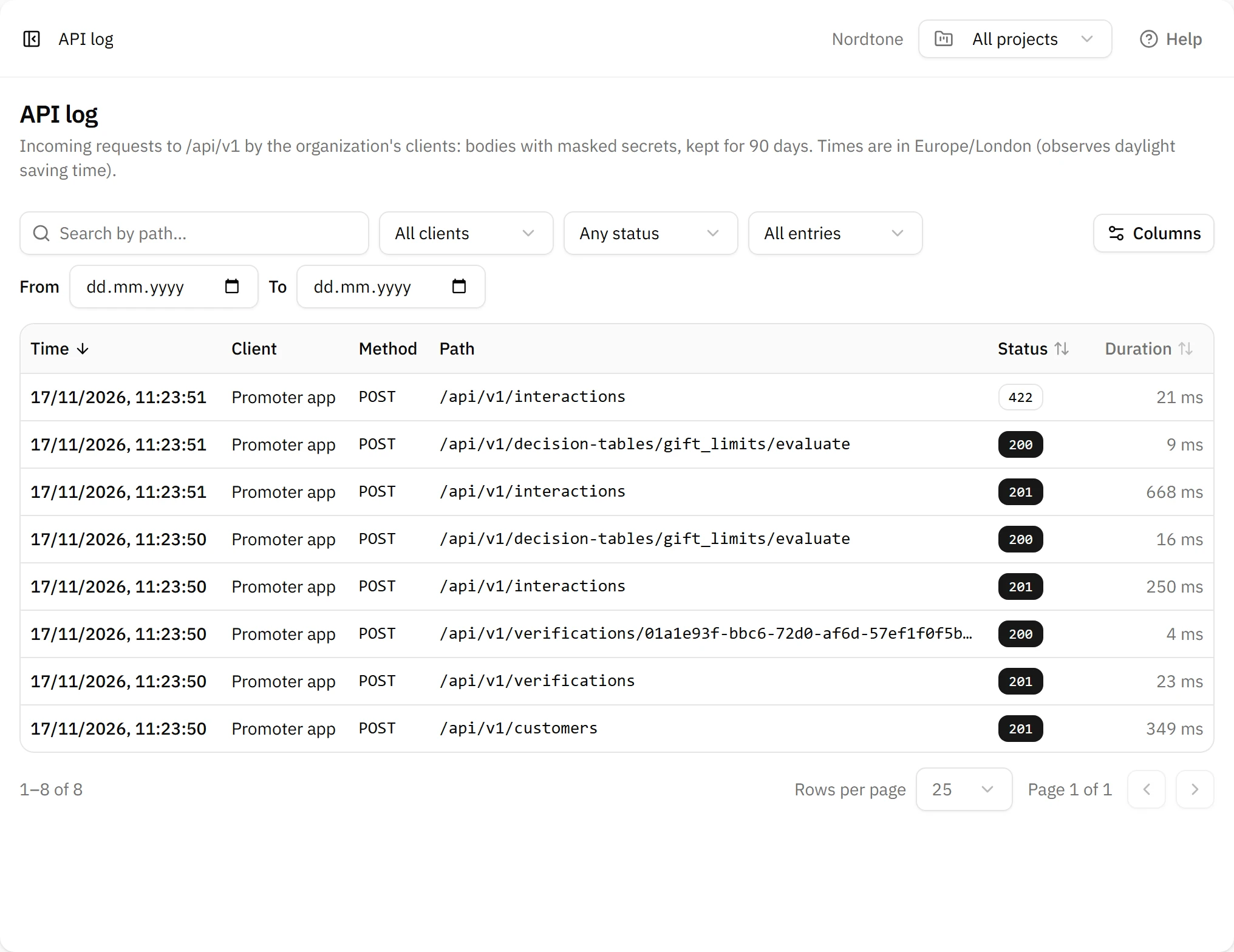
What's on the screen
The list columns are the request time, API client, method, path, response status and duration. A request made by a replay from the log has a “replay” badge next to the path. The newest requests are on top; you can also sort by status and duration. A row opens the request screen.
Entries are kept for a limited number of days — the period is shown below the section title. Times are shown in the organization's time zone.
Search and filters
- The search box looks up part of the path, such as
interactions. - All clients — requests of one API client.
- Any status — the response class: “2xx — success”, “4xx — client error” or “5xx — server error”. You pick a class, not an exact code.
- All entries — pick “Replays only” to keep the requests made by a replay from the log.
- From and To — a period in days.
Filters are kept in the page address, so you can send a link to the found requests to a colleague.
Request screen
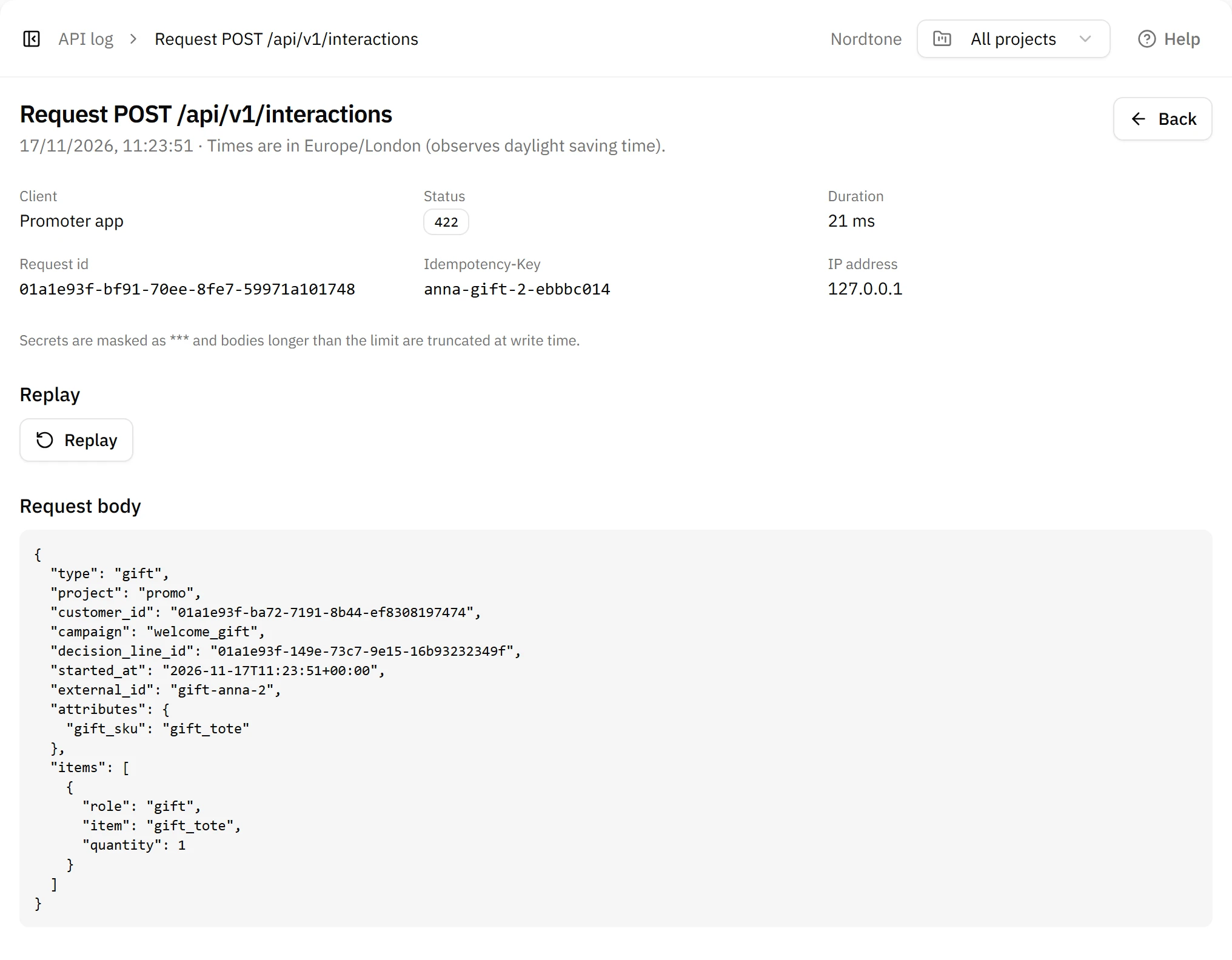
The title shows the method and path, with the request time below it. The screen shows:
- Client, Status and Duration;
- Request id — the same id the API returned in the
X-Request-Idresponse header. It is how a request is found when investigating an incident; - Idempotency-Key — the idempotency key, if the client sent one, and the client's IP address;
- Request body and Response body as formatted JSON. The response body tells you
why a request was rejected — for example, the
LIMIT_REACHEDerror code.
The Back button returns to the list.
Secrets and truncation
Values of secret fields — passwords, tokens, OTP codes, keys — are replaced with *** when the request is written to
the log, both in the body and in the query string. Bodies longer than the limit are truncated. What is hidden cannot be
restored: if the request had secrets or a truncated body, the request screen says so.
Replaying a request
The Replay block on the request screen runs the request again — for example, after fixing the setting that made it fail.
- Open the failed request.
- Press Replay.
- Read the warning and confirm the replay.
The request runs on behalf of the same API client, with its current abilities and projects and the same idempotency key. The result is recorded in the log as a new entry: the original request gets a link to the replay, and the replay links back to the original entry and names who replayed it.
Not every request can be replayed. When a replay is not available, the block shows the reason instead of the button. These are not replayed:
- read requests and successful requests;
- access and rate-limit refusals (401, 403, 429);
- requests with hidden secrets, with a truncated body, path or key, and bodies not sent as JSON;
- requests of a revoked API client;
- replay entries — replay the original request instead — and requests already replayed successfully.
The log and the API
Requests, responses and error codes are described in the API documentation. The log records requests
with a recognised API client token. When you contact support, include the X-Request-Id from the response — it finds
the request in the log quickly.