
Docs
Log in
Logging in to the admin panel with a password or a passkey, first login from an invitation, password reset, 2FA codes and password confirmation.
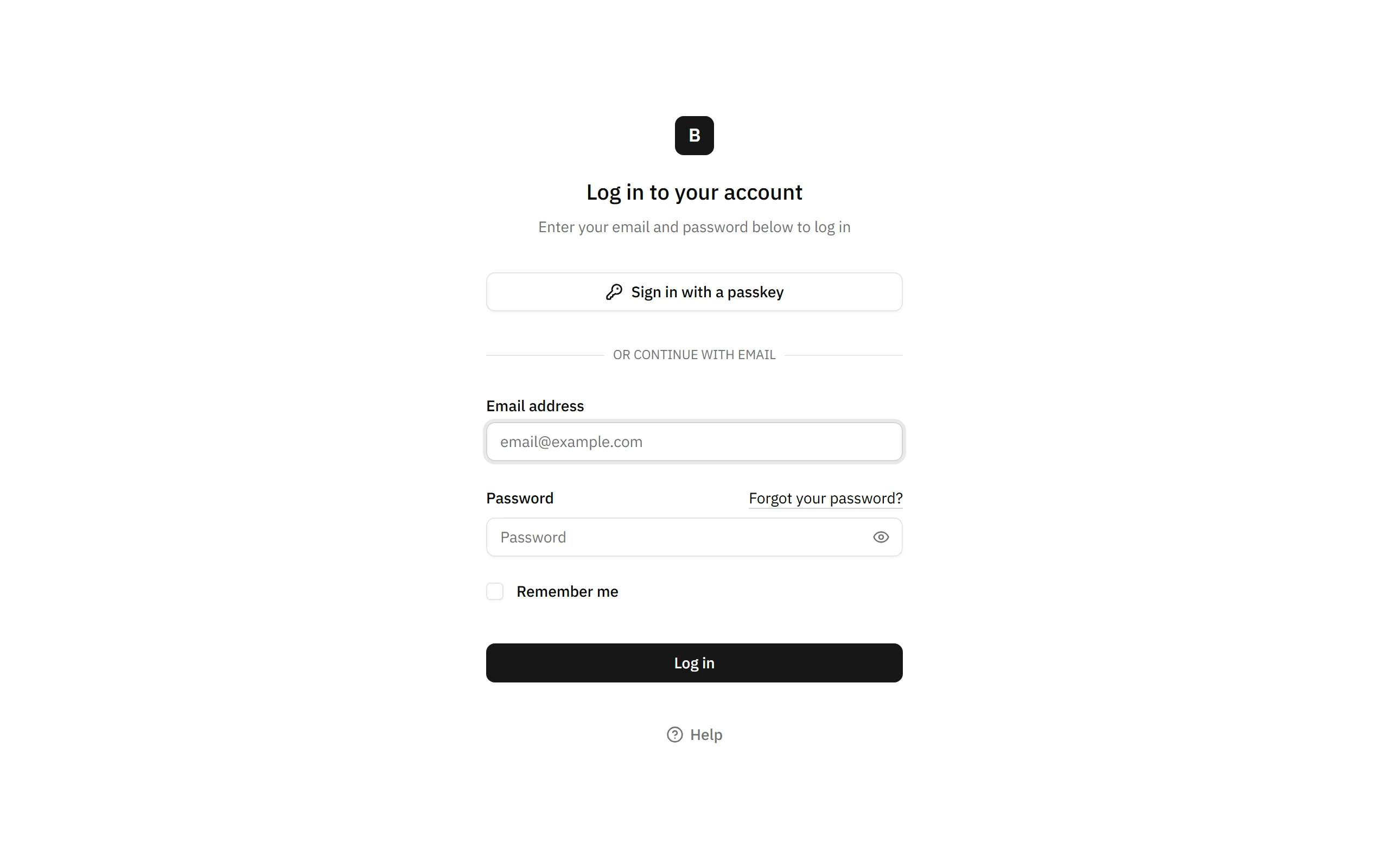
You log in to the admin panel with your email address and password or with a passkey. There is no sign-up: an organization administrator adds you in Users, and an invitation arrives by email.
First login
The invitation email has a Set password button. It opens the new password form: set a password, and you can log in from then on. The link is valid for 7 days. If it has expired, the login page tells you what to do: on that page click Forgot your password?, and a new link arrives the same way as for a password reset.
Logging in with a password
- Enter your email address and password.
- Tick Remember me on your own computer: the browser stays logged in after you close it.
- Click Log in. The organization's home page opens.
The eye icon in the password field shows what you have typed.
Logging in with a passkey
A passkey lets you log in without a password, using your fingerprint, face or device PIN. First add a passkey on the Security tab of your account. Then click Sign in with a passkey on the login page and confirm the way your browser or device asks.
If the browser doesn't support passkeys, the button isn't shown — log in with your email address.
Forgotten and reset passwords
- On the login page, click Forgot your password?.
- Enter your email address and click Email password reset link.
- Open the link from the email. On the Reset password form your email is already filled in — enter the new password twice.
- Click Reset password. The CRM takes you back to the login page — log in with the new password.
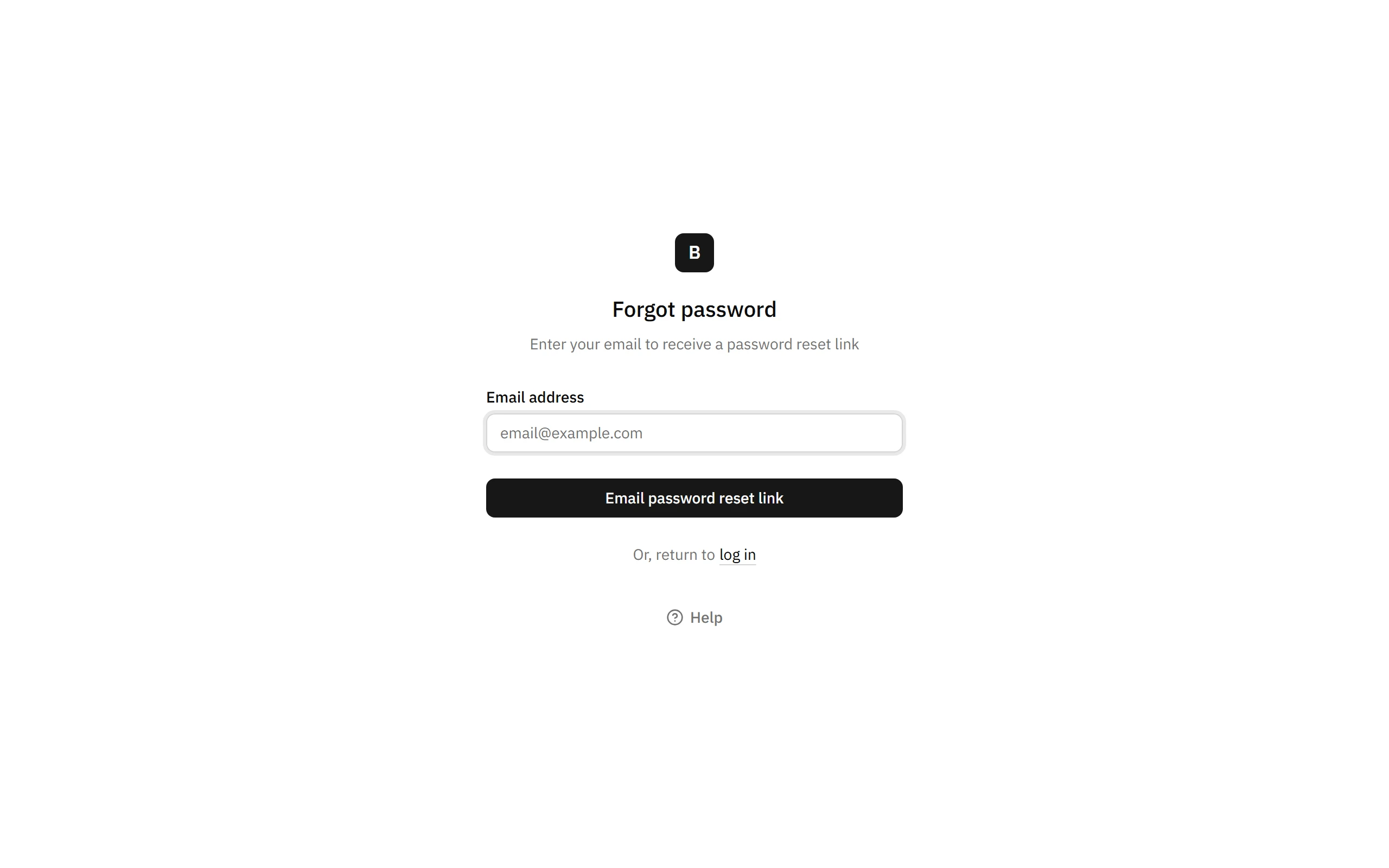
The link in the email is valid for 60 minutes. You can request another email after one minute.
Logging in with a 2FA code
If two-factor authentication is on for your account, the CRM asks for a six-digit code from the authenticator app on your phone after the password. Enter the code and click Continue.
No phone at hand? Click login using a recovery code and enter one of the recovery codes you saved from your account. Each code works once and is replaced with a new one — after signing in with a code, open the recovery codes in your account and save the list again. To go back to the app code, click login using an authentication code.
Password confirmation
Before sensitive actions the CRM asks for your password again, even though you are logged in: when you open the Security tab of your account, turn 2FA on or off, or work with recovery codes and passkeys.
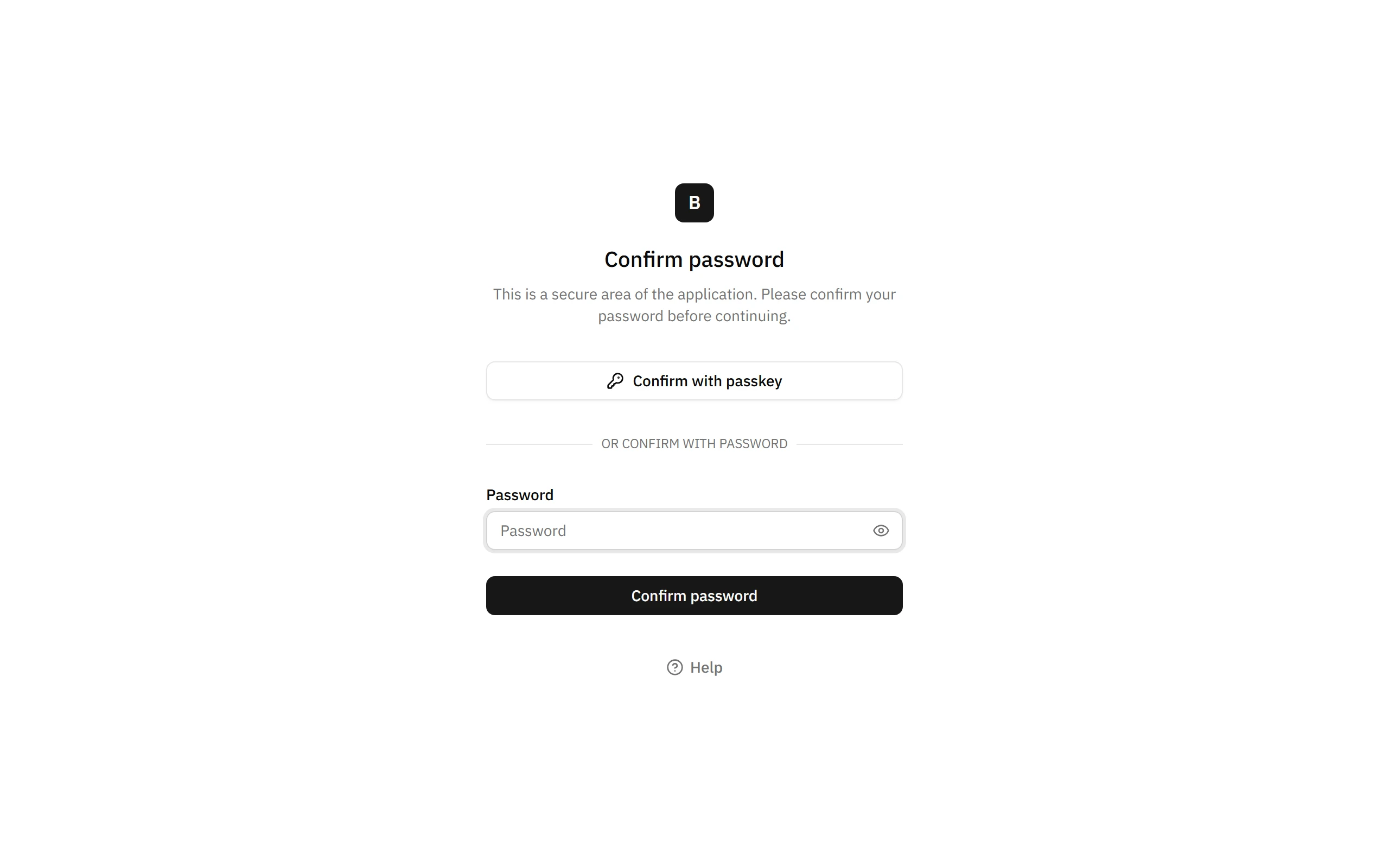
Enter your password and click Confirm password, or confirm with a passkey: click the Confirm with passkey button. Once confirmed, the CRM doesn't ask again for three hours by default.
Logging out
Log out from the user menu at the bottom of the left panel — the Log out item. The same menu has your account and my exports.