
Docs
Export a list to a file
How to export a filtered list of customers or interactions to Excel or CSV, download the file and check which columns it contains.
In this guide you export customers picked by a filter and download the file. The example is Nordtone: marketing needs a CSV list of customers with the “Gift received” label. Roles with the “Customers → Export to file” permission can export customers and interactions.
What you need
- The “Customers → Export to file” permission — the system “Administrator” and “Operator” roles have it. The file carries personal data, so the “Reader” role doesn't have it.
- The fields you need in the file are visible to your role: a field hidden from the role is left out of the export (field visibility).
Pick the customers
- Open the Customers section.
- In the All labels list above the table, pick “Gift received”. The table keeps the customers with this label.
- Narrow the list further if needed: with the search box or the All types list. Rows can be sorted by full name or by creation date.
The file gets every row matching the current filters and sorting, not just the visible page of the list (search and filters).
Start the export
- Click Export above the list. The Export to file dialog opens.
- In the Format field, pick CSV. For work in Excel, Excel (XLSX) is fine too.
- Click Export in the dialog.
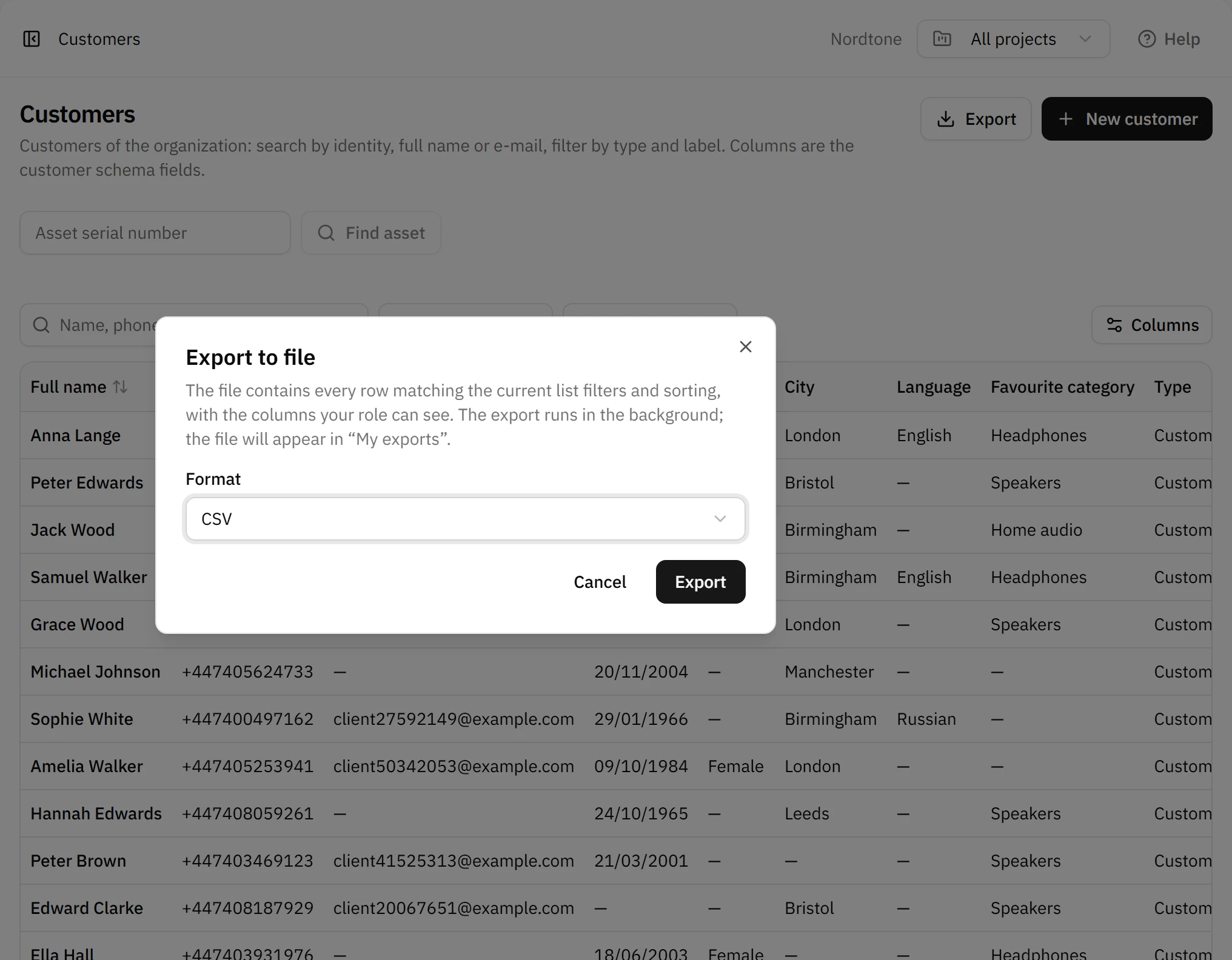
The file is built in the background, and you are taken straight to My exports. Up to three of your exports can be in progress at once (by default) — if the limit is reached, the dialog asks you to wait until one of them finishes.
Download the file
- On the My exports page, find the export at the top of the list: the What column says “Customers” and gives the file name.
- Wait for the “Ready” state — the page refreshes by itself while an export is queued or running.
- Click Download.
A CSV file is exported in UTF-8 with a semicolon as the delimiter. If Excel shows such a file as a single column, export XLSX instead. The file is available for 7 days (a CRM setting defines the period): the “Available until” column shows when it is deleted. Other people's exports aren't shown on this page, and nobody but you can download your files (states and retention).
Which columns the file gets
A customer export has the ID, type, status, source, creation and update dates, the customer schema fields, identities without a slot (a promo code, for example; the column is headed with the identity type name and is visible to every role), labels and consents. The columns depend on the role of the person exporting: a field hidden from that role is not in the file.
At Nordtone, the “Analyst” role works this way: it exports customers but doesn't see the phone, e-mail or birth date — its file has no such columns. Field visibility for roles is set in the schema, and role permissions in Roles.
Check the result
- The downloaded file has only customers with the “Gift received” label: each of them has its code
gift_receivedin the “Labels” column. - An administrator sees the export under Settings → Export log: you are the author, the Filter column
includes
label: gift_received, and the Columns column lists the file's column codes (export log). - To see field visibility at work, pick the analyst Tom Baker in the log's All authors list: the columns of his
customer export have no
field:phone,field:emailorfield:birth_date.
The log shows who exported what, but the files themselves can't be downloaded from it — not even by an administrator (no downloads).
Interactions
The interaction list is exported the same way: the Export button above the list, the same permission and the same formats. The selection comes from the type, campaign, status and period filters and from the project picked in the admin header (filters). A picked type adds columns with its fields to the list and to the file.
What's next
- My exports — states, retention and the export limit.
- Export log — an audit of the organization's exports.
- Load data from a file — the way back: catalogs, table rows and agents from a file.
- Apps get the same data without files — through the API.