
Docs
Account
Your profile, interface language, password, two-factor authentication, passkeys and theme.
Your account holds your personal settings; they don't affect other users of the organization. Open it from the user menu at the bottom of the left panel, the Account item; every role has it. The account has three tabs: Profile, Security and Appearance.
The same menu has My exports with the files you exported from lists (more), and the Log out item.
Profile
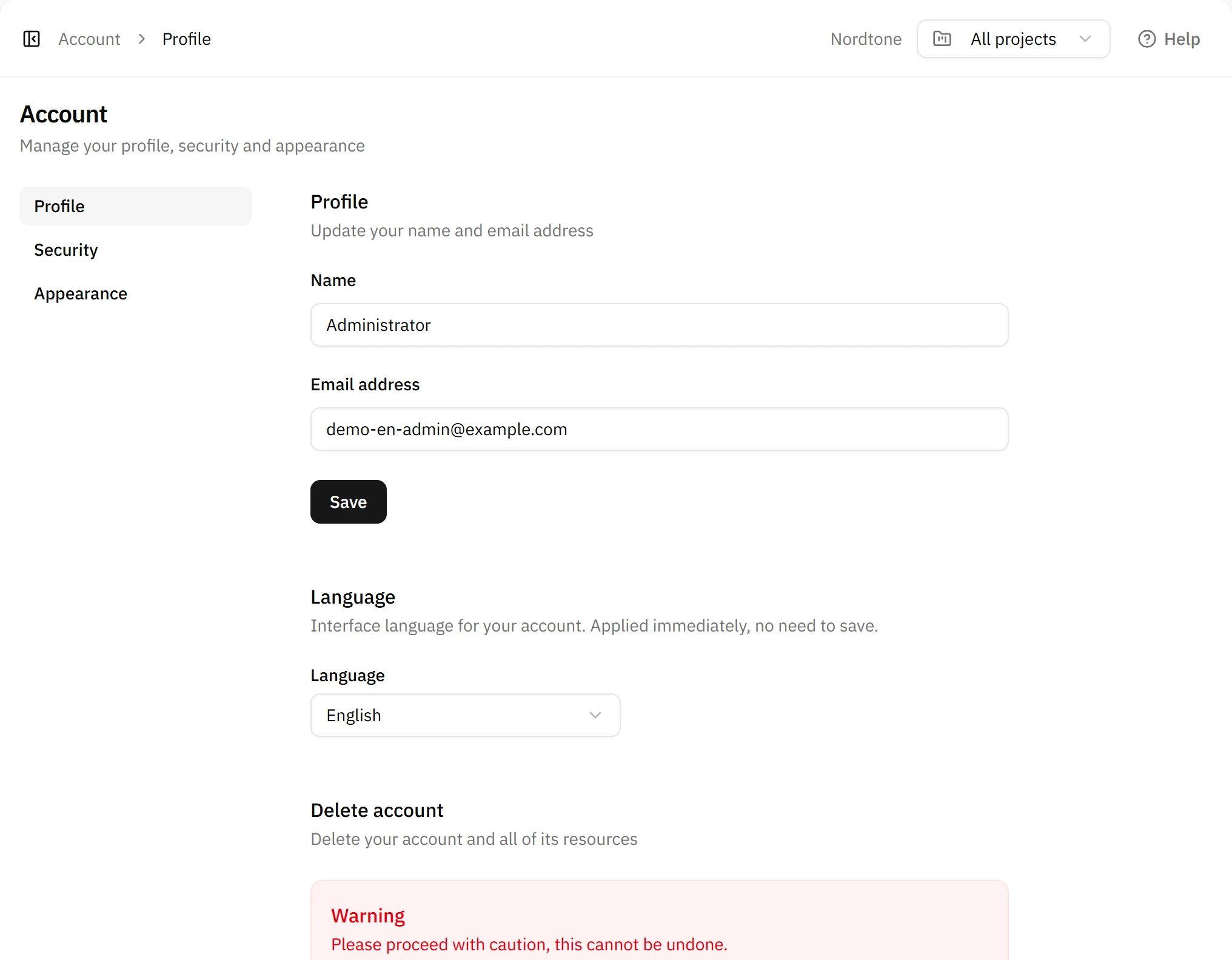
Change your name and email address here: edit the fields and click Save. The email address is your login and the address for password reset emails. An address that another user already has won't be saved.
Language
The Language field switches the interface between Russian and English. It applies at once, no need to save. Until you pick a language, the admin panel uses the organization's default language.
Deleting your account
- On the Profile tab, click Delete account.
- Enter your password in the confirmation window.
- Click Delete account again. The CRM logs you out.
Security
Before opening this tab, the CRM asks you to confirm your password.
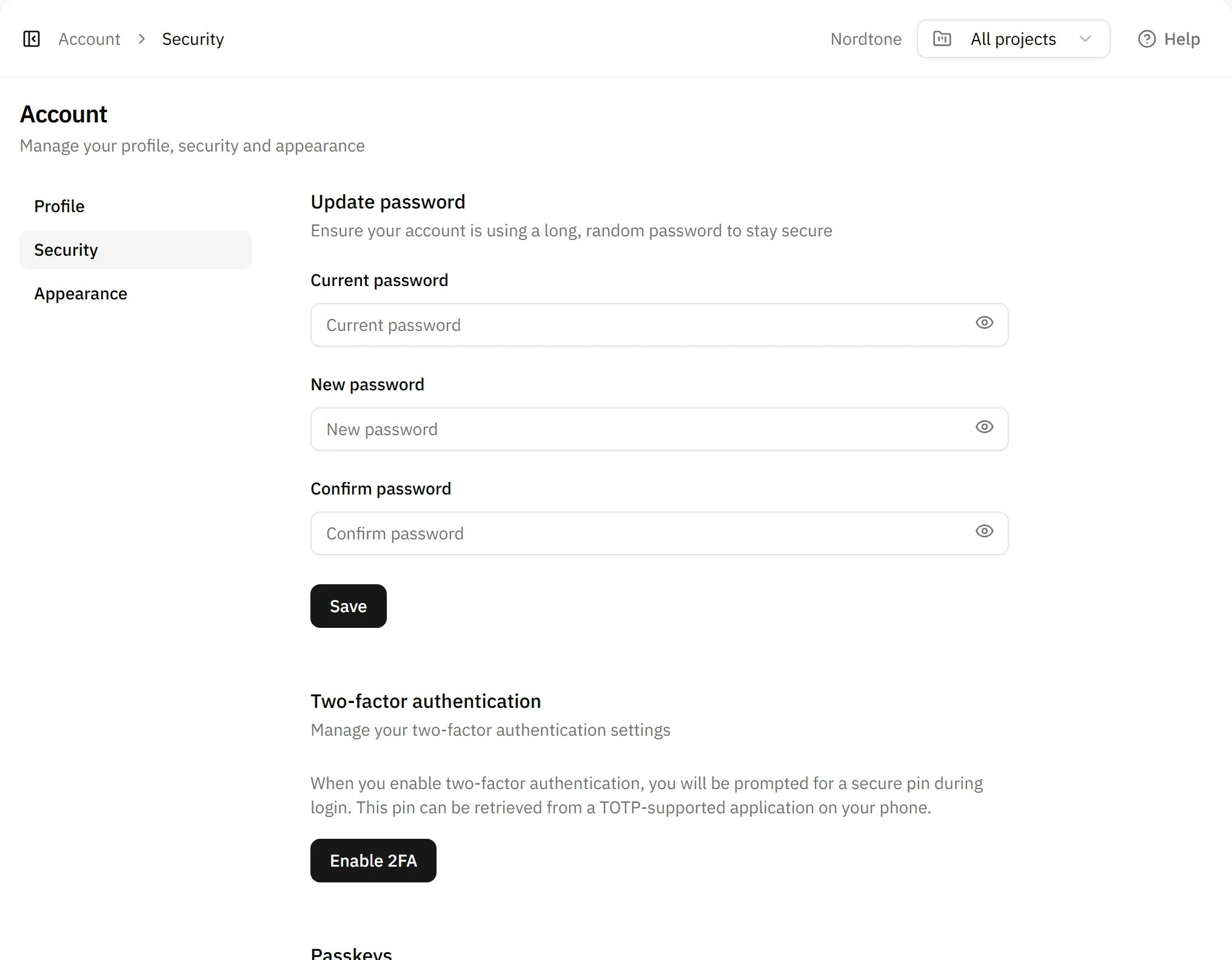
Changing your password
Enter your current password, the new password and its confirmation, then click Save. Forgot the current password? Log out and reset it from the login page.
On the production server a password must be at least 12 characters long, with upper- and lowercase letters, digits and symbols, and must not appear in known password leaks.
Two-factor authentication
With 2FA on, the CRM asks for a six-digit code from the authenticator app on your phone after the password.
- Click Enable 2FA.
- Scan the QR code with your authenticator app or enter the setup key manually, then click Continue.
- Enter the six-digit code from the app and click Confirm. Without this step 2FA stays off.
If the window closed too early, the Continue setup button brings it back. To turn 2FA off, click Disable 2FA.
Recovery codes
Once 2FA is on, the tab shows the 2FA recovery codes block. You need the codes if you lose the phone with the app: each code lets you in once instead of an app code.
The View recovery codes button opens the list — save it in a password manager. A used code is replaced with a new one that is not in your saved list — after signing in with a code, open the list again and save it anew. If the list may have leaked, click Regenerate codes: the old codes stop working.
Passkeys
A passkey lets you log in without a password, using your fingerprint, face or device PIN.
- Click Add passkey.
- Check the passkey name — the CRM fills in your browser and system, such as “Chrome on Windows”. The name helps you recognise the passkey later.
- Click Register passkey and confirm the way your browser or device asks.
The list shows when each passkey was added and last used. The bin icon removes a passkey — you can no longer log in with it.
Appearance
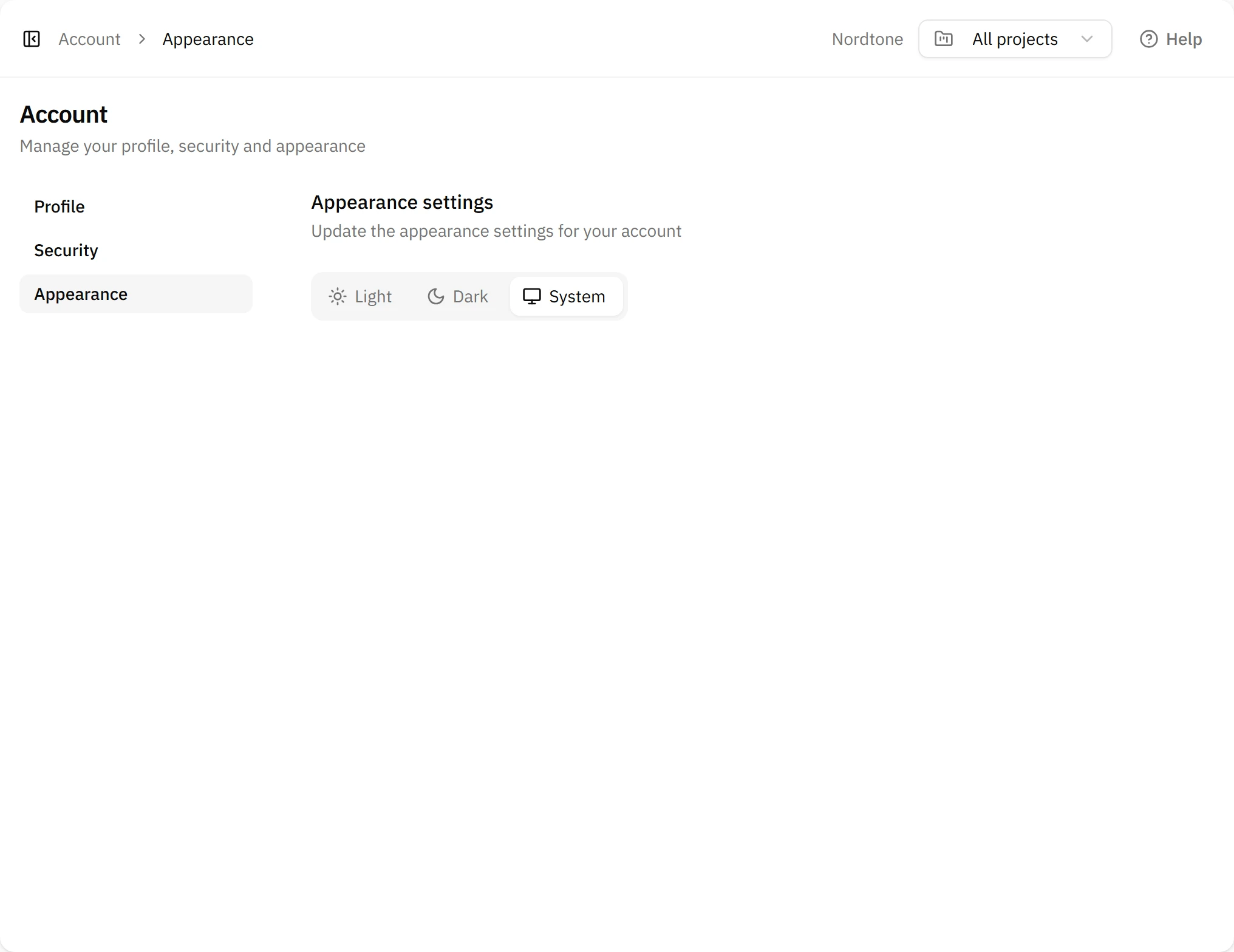
The theme is Light, Dark or System, which follows your computer's setting. It applies at once and is remembered in this browser: on another computer, pick it again.