
Docs
Verifications
The log of one-time code (OTP) checks — channel, provider, status, attempts and delivery failure reasons.
A verification is a phone check with a one-time code (OTP): an app requests a code through the API, the customer receives it by SMS or WhatsApp and enters it. The Verifications section logs every code issued, so you can see whether a code arrived, who sent it and why a check failed. The codes themselves are not shown. Roles with the “Customers → View” permission can see the section.
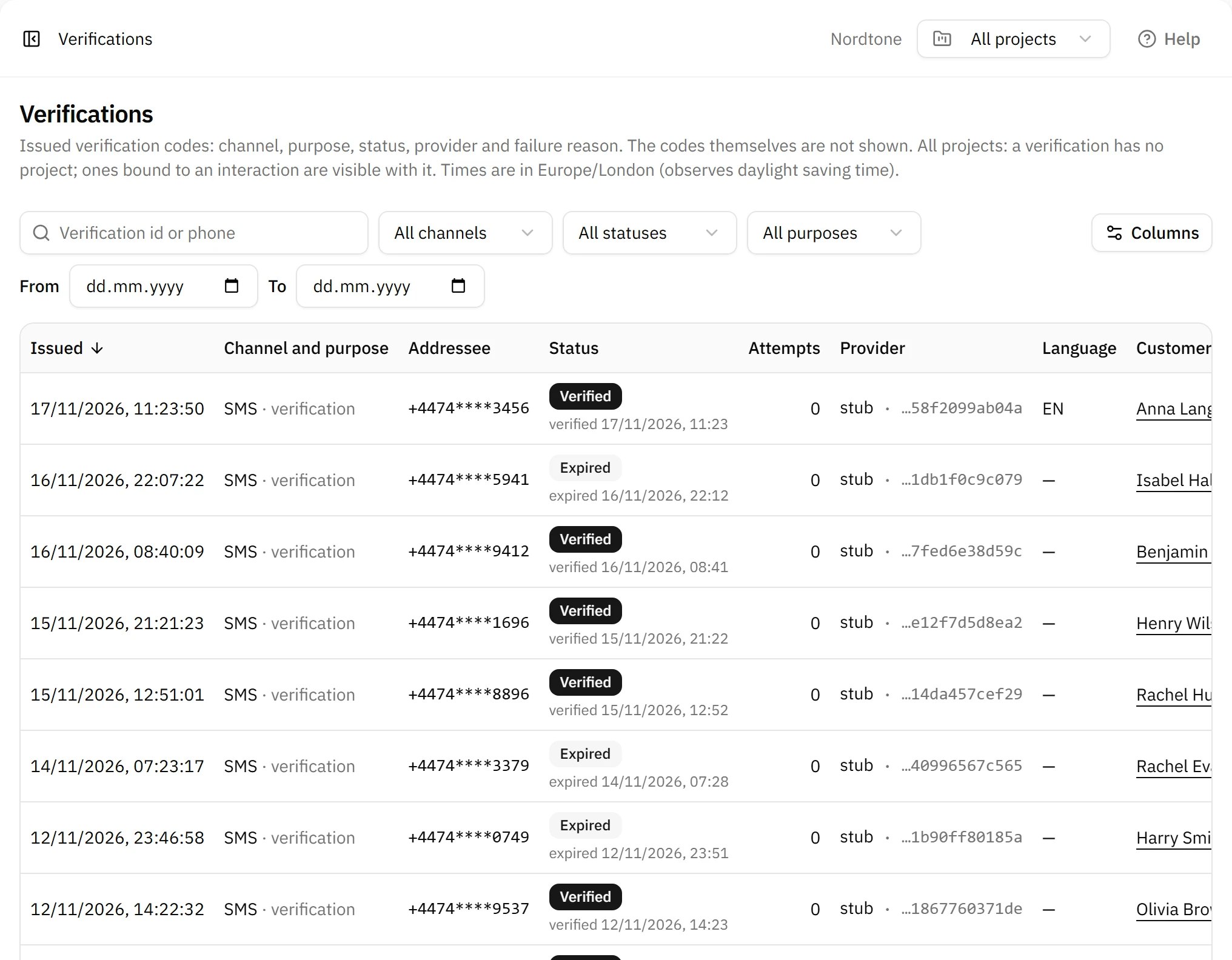
What's on the screen
The list runs from newest to oldest. Each row shows:
- Issued — when the code was issued.
- Channel and purpose — SMS or WhatsApp and the purpose — a code the app passes when sending; it selects the message template.
- Addressee — the phone number, masked.
- Status — with the time next to it: when the code was verified, when it expired or until when it is valid.
- Attempts — how many times a wrong code was entered.
- Provider — the delivery service, the end of its message ID (the full one is in the tooltip) and the failure reason, if any.
- Language — the message language.
- Customer — a link to the customer card, if the code is bound to a customer.
- Interaction — an Open link to the interaction the check is bound to. A role without permission to view interactions sees only a Bound mark.
- Sent by — who requested the code, for example the promoter app.
The Columns button hides and shows columns. Times are in the organization's time zone.
Statuses
- Awaiting code — the code has been sent and the customer hasn't entered it yet.
- Verified — the customer entered the correct code.
- Expired — the code ran out of time without a correct entry.
- Delivery failed — the provider didn't deliver the code; the reason is in the Provider column.
After an expiry, a failure or running out of attempts, the app requests a new code, which becomes a new row in the list.
Search and filters
The search box finds a verification by its id or by phone number. Filters narrow the list by channel, status, purpose and the From–To period; days follow the organization's time zone. Purposes come from the message templates in the OTP section. Filters are kept in the page address, so you can send a link to a colleague.
The project selected in the admin panel header doesn't narrow this list: a verification has no project. Verifications bound to an interaction are visible together with it, that is, only if the role has access to that interaction's project.
One customer's verifications
Open the Verifications tab of the customer card and press All customer verifications. The list opens filtered by the customer; the button next to the name clears the filter.
On the interaction page, the In the verifications list link leads to the interaction's check.
Handling a complaint
A customer says the code never arrived. Find her verifications by phone number and look at the status:
- Delivery failed — the provider's refusal reason is in the Provider column. The message ID helps to find the message on the provider's side.
- Expired — the code arrived late or the customer didn't enter it in time.
- Awaiting code with several attempts — the code arrived, but a wrong one is being entered.
Channels, providers and message texts are set up in the OTP section.
Verifications through the API
Only the API issues and checks codes: POST /verifications sends a code and
POST /verifications/{id}/check checks the one entered. In the admin panel, verifications are view-only.