
Docs
Connect a webhook
How to subscribe an external system to CRM events — the subscription, the secret and signature check, the delivery log and manual retry.
In this guide you subscribe an external system to CRM events, trigger an event and find its delivery in the log. The example is Nordtone: the BI system needs to know when a customer's fields or labels change, without polling the API. Webhooks are set up by roles with the “Settings → All settings, users and roles” permission — only the system “Administrator” role has it.
What you need
- The “Administrator” role.
- A receiver address from the external system's developers. It must start with
https, resolve to a public network and contain no login, password or part after#(receiver address). - A receiver that answers with a
2xxcode within 10 seconds. If it isn't ready yet, you can still create the subscription: the CRM retries deliveries on schedule, and what failed can later be resent by hand.
Create the subscription
- Open Settings → Webhooks and click New subscription.
- Paste the developers' address into the Receiver address field.
- In the Events block, tick “Customer updated” and “Customer labels changed”.
- Leave the Projects block empty — the subscription gets events from every project.
- Click Create subscription.
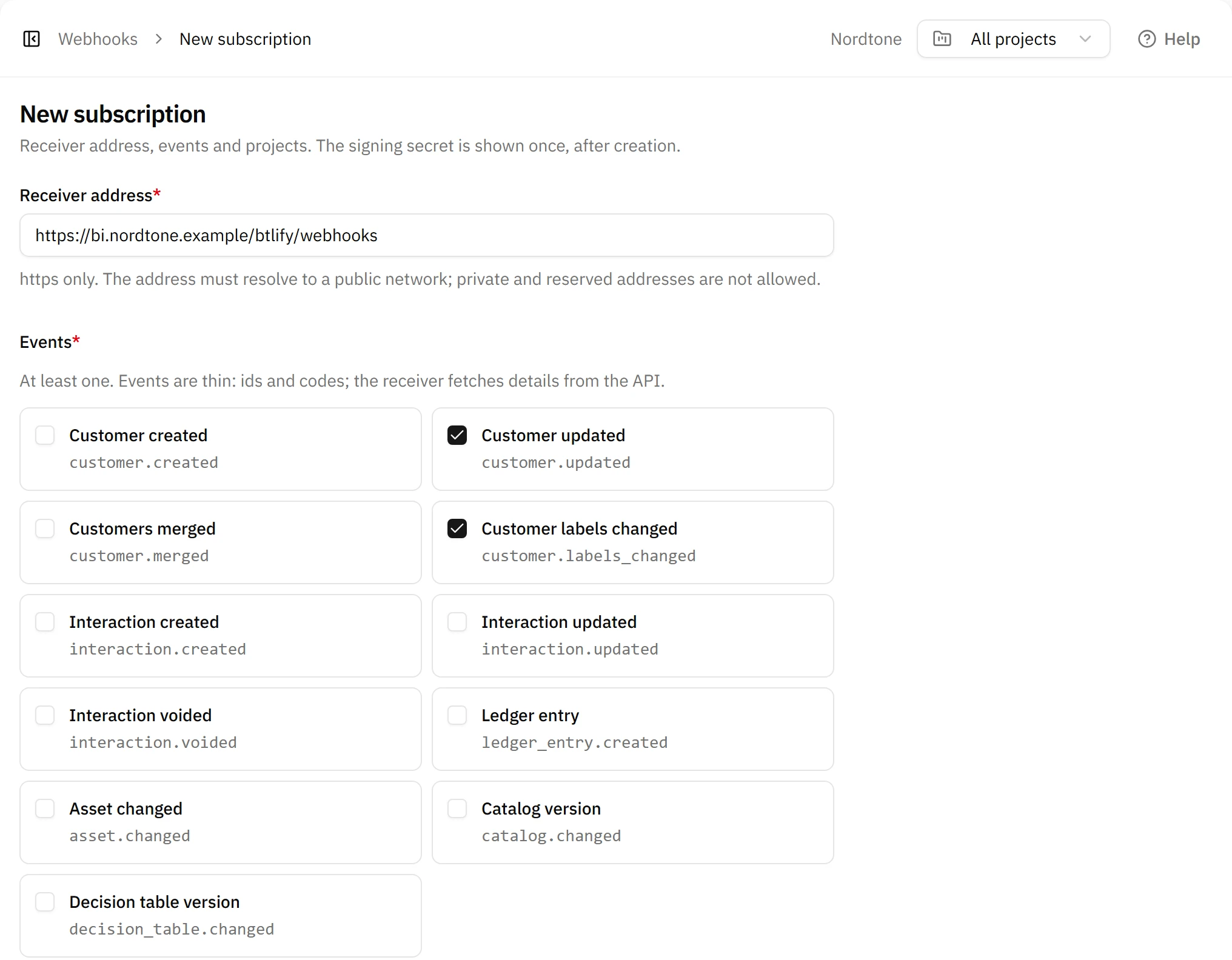
If the address doesn't resolve to a public network, the CRM doesn't save the subscription and shows the reason under the field. The full list of events and their codes is in Events, and the project filter in Projects.
Hand over the secret
After creation, the subscription page opens with the signing secret above the form and a Copy button.
- Click Copy and send the secret to the receiver's developers over a secure channel.
- Don't leave the page until the secret is saved: it is shown only once.
If the secret is lost or may have leaked, issue a new one with Issue a new secret on the subscription page: the previous secret keeps signing requests alongside the new one for a day (signing secret).
How the receiver checks the signature
This part is for the receiver's developers. Every CRM request carries a Btlify-Signature header of the form
t=<time>,v1=<signature>: t is the send time in Unix seconds, and v1 is an HMAC-SHA256 of the string
<t>.<request body>, keyed with the whole secret, including its btlwh_ prefix. The receiver:
- computes the signature the same way over the raw request body, before parsing the JSON;
- accepts the request if the signature matches at least one
v1=pair — for a day after a new secret is issued there are two; - rejects requests with an old
t— the API documentation recommends a 5-minute window; - drops repeats by the event
id: one event can arrive more than once.
The request format and the data of each event are described in the “Events” section of the API documentation.
Trigger an event
A subscription only gets events that happen after it was created. Trigger one yourself:
- Open Customers and find the customer “Anna Lange” with the search box.
- Click Add label in the card header.
- In the Label field, pick “VIP”, and in the Reason field, type “Webhook check”.
- Click Add.
A label is a “Customer labels changed” event. Editing the customer's fields with the Edit button would give “Customer updated” (customer card).
Check the result
- Go back to Settings → Webhooks, open the subscription and click Delivery log. The log opens filtered by this subscription.
- Find the row with the “Customer labels changed” event. If it isn't there yet, refresh the page in a minute.
- Open the row. The delivery page shows the attempts with the receiver's response and the Request body: the
customer id and the code of the added label,
vip.
The delivery status depends on the receiver:
- “Delivered” — the receiver answered
2xx, everything works; - “Pending” — the receiver didn't answer
2xxor isn't ready yet. The Last result column shows the response code or the kind of failure, and the Finished column shows the time of the next attempt. The CRM retries by itself after 1 min, 5 min, 15 min, 1 h, 3 h, 6 h and 12 h; - “Failed” — all eight attempts failed or the delivery didn't finish within two days.
Statuses and the delivery page are covered in Delivery log.
Retry what failed
Once the receiver is fixed, failed events can be sent again:
- On the Deliveries tab, pick “Failed” in the All statuses list.
- Open the delivery and click Retry delivery in the Retry block.
- Confirm the retry.
The event goes out with the same id — to the subscription's current address and with the current secret. A delivery in another status, or one of an inactive or deleted subscription, or of a subscription that no longer takes this event type or its project, has no button: the block names the reason (manual retry).
What's next
- Webhooks — all events, delivery rules, deactivating and deleting a subscription.
- API clients — the receiver needs its own API client to fetch event details.
- API documentation — the webhook request format and event data.
- Export a list to a file — a one-off export instead of a stream of events.