
Docs
Table definitions
Decision table definitions — request parameters, columns, result schema, campaign parameter, projects, enabling and disabling.
The Table definitions section sets how decision tables work: by which parameters and conditions a table picks rows and what a row returns. The rows themselves are edited under Decision tables. The section sits in the Settings menu and is visible to roles with the “Settings → All settings, users and roles” permission (only the system “Administrator” role has it).
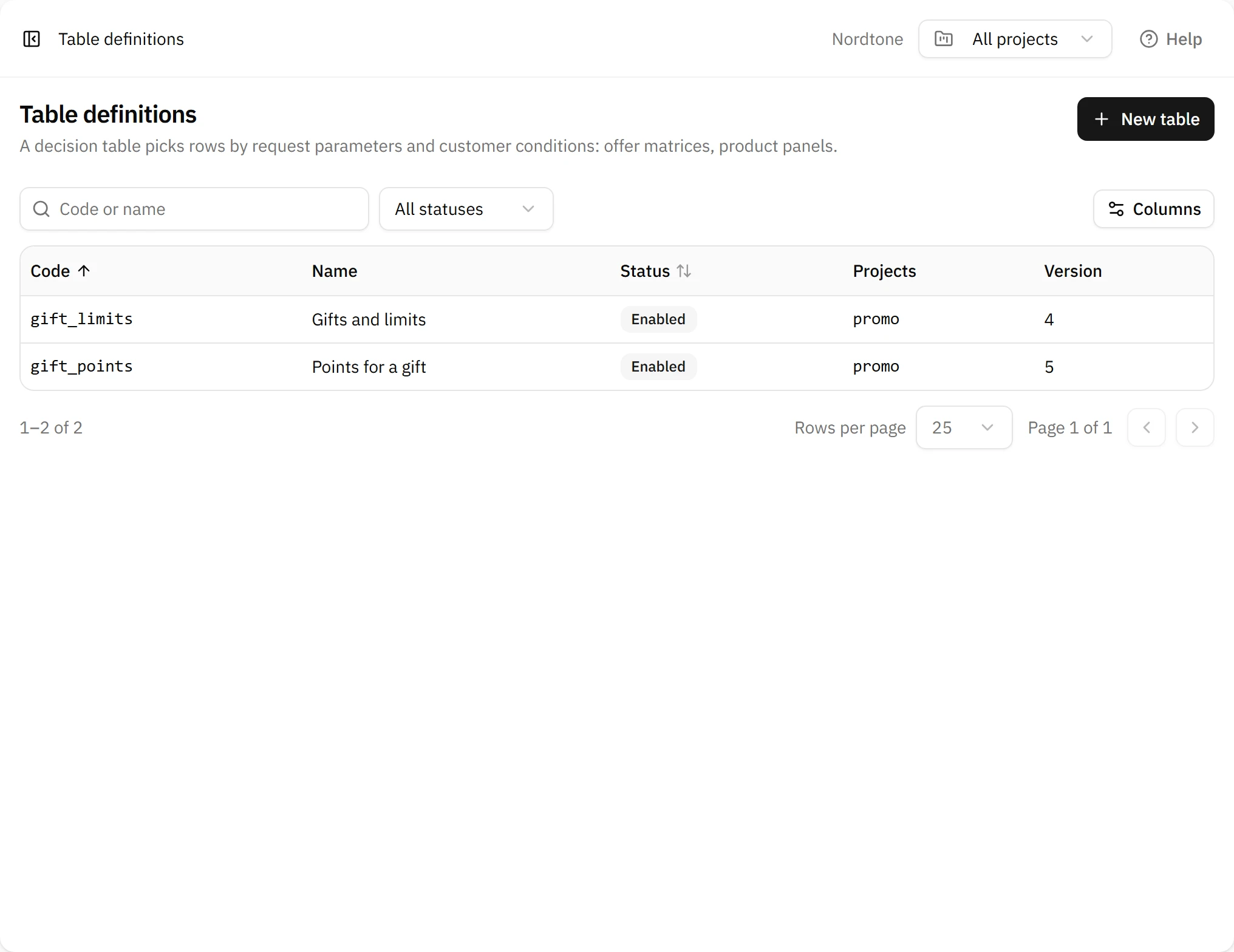
Table list
Each table in the list shows its code, name, status (“Enabled” or “Disabled”), the projects where it can be evaluated (“All projects” if none are selected) and the definition version. A table that fails checks against the current settings carries a red “Fails checks” badge; its tooltip lists the reasons. Search by code or name, filter by status, sort by code and status.
A row opens the table definition.
New table
- Press New table.
- Enter the Code and the Name in at least one language.
- Describe the request parameters, columns, result schema and projects — see below.
- Press Create table.
The table is created disabled: its definition opens, and you enable the table there once everything is ready. The code can't be changed after creation.
Table definition
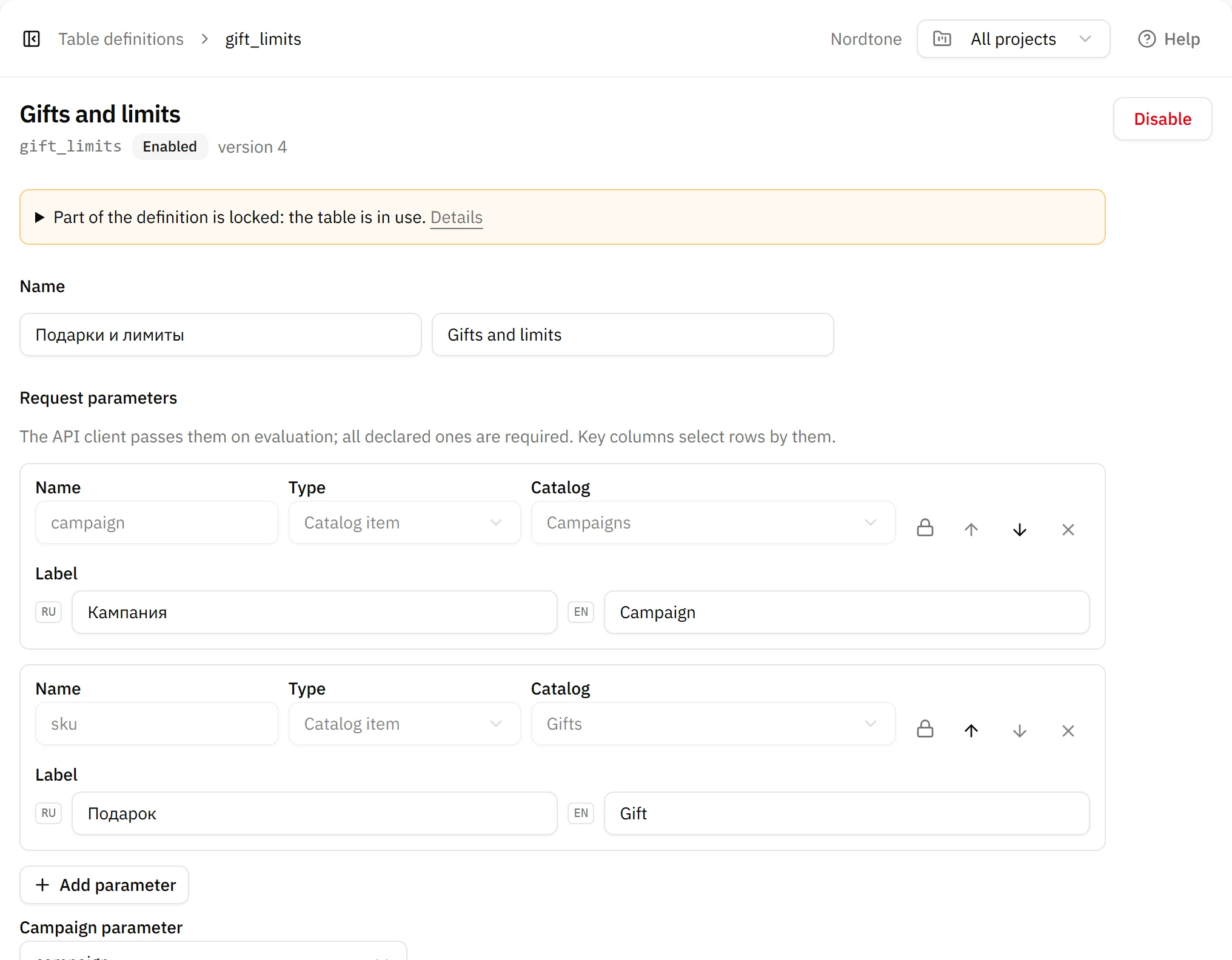
Under the name are the table code, status and version. The version goes up with every saved change to the definition, and also when the table is enabled or disabled. If you save the form without changes, the CRM replies “No changes”.
The definition consists of blocks:
- Name — in each language;
- Request parameters — what an app passes when it evaluates the table;
- Campaign parameter — the parameter that per-campaign row limits are counted by;
- Columns — key columns and customer conditions;
- Result schema — what a row returns on evaluation;
- Projects — where the table can be evaluated.
At the bottom of the page is Definition in JSON: the whole definition, ready to copy.
Request parameters
An app passes the parameters when it evaluates the table; every declared parameter is required. A parameter has a name, a type, a label in each language, plus a catalog for the “Catalog item” type and a list of options for the “Option” type. The types are “String”, “Integer”, “Decimal”, “Yes/no”, “Date”, “Option” and “Catalog item”. Change the order with the Move up and Move down buttons.
Nordtone's “Gifts and limits” table has two parameters: campaign, an item of the “Campaigns” catalog, and sku, an
item of the “Gifts” catalog.
In the Campaign parameter field, choose a parameter that refers to the campaigns catalog. Only with it do rows get a per-campaign limit — see Per-customer limits.
Columns
A column has one of two roles; the Key column and Condition column buttons add a column of that role.
- A request key compares the row cell with a request parameter. For the column you choose the parameter and the operator — the available operators depend on the parameter type.
- A customer condition checks the customer. The Checks field offers “Customer field”, “Interaction history” or “Customer labels”. For labels the row cell is a list of label codes, and the condition is “At least one of the cell labels” or “None of the cell labels”.
In both cases the row cell gives the value to compare. Each column has a code and a label. With no columns, the table returns every row. For example, “Gifts and limits” has the key columns “Campaign” and “Gift” and an “Age” condition on the customer's birth date.
Result schema
The result schema is what a row returns on evaluation: fields, their types and whether they are required. Besides the parameter types there are “List” (with items) and “Object” (with nested fields). The field order is the column order of the rows file in import and export. Below the schema you see how many nodes are used out of the allowed number.
If the table accrues points to an account (an account kind setting under Entity types), the
result schema must keep a required amount field — integer or decimal.
Projects
Projects limit where the table can be evaluated. None selected means all projects. A role limited to projects sees only the tables of its projects under Decision tables.
What can't change in a table in use
When the table is already in use, a banner above the form says “Part of the definition is locked: the table is in use”. The Details link expands the reasons:
- the table has rows — saved columns can't be removed, nor their code, role, kind, operator or target changed, and key column parameters keep their name, type, catalog and options. New columns and options can be added;
- an interaction type setting or an account kind accrual reads the parameter — such a parameter can't be removed, renamed, or have its type or catalog changed.
Locked parameters are marked with a padlock; a parameter's label can always be edited.
Enabling and disabling
The Enable button in the header enables the saved definition — unsaved form edits are not part of it. Once enabled, the table can be evaluated via the API, and interactions may reference its rows. The definition is checked against the current settings before enabling.
The Disable button stops evaluation via the API, and interactions referencing a row of the table are rejected. If an interaction type requires a link to this table, no new interactions of that type go through. The definition and rows are kept. Tables can't be deleted.
Through the API
Apps read a table definition through the API (GET /decision-tables/{code}): parameters, campaign
parameter, columns and result schema. The table is returned only if it is enabled and available to the app's project.
Definitions are edited in the admin panel or by a preset; rows under Decision tables.