
Docs
Interactions
Purchases, gifts, consultations and other customer interactions — the list, filters, export, the interaction page and voiding.
An interaction is any recorded contact with a customer: a purchase, a gift handed out, a device trade-in, a promoter's consultation. Interaction types are set up in the Entity types section, their fields in the Schema section. Roles with the “Interactions → View” permission can see the Interactions section, within the projects available to the role.
Interactions are recorded by apps through the API: the promoter app, a till, the website. In the admin panel you view and review them and void them when needed; you can't create or edit an interaction here.
What's on the screen
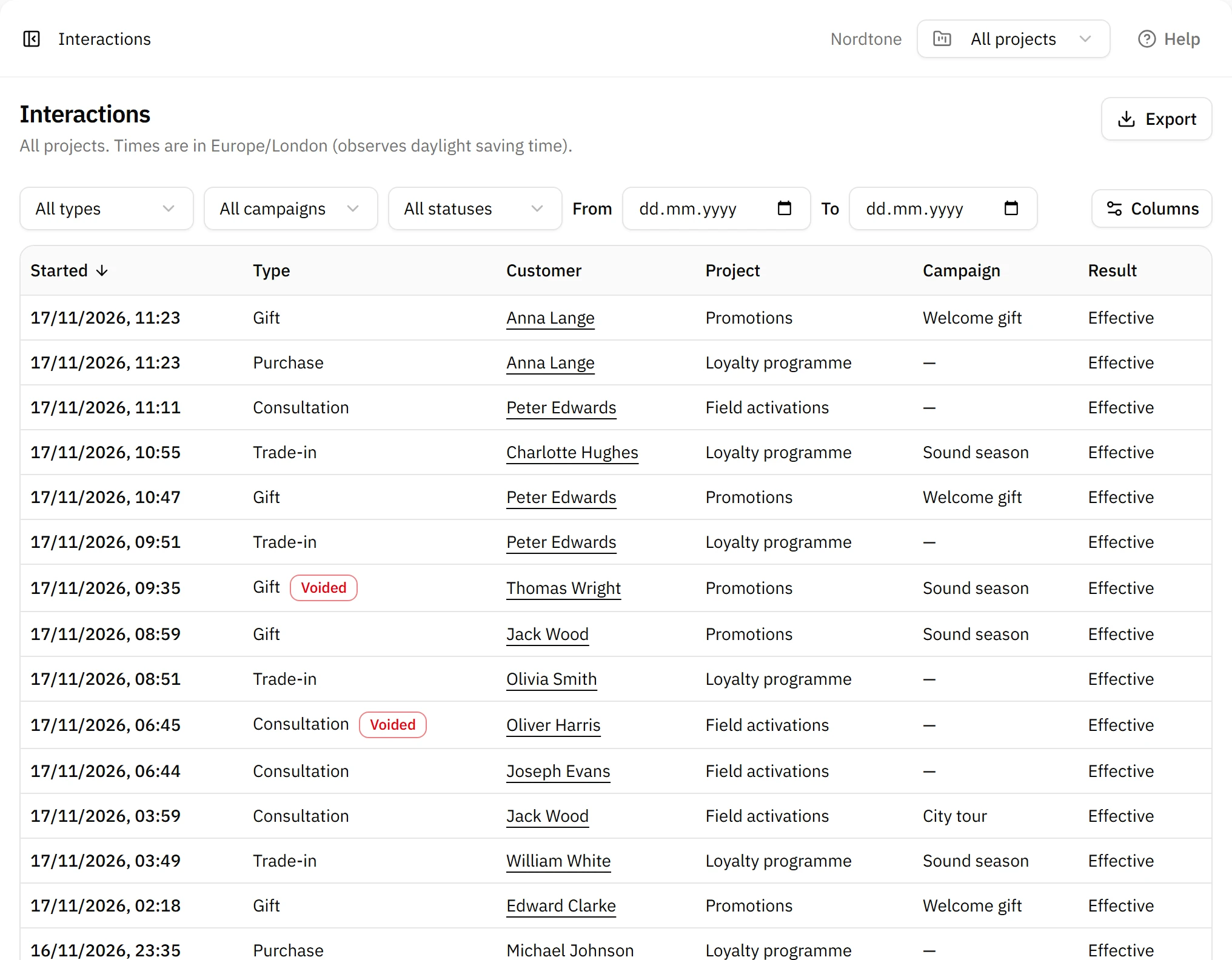
The list runs from newest to oldest. The columns are start, type, customer, project, campaign and result. A voided interaction has a red Voided badge next to the type. The customer's name opens the customer card; the row opens the interaction page.
The Columns button hides and shows columns. Times are in the organization's time zone, shown under the title.
Filters
- Type — the selected type adds columns with its fields to the list, such as “Channel” for a purchase.
- Campaign — shown when the organization's campaign catalog has campaigns.
- Status — active or voided.
- From and To — a period by start date; days follow the organization's time zone.
The project selected in the admin panel header narrows the list too. Filters are kept in the page address, so you can send a link to the filtered list to a colleague.
To see one customer's interactions, open the Interactions tab of their card and press All customer interactions. The list opens filtered by the customer; the button next to the name clears the filter.
Export
The Export button is shown to roles with the “Customers → Export to file” permission, since the file contains customer data. The file contains every row matching the current filters and sorting, with the columns your role can see, as Excel (XLSX) or CSV. The export runs in the background; the finished file appears in My exports.
Interaction page
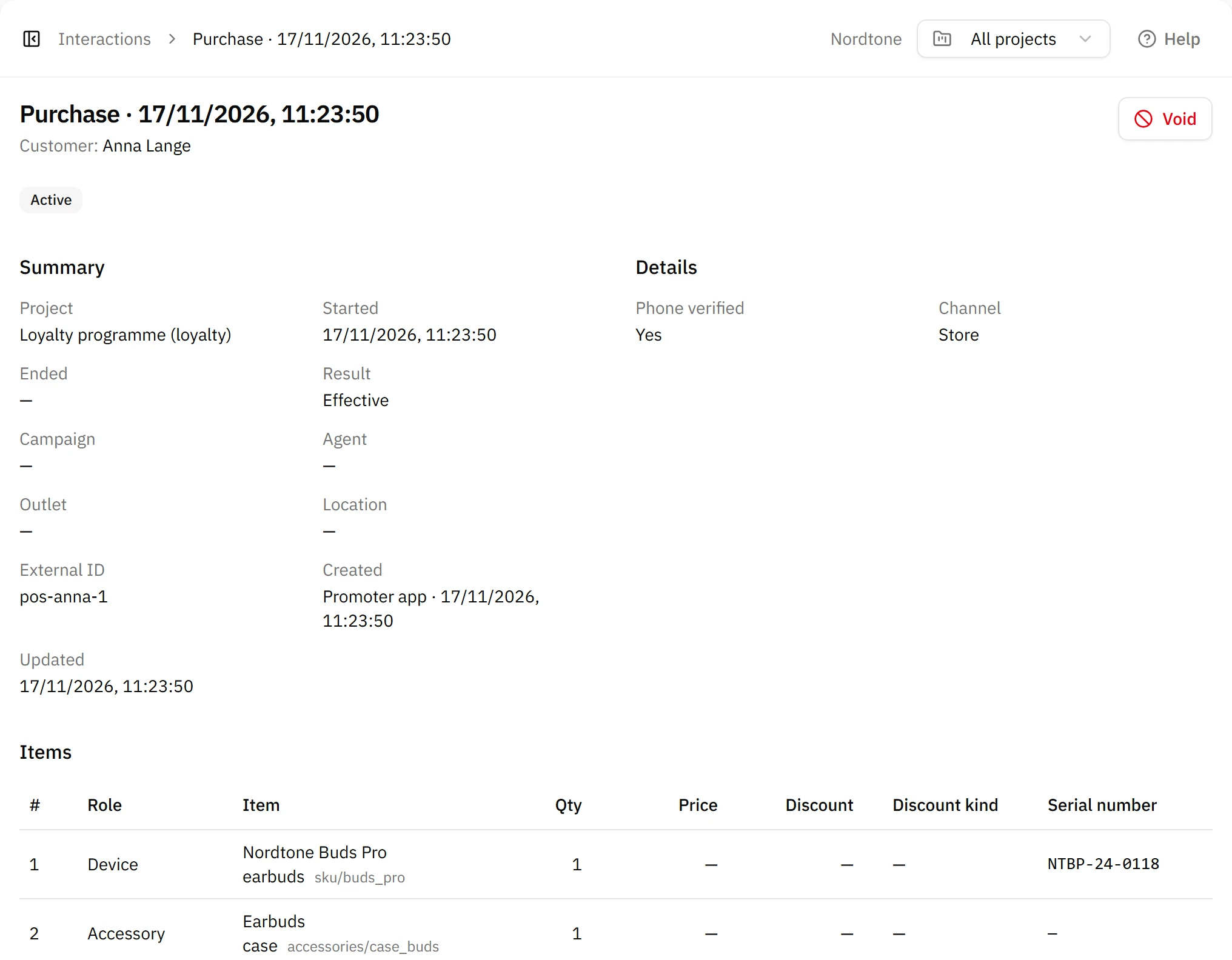
The page opens from the list, from the customer card and from the asset page. The title shows the type and start time; below it are the customer with a link to their card and the status: Active or Voided. A voided interaction also shows who voided it, when and why.
Summary and details
The Summary block holds the project, start and end, result, campaign, agent, outlet, coordinates, external ID, who created the interaction and when, and when it was updated. The Details block lists the interaction type fields visible to your role: for a purchase, “Phone verified” and “Channel”, for example.
Items and attachments
The Items block shows what the interaction included: the item role, the catalog element, quantity, price, discount and serial number. Anna Lange's purchase, for example, has headphones with a serial number and a case. The Attachments block holds photos and files attached to the interaction, with previews.
What the interaction changed
- Consents — consents given or revoked in this interaction: version, channel and time.
- Phone verification — the code check bound to the interaction. The In the verifications list link opens it in Verifications.
- Ledger entries — credits and debits on the customer's accounts, such as points for a purchase. Shown to roles with the “Accounts → View” permission.
- Assets — the assets the interaction registered or changed, with a link to the asset page. Shown to roles with the “Assets → View” permission.
Revisions
If the interaction was edited through the API or voided, each change appears here as a separate revision showing what changed and how. Fields hidden from your role are not revealed.
Voiding
Voiding cancels an interaction recorded by mistake. It is available to roles with the “Interactions → Create and edit” permission, and only for an active interaction.
- Open the interaction page and press Void.
- Enter a reason — it is required.
- Press Void in the window.
The interaction no longer counts as active, and its effects are rolled back: its ledger entries — points earned, for example — are reversed, asset changes are undone, and rules re-evaluate the customer's labels.
Interactions through the API
Through the API, apps create interactions (POST /interactions), read and edit them, void them and
list a customer's interactions. Voiding works the same way in the admin panel and in the API.