
Docs
Catalogs
The organization's catalogs — products, campaigns, regions and custom lists, with items, categories, history and export.
The Catalogs section holds the lists that values are picked from: products, campaigns, regions, gifts and any lists of your own. Roles with the “Catalogs → View” permission can see it. Catalog items are picked in interactions and in reference fields.
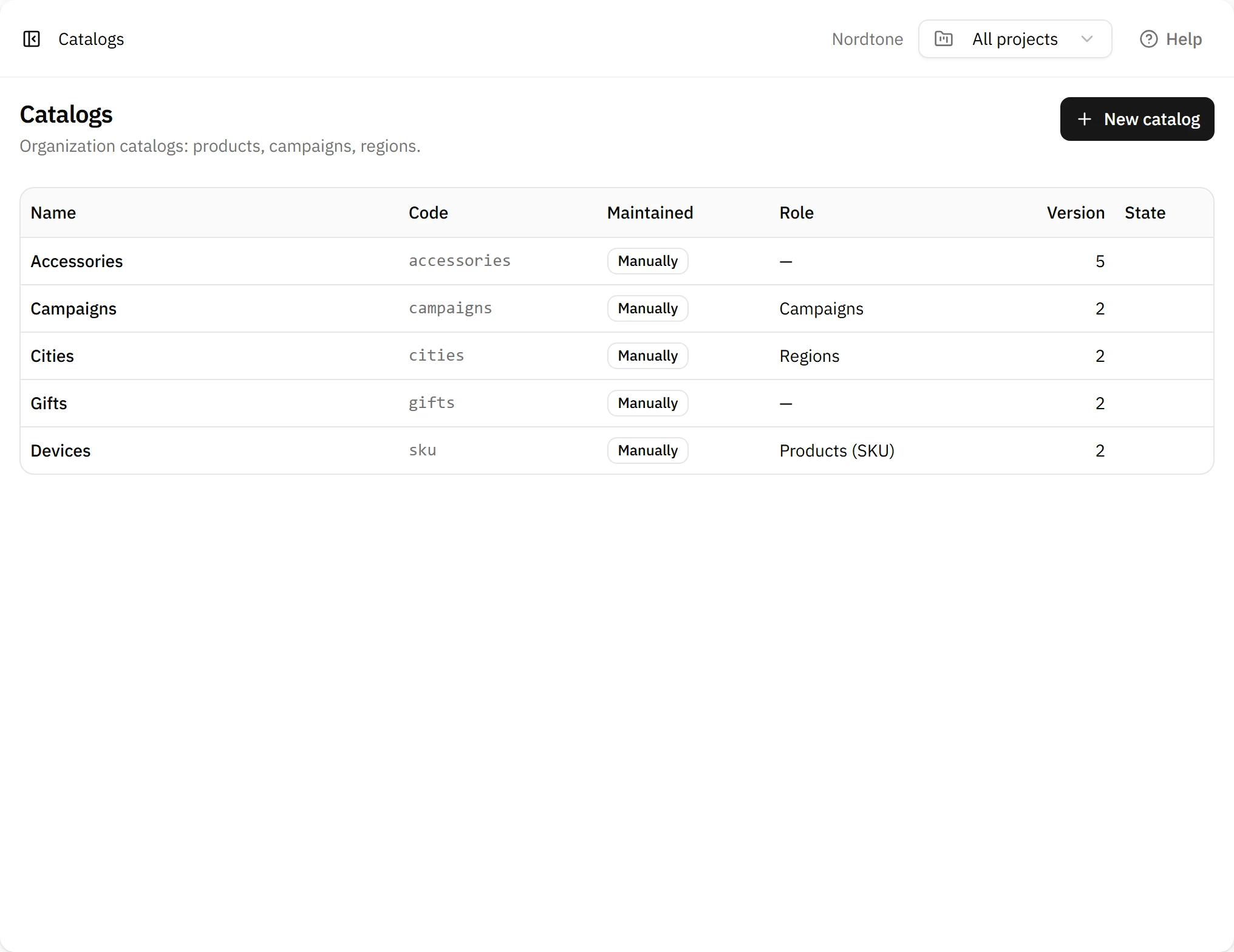
Catalog list
The list shows every catalog of the organization with its name, code, maintenance mode, role, version and state. The name opens the catalog page.
The maintenance mode is set when the catalog is created and cannot be changed later:
- Manually — items are edited in the admin panel, loaded by file import or through the API.
- From the master system — manual editing is closed: items change only by file import or through the API.
A role — “Campaigns”, “Products (SKU)” or “Regions” — belongs to one catalog of the organization only. Items of the catalog with the “Campaigns” role have a period and projects.
New catalog and settings
Roles with the “Settings → All settings, users and roles” permission create catalogs and change their settings.
- Press New catalog.
- Enter the code: lowercase latin letters, digits and underscores, starting with a letter. The schema, the API and reference fields refer to it.
- Fill in the name in the interface languages, choose the maintenance mode and, if needed, a role.
- Turn on Categories if items need a category tree, and Composition (bundles) if an item can consist of other items.
- Press Create, then add item fields with the Catalog fields link — it leads to the schema builder.
The Settings button on the catalog page changes the name and the category and bundle flags, and activates or deactivates the catalog. An inactive catalog can be read but not edited, and reference fields to it accept no values.
Items
The Items tab is the table of catalog items. Its columns are the name, code, catalog fields, state and the version in which the item last changed. A catalog with categories, bundles or campaigns adds category, bundle, period and project columns. The Columns button hides the ones you don't need.
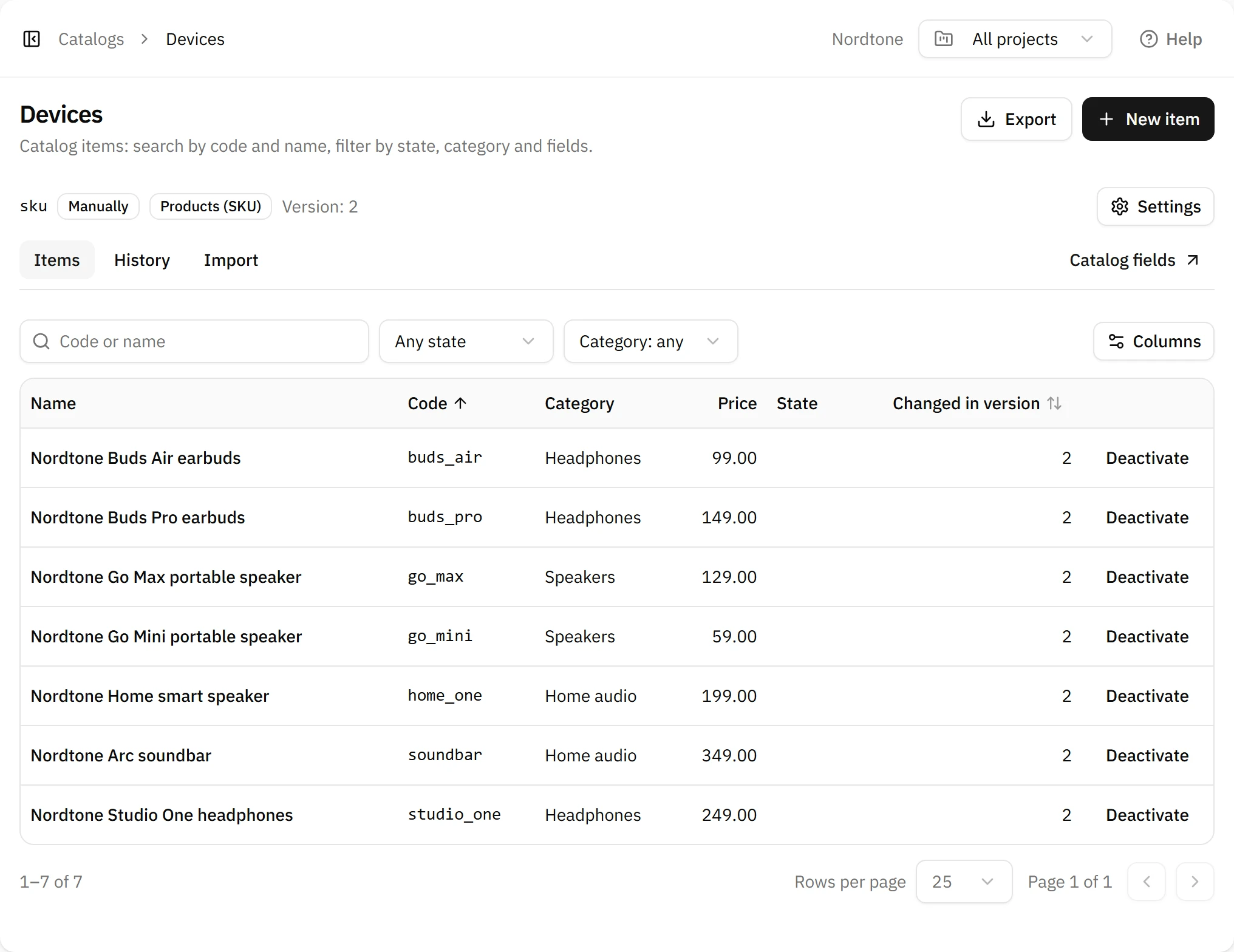
Search looks up the code and the name. Filters narrow the table by state, category and catalog fields of the “Choice” and “Yes/no” types. You can sort by code and by version. Filters and sorting are kept in the page address.
Roles with the “Catalogs → Edit and import” permission edit items of an active, manually maintained catalog. They see the New item button and the Deactivate and Activate row buttons, and a row opens the item form.
- Press New item.
- Enter the code — the master system code or your own, without spaces, up to 64 characters. The code is set once.
- Fill in the name in at least one language, the category and the catalog fields.
- For a bundle, add its components: an item and a quantity.
- For a campaign, set the start, the end and at least one project.
- Press Create item.
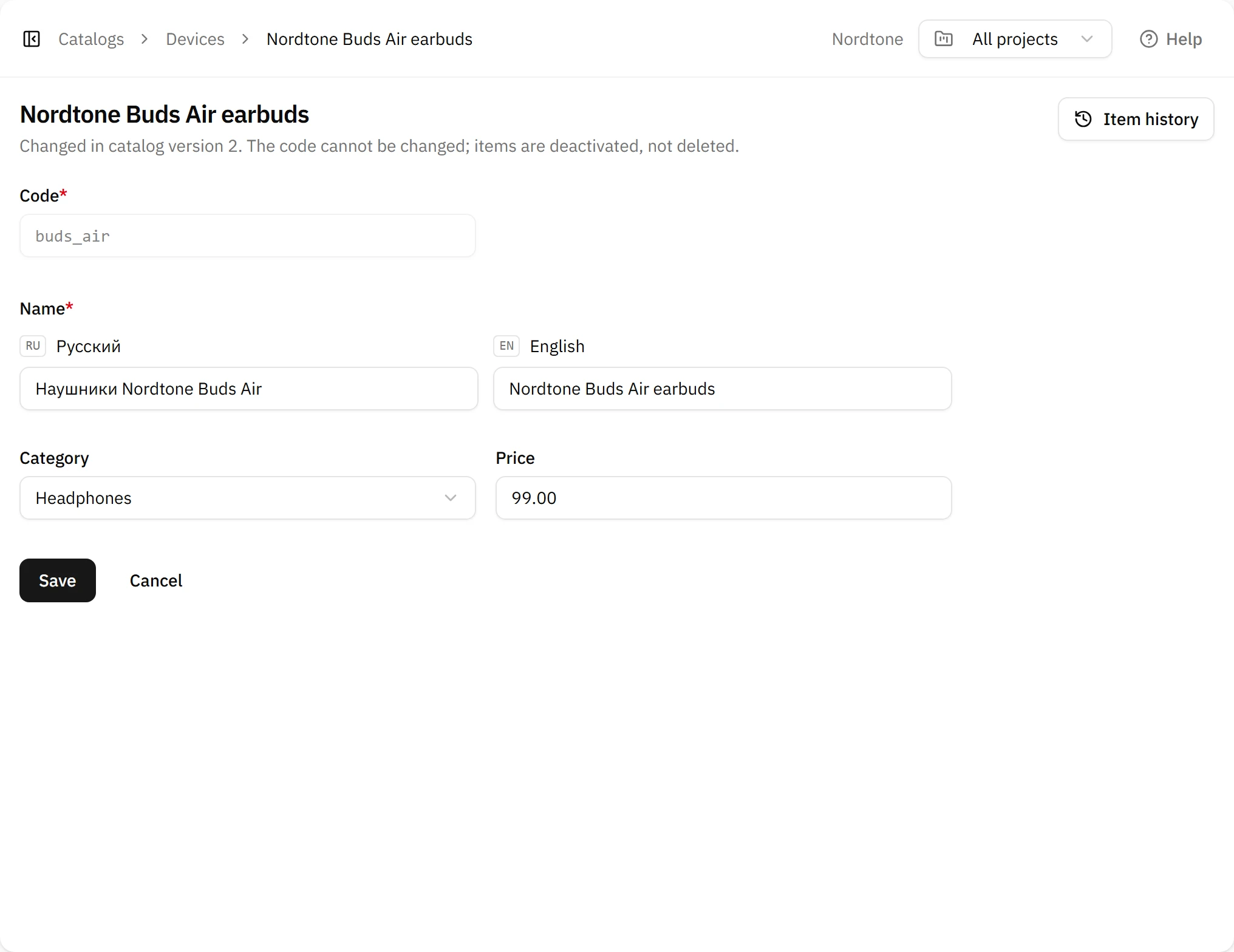
The form of an existing item keeps the code fixed, and the Item history button opens its changes.
Categories
The Categories tab exists in catalogs with categories turned on. The table shows each category's name, code, number of items and state.
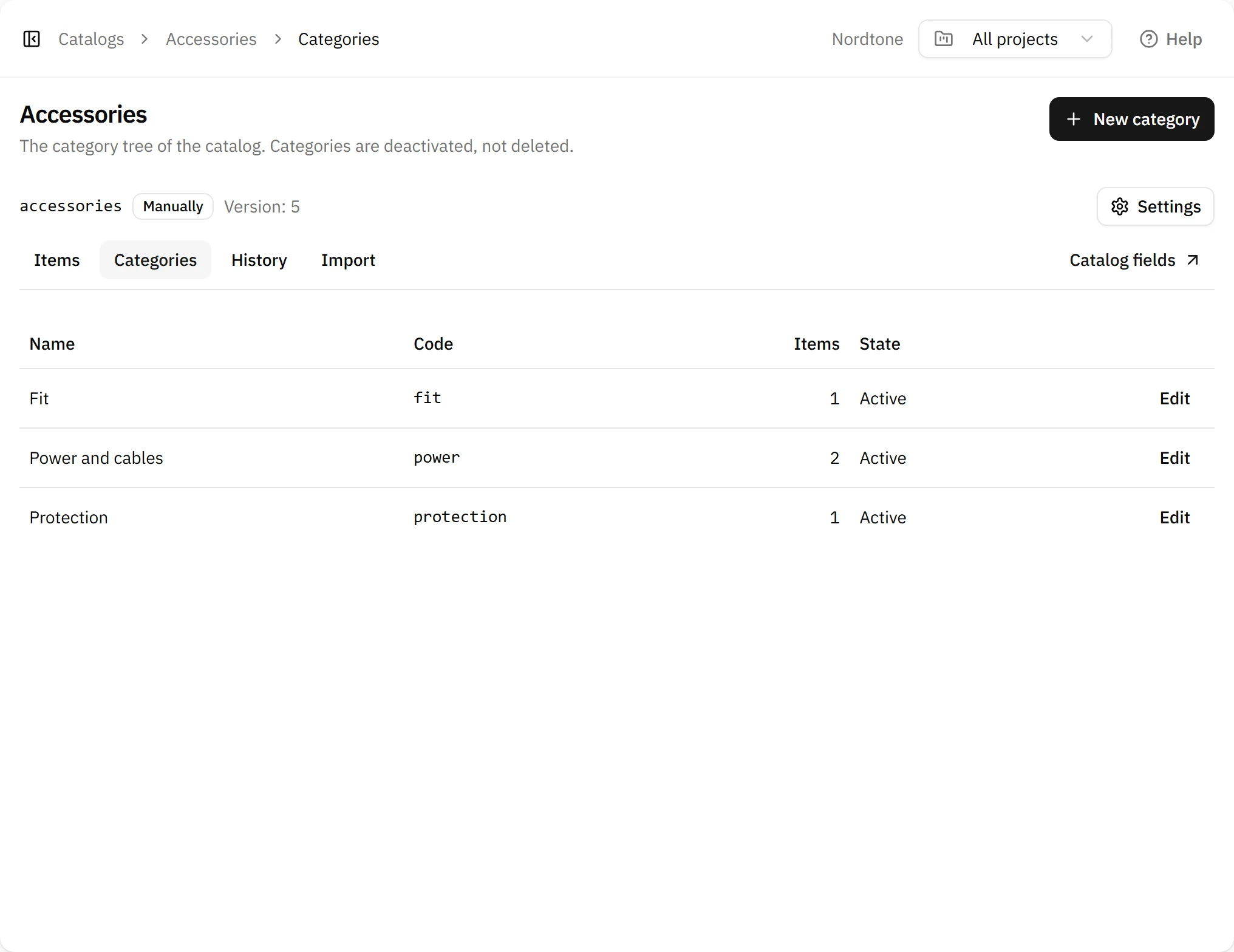
The New category button opens a form with the code, name and parent. A category without a parent is a root one; create root categories first, then nested ones. To move a category, pick another parent with Edit.
Categories are deactivated, not deleted. Items of an inactive category stay in it, but new items cannot be assigned to it and no categories can be nested under it.
History
Every change of a catalog raises its version. The History tab lists changes from newest to oldest: the version, time, what changed (the catalog, a category or an item), the operation, the changes themselves and the author.
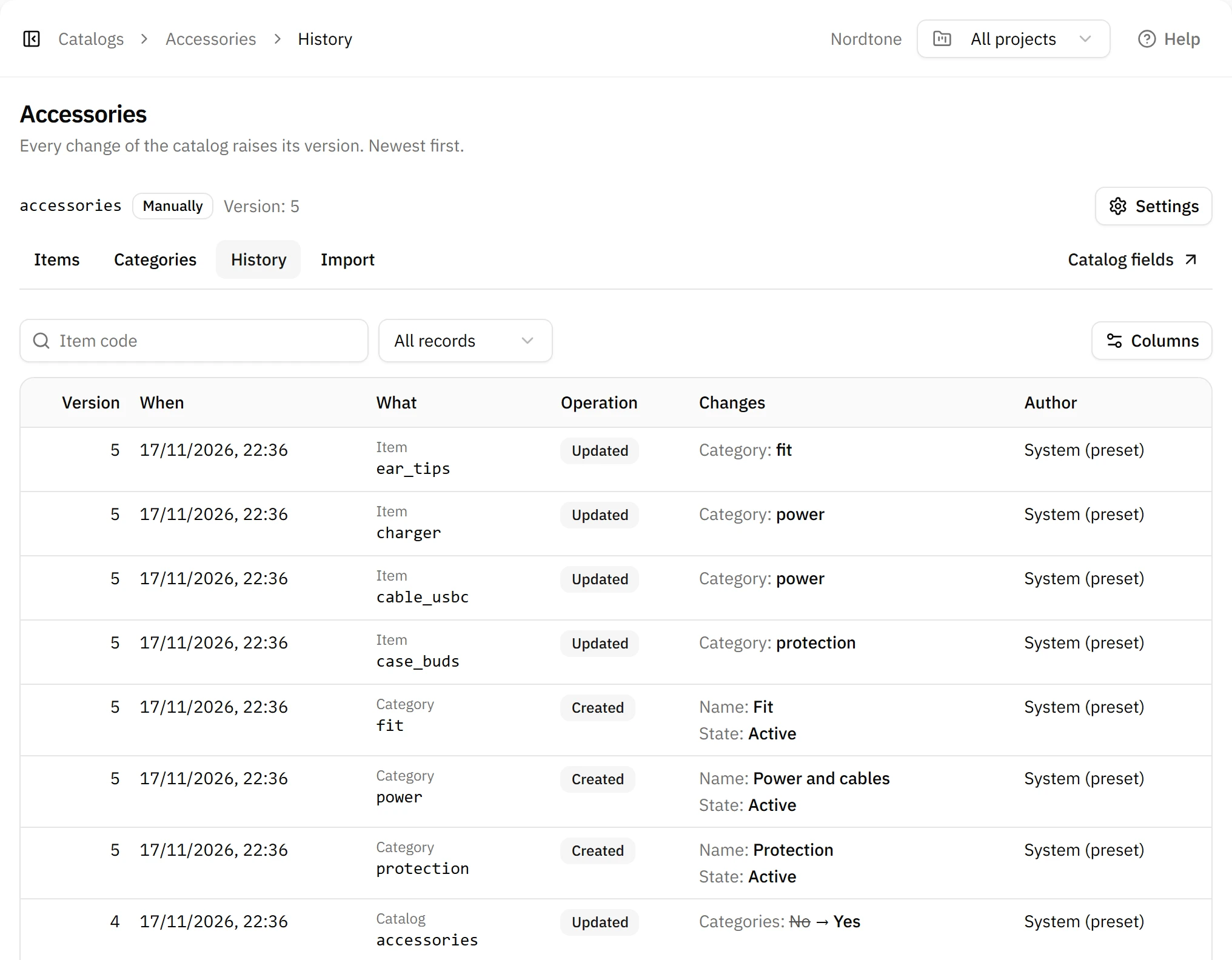
Search by item code and the record type filter narrow the list. The author is a user, “System (preset)” or “Deleted user or API client”.
Export
The Export button on the items tab is shown to every role that can view catalogs. The file holds the whole catalog, inactive items included, in the import format and with the columns your role can see; list filters are not applied. The format is Excel (XLSX) or CSV. The finished file appears in My exports, and you can import it back without edits.
Import and API
The Import tab is the log of catalog imports from XLSX and CSV. Uploading a file, mapping columns and checking it before writing are covered in File imports.
Through the API, apps read catalogs, items and the change log, and the master system writes categories and items in batches.