
Docs
Rules
Rules set and remove customer labels from customer data, labels and interaction history — on their own, without an operator.
A rule is a condition plus a label. While the condition holds for a customer, the rule keeps the label on them; when it
stops holding, the rule removes it. At Nordtone, for example, the active_buyer_90d rule sets the “Active buyer” label
on everyone with two purchases in the last 90 days. Rules sits in the Settings menu and is visible to roles with the
“Settings → All settings, users and roles” permission (only the system “Administrator” role has it).
What's on the screen
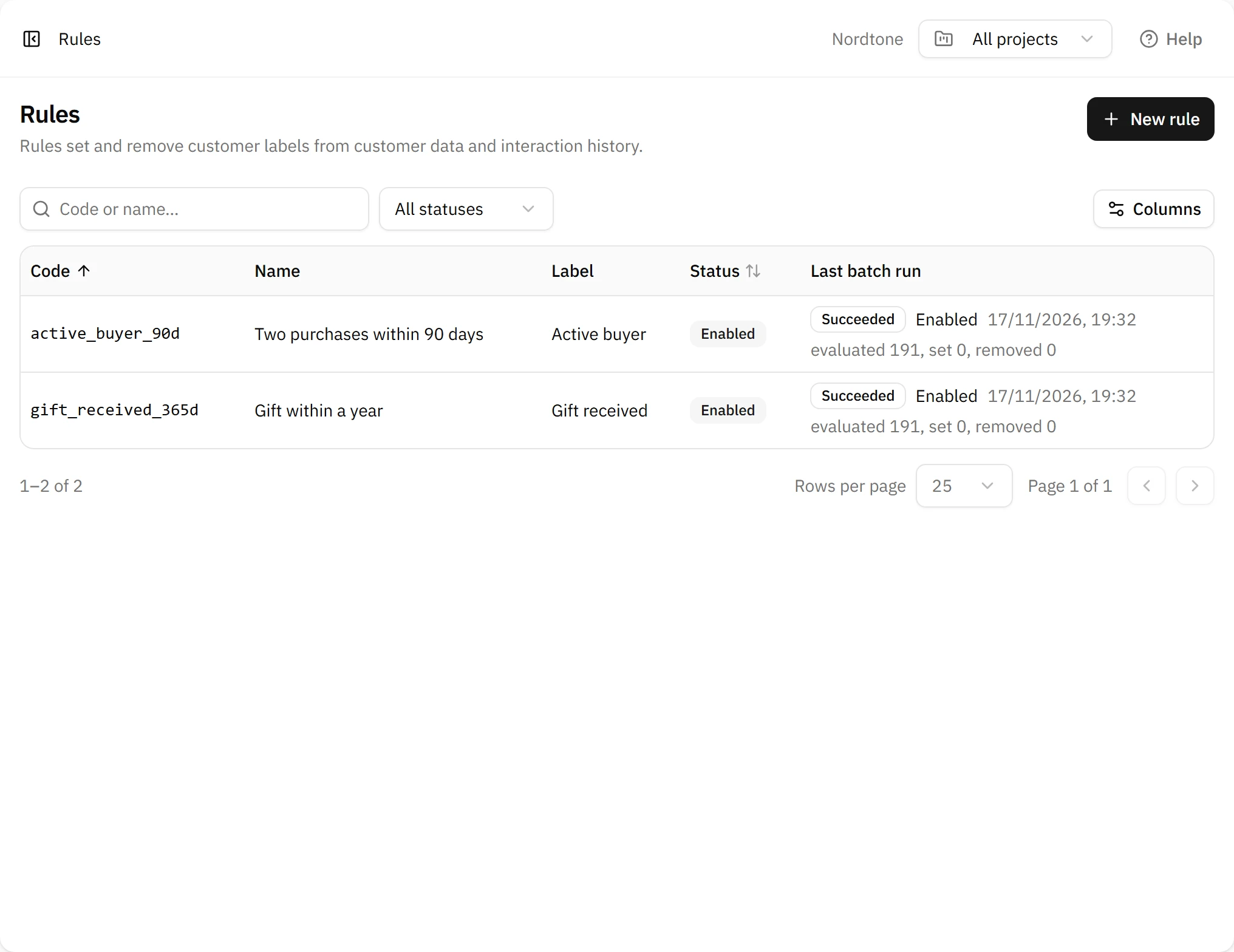
Each row shows the rule's code and name, the label it sets, the Enabled or Disabled status and the outcome in the Last batch run column: state, cause, time and the “evaluated, set, removed” counters. The Broken badge means the rule fails validation against the current schema — for example, its condition refers to a switched-off field; such a rule is skipped when applied, and the badge tooltip gives the reason.
Search by code and name, filter by status. A row opens the rule page.
When a rule fires
An enabled rule recalculates on its own:
- after an interaction of the customer — Interaction event in the journal;
- after a customer card edit — Card change;
- once a day, after the organization's local midnight, for rules that depend on time: with a history window, an age, a label lifetime, or with a label condition (any label, set by a rule or by hand) — Schedule;
- after agent registry changes — rules with an agent registry condition; Agent registry;
- in a batch recalculation over all customers — when the rule is enabled, disabled, or an enabled rule's condition changes.
A label is set by only one enabled rule. If a rule reads a label set by another rule, it is applied after that rule. Rules that read each other's labels in a cycle cannot be enabled.
Rules never touch manual labels: if an operator set the same label by hand, it stays, even after the rule is disabled. Labels and their kinds are created in Entity types, on the Labels tab.
Rule page
The rule page is also its edit form. New rule creates a rule, always disabled: you enable it on its page once the condition is ready.
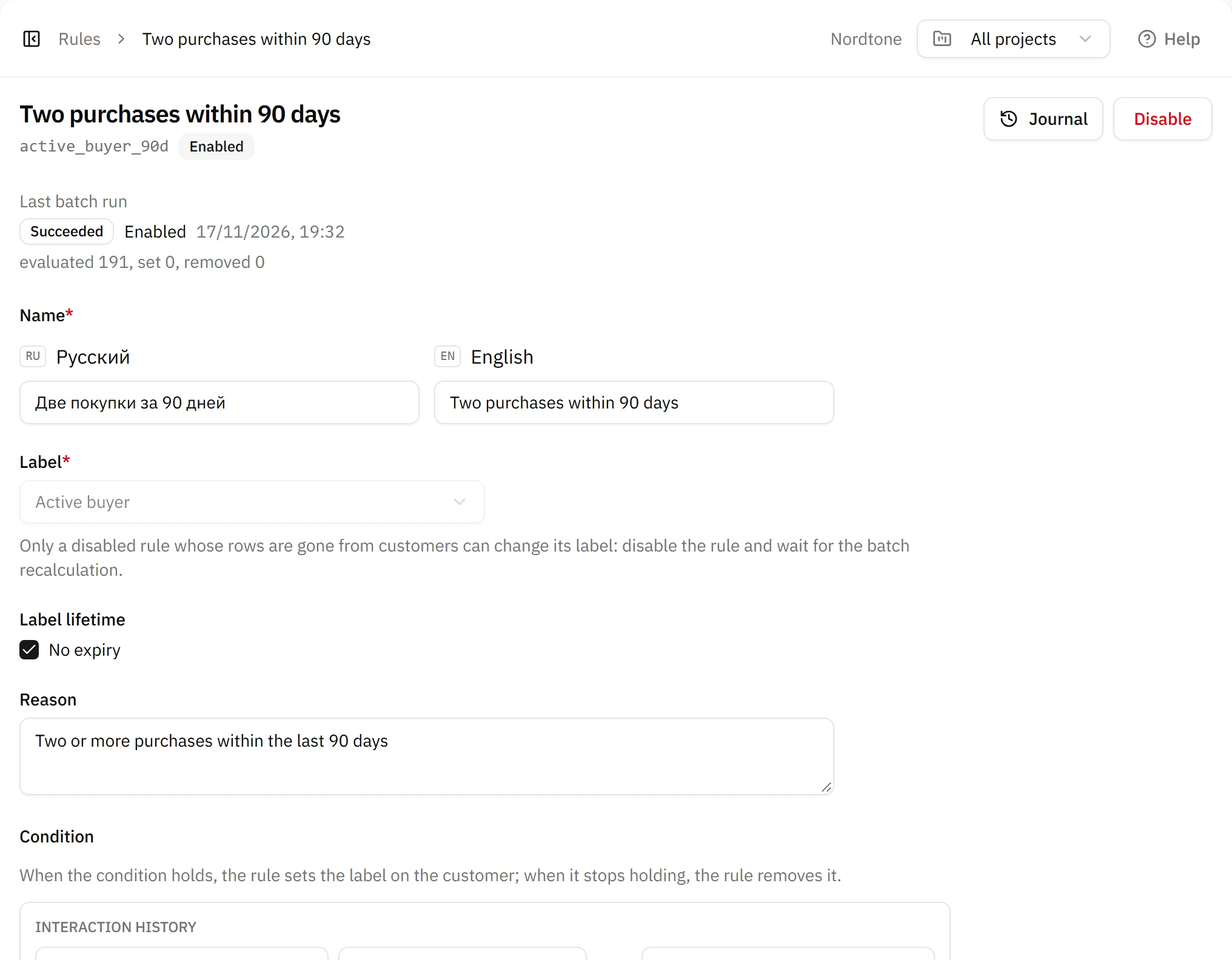
Form fields:
- Code — only on a new rule, it never changes afterwards: lowercase latin letters, digits and underscores.
- Name — in each admin language, at least one.
- Label — the label the rule sets. It can change only on a disabled rule once customers no longer carry its label rows.
- Label lifetime — No expiry or a number of days, up to 3650.
- Reason — an explanation for people, up to 2000 characters; it is shown next to the customer's label.
- Condition — the condition builder, see below.
At the bottom, Condition JSON shows the saved condition as JSON with a Copy button — for example, to move the rule to another organization or to trace an error.
If the rule fails validation against the current schema, a list of problems with the path to each condition node appears above the form.
Condition builder
A condition is built from groups and leaves. A group is either All conditions hold or Any of the conditions holds; the Add button adds a leaf, a nested Group of conditions or a Negation ("not"). Leaves:
- Customer field — a customer schema field and an operator: equals, one of, greater than, from … to, is set, is not set and more — the set depends on the field type. Dates also have age from … to (years).
- Customer label — whether the customer has a label.
- Interaction history — the Number of interactions of a chosen type within a window of days, filtered by project, campaign, result and a field of the interaction data — picked from the Condition on an attribute… list when the type has fields. Example: “at least 2 purchases in 90 days”.
- Agent registry — whether the customer is in the agent registry by phone or national ID, with any role or a chosen one.
A condition allows up to 5 nesting levels and up to 50 leaves. Switched-off fields, labels and types are marked “disabled” in the lists.
Test on a customer
The Test on a customer block shows what the rule would do to a specific customer, without writing anything.
- Find the customer by phone, identifier or full name.
- Click Test.
- Read the outcome — for example, The label will be set or Nothing changes — and the table of leaves: the customer fact and the outcome of each leaf.
The test uses what is in the form right now, even unsaved, and works on a new rule too. Customer labels are taken as they are: rules earlier in the chain are not recalculated. If you change the form after a test, CRM asks you to run it again.
Enabling and disabling
The Enable and Disable buttons are in the page header; both ask for confirmation.
- Enabling starts a batch recalculation: the label is set on every matching customer, and after that the rule fires on their events. A rule that fails validation, sets a label of another enabled rule or closes a cycle will not be enabled — CRM tells you why.
- Disabling starts a batch recalculation that removes the label rows this rule set. Manual labels stay.
Saving an enabled rule with a new condition also asks for confirmation and starts a batch recalculation by the new condition.
Run journal
The Journal button on the rule page opens every run of the rule, newest first: batch runs and runs for single customers. The All runs filter keeps only Batch or only Customer runs.
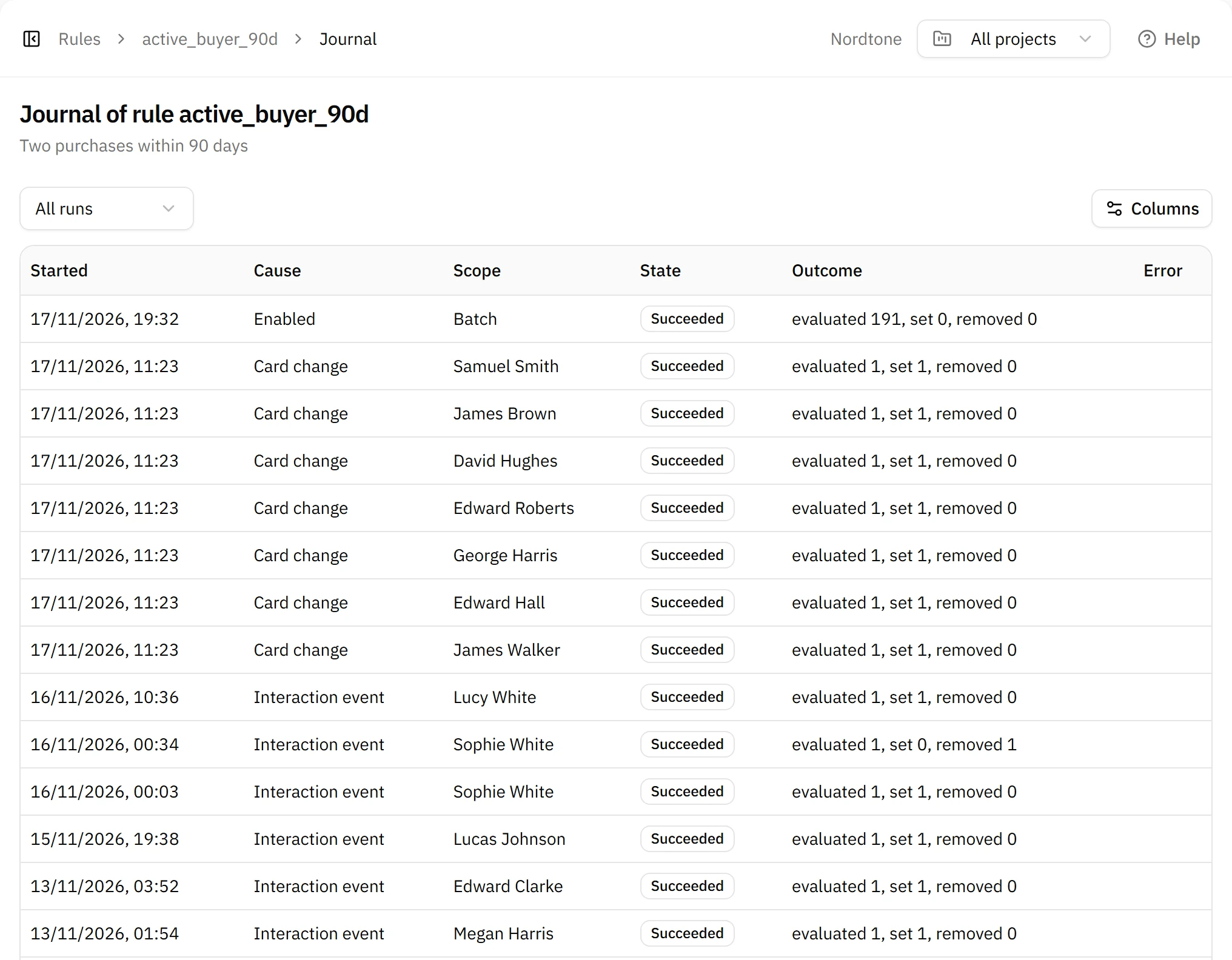
Each row has Started, Cause, Scope (batch, or a customer linked to their card), the State (Running, Succeeded, Failed), the Outcome — how many customers were evaluated and on how many the label was set and removed — and the Error if the run failed. A run is superseded when the rule is switched or a newer run starts.
Rule labels in CRM and the API
A label set by a rule shows in the header of the customer card and in the customer's
timeline, together with the rule name. Through the API, apps read labels on the customer card and set
manual labels, and a subscription to the customer.labels_changed event in Webhooks
notifies an external system of every label set or removed — by hand or by a rule. The rules themselves are configured
only here.