
Docs
API clients
Integrations that call the organization's API — abilities, projects, rate limit, token and revocation.
An API client is an app or system that works with the CRM through the API: a promoter app, a website, a till, an ERP. Each client has its own bearer token, its own set of abilities and projects, and its own rate limit. The section is in the Settings menu. Roles with the “Settings → All settings, users and roles” permission (only the system “Administrator” role has it) can see it.
What's on the screen
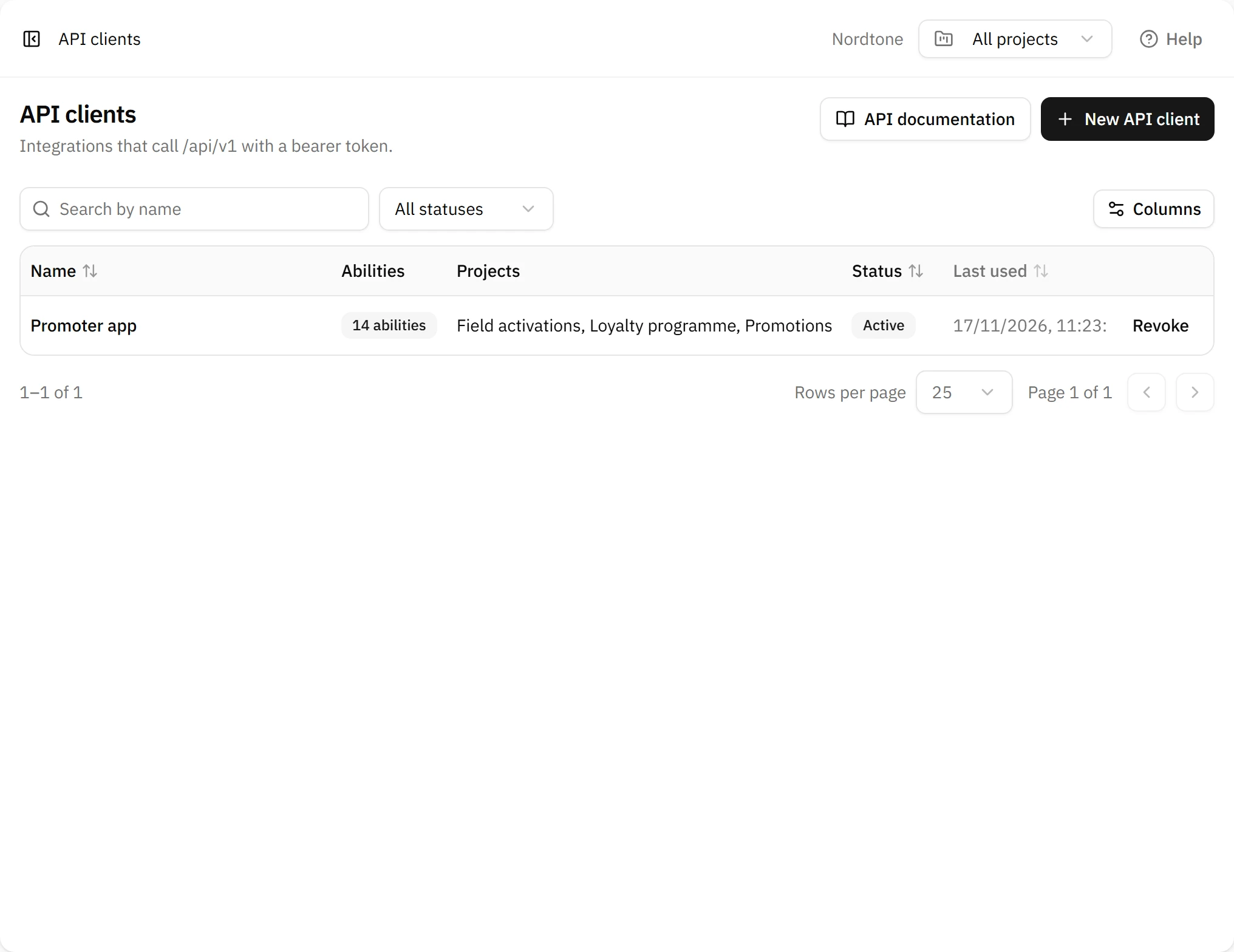
The list columns are the client name, the number of abilities (the full list is in the tooltip), projects, status, the time of the last API call and the creation date. The status is “Active” or “Revoked”. The search box looks up names, and the status filter (All statuses) keeps active or revoked clients. You can sort by name, status, last call and creation date.
A row of an active client opens its form; the Revoke button sits at the end of the row. A revoked client doesn't open.
The API documentation button opens the API reference in a new tab — it is there even before the first client exists.
New client
- Click New API client.
- Fill in Name — for example, “Promoter app”. The name shows in the list and in the API log.
- Tick the abilities — the operations the client is allowed to call.
- Tick the projects the client may work in.
- Set a per-minute rate limit if needed.
- Click Create and issue token.
Once created, the client list opens with the new client's token above it and a Copy button.
Abilities
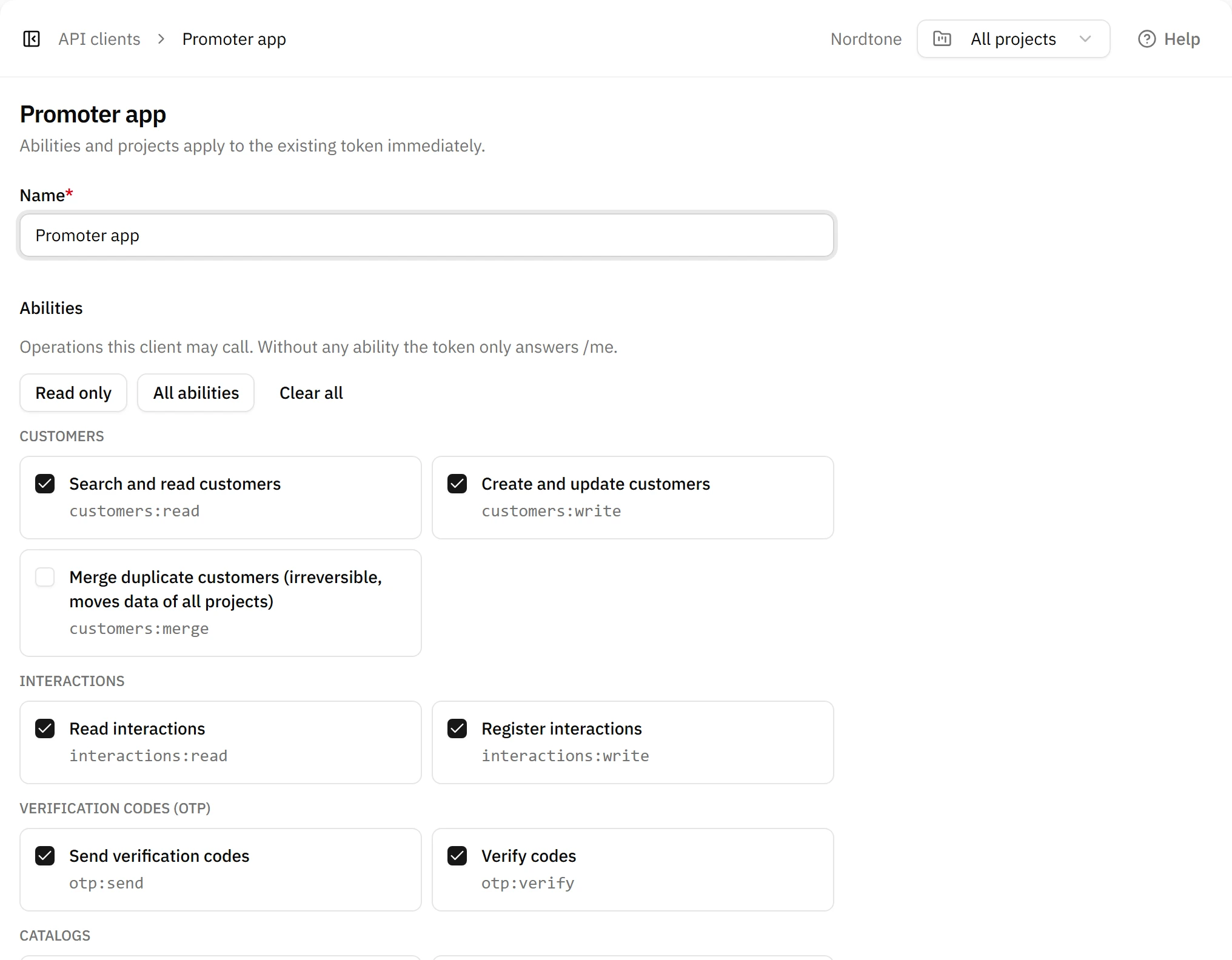
Abilities are grouped by API section: customers, interactions, verification codes (OTP), catalogs, consents,
attachments, schema, decision tables, accounts, agents, agent codes and others. Each ability has a description and a
code such as customers:read. The buttons above the list speed things up: Read only ticks every read ability
(…:read), All abilities ticks everything, and Clear all clears the ticks.
With no abilities at all the token only answers GET /me — the token check itself. A call to an operation without the
required ability is rejected with the FORBIDDEN code.
Projects
Projects define where the client may register interactions. The API rejects a request with a project outside this list. The form lists only the organization's active projects. Projects themselves are set up in Projects.
Rate limit
The Rate limit per minute field caps how many requests this client can make per minute — from 1 to 100,000. Leave it empty for the platform limit: 600 requests per minute by default; the exact value is shown in the field. Over the limit, the API answers with 429 and says when to retry.
Token
The token is shown once — right after the client is created, in a banner above the list. Copy it and hand it to the integration developers over a secure channel. The banner stays until you leave the page; after that the token can't be seen again — neither in the list nor in the client form.
You can't issue a new token for an existing client. If a token is lost or may have leaked, create a new client with the same abilities and projects, switch the integration to its token and revoke the old client.
The token identifies the organization: every request with it works only with that organization's data.
Editing
A row of an active client opens the form with the same fields — name, abilities, projects and rate limit. Changes apply to the token already issued at once: the integration doesn't need to change anything on its side. Save takes you back to the list.
Revoking
- Click Revoke in the client's row.
- Confirm.
A revoked client's token stops working immediately. The client stays in the list with the “Revoked” status, and its earlier requests stay in the API log. A revoked client can't be restored — create a new one.
Working with the API
The integration sends the token in the Authorization: Bearer <token> header. To check a token, call GET /me: it
returns the organization, abilities, projects and rate limit of the client. Requests, responses and error codes are
described in the API documentation. Every request with a recognised token goes to the
API log, where you can see which client sent what and what it got back.
To let an external system learn about CRM changes without polling the API, set up webhooks.