
Docs
Entity types
Customer, identity, label, consent, interaction and asset types, account kinds and agent roles — the list, creation and settings.
The Entity types section is the catalog of types the organization's data is built from: what kinds of customers, identities, labels, consents, interactions, assets, accounts and agent roles exist. The section sits in the Settings menu and is visible to roles with the “Settings → All settings, users and roles” permission (only the system “Administrator” role has it).
Kinds of types
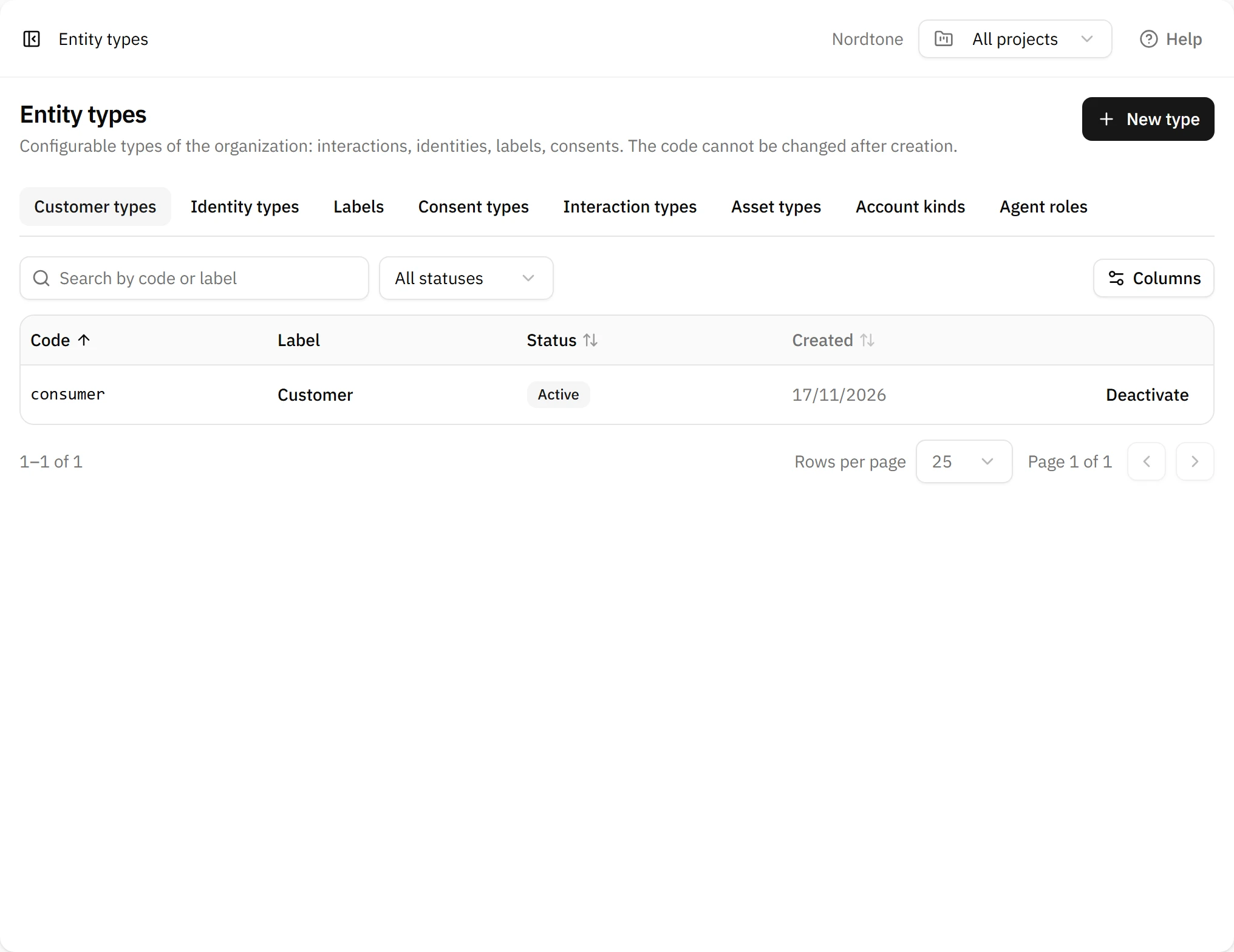
The tabs above the list are the kinds of types:
| Tab | What it defines |
|---|---|
| Customer types | the customer type chosen when creating a customer — for example, “Customer” |
| Identity types | phone, e-mail, QR token, promo code: how the value is normalised and whether two can share it |
| Labels | customer labels and their kind: flag, segment or block |
| Consent types | consents a customer gives — for example, “Personal data processing” |
| Interaction types | purchase, gift, trade-in: items, result, required consents and attachments |
| Asset types | customer assets such as “Device”: statuses, transitions, model catalog, serial number |
| Account kinds | points accounts: unit, precision, negative balance, accrual by a decision table |
| Agent roles | roles in the agent registry, such as “Promoter”, and their import aliases |
The fields of interaction and asset types are not set here but under Schema, where each such type has its own tab. Consent texts and versions live under Consents.
List
Each type in the list shows its code, label, status (“Active” or “Inactive”) and creation date. A type whose settings fail validation carries a red “Invalid settings” badge; its tooltip says what exactly is wrong. Search by code or label, filter by status, sort by code, status and date. Filters and sorting are kept in the page address.
A type's label opens its form.
New type and editing
- Open the tab of the kind you need and press New type.
- Enter the Code — lowercase Latin letters, digits and single underscores, starting with a letter, up to 64 characters. The code is unique within the kind.
- Fill in the Label in at least one language — the other languages fall back to it.
- Fill in the Settings block if this kind has one.
- Press Create type.
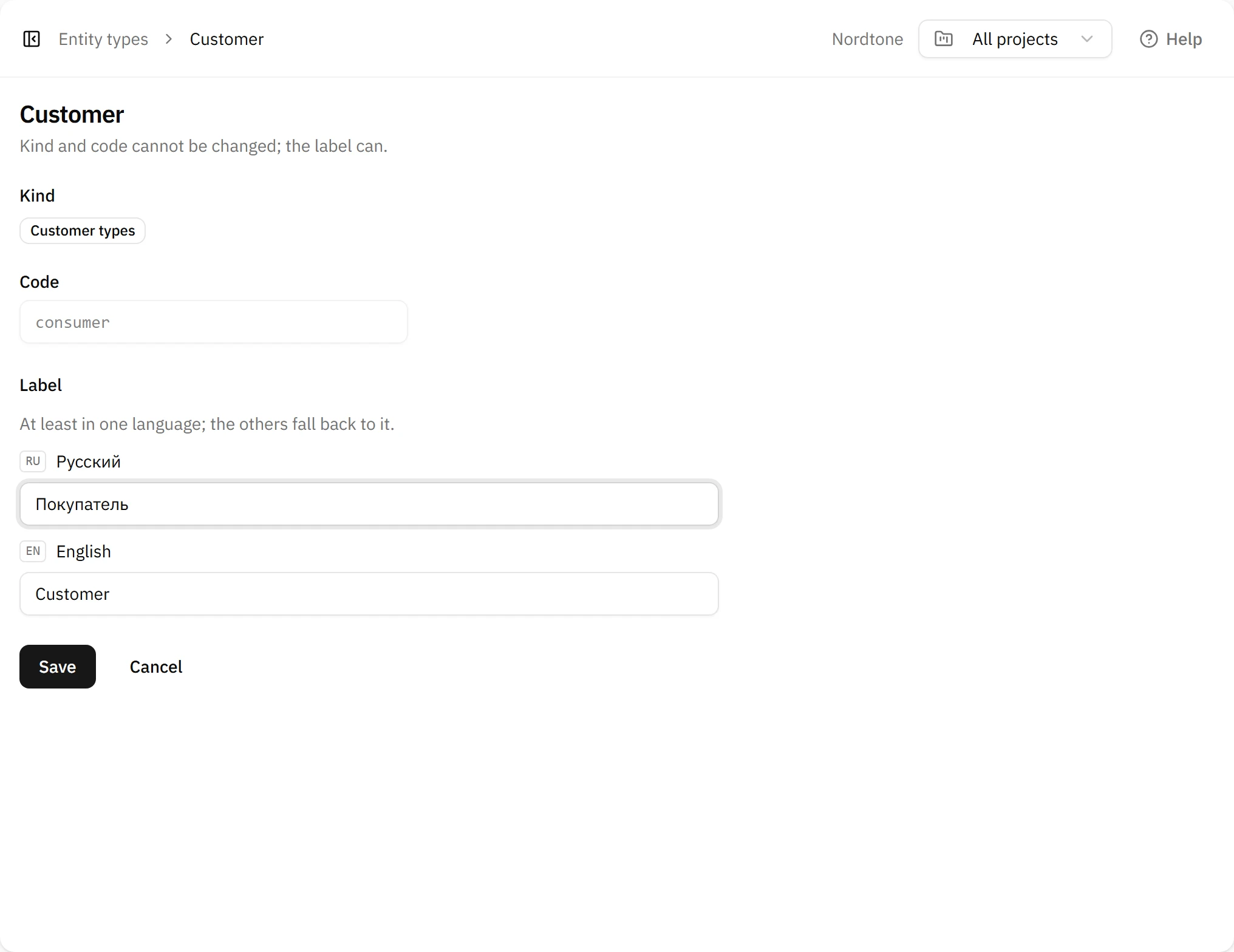
The kind and code can't be changed after creation: the field schema, the API and presets refer to the code. The label and settings can be edited at any time. Customer types and consent types have no settings block.
Settings by kind
Identities and labels
An identity type has two settings. Unique — the value belongs to one customer of the organization; lookup and duplicate search rely on it. Normalisation — how the value is canonicalised before comparison and storage: “As is”, “Digits only”, “Phone E.164” or “Lower case”. The system types — phone and e-mail — have a fixed normalisation.
A label has one setting, Label kind: “Flag” is a plain mark, “Segment” is a customer group for rules and selection, and “Block” blocks the customer's operations for rules and discounts.
Interaction types
The settings of an interaction type decide where the type is available, what it accepts and what an interaction must carry:
- Projects — where the type is available; none selected means every project.
- Item roles — which items an interaction takes: role code, minimum and maximum, catalog. For example, Nordtone's “Purchase” requires a “Device” item taken from the devices catalog. No roles — no items are accepted.
- Assets — what an item does with the customer's asset. The Give action registers an asset to the customer, the Take action moves their asset to the chosen status. A rule names the item role, asset type, status and whether the serial number is required.
- Result — “Effective” or “Ineffective”: always the default, or by the value of a list or yes/no field from the type's schema.
- Required attachments — a photo, document or signature without which the interaction isn't created.
- Required consents — consents the customer must give with the interaction.
- Blocking labels — labels of kind “block” that forbid the customer this interaction type.
- Account kinds for redemption — accounts the interaction may redeem points from in an API request.
- Decision table line — the table whose row an interaction may reference, the sources of its parameters (field, campaign, project code, type code, result) and whether the reference is required (Decision line required).
- Phone verification — the interaction is created only with a confirmed OTP code no older than the given number of seconds.
Asset types
An asset type has Statuses (at least one; their order is the order in asset lists), an Initial status, Transitions between statuses, a Model catalog and the Serial number comparison setting. For example, Nordtone's “Device” has the statuses “Owned”, “Traded in” and “Returned”. Transitions limit status changes made manually and by interactions; voiding an interaction bypasses them. More about the assets themselves is on the Assets page.
Account kinds and agent roles
An account kind has a Unit per language and its Plural forms (“1 point, 2 points”), the field Decimal places (0 — whole points, 2 — money), the Negative balance allowed checkbox and the block Accrual by a decision table. When an interaction of a selected type is created, the table is evaluated for the customer, and the amount of the first matching row with a limit left is credited to the account.
An agent role has Import aliases: job titles from the file that mean this role, one per line.
Disabling a type
The Deactivate button in a list row removes the type from forms, and the API stops accepting it. Data with this type is kept. The Activate button brings the type back. Types can't be deleted.
Types are created here or by the organization's preset. Apps pass type codes in requests to the API and get the customer type codes together with the customer schema.