
Docs
Schema
Fields of customers, agents, interactions, assets and catalogs — what they hold, slots, order, visibility and disabling a field.
The Schema section defines which fields the organization's records have: what a field stores, how its value is validated and who sees it. A new field shows up in admin forms, tables and the API right away — no development or deploy needed. The section sits in the Settings menu and is visible to roles with the “Settings → All settings, users and roles” permission (only the system “Administrator” role has it).
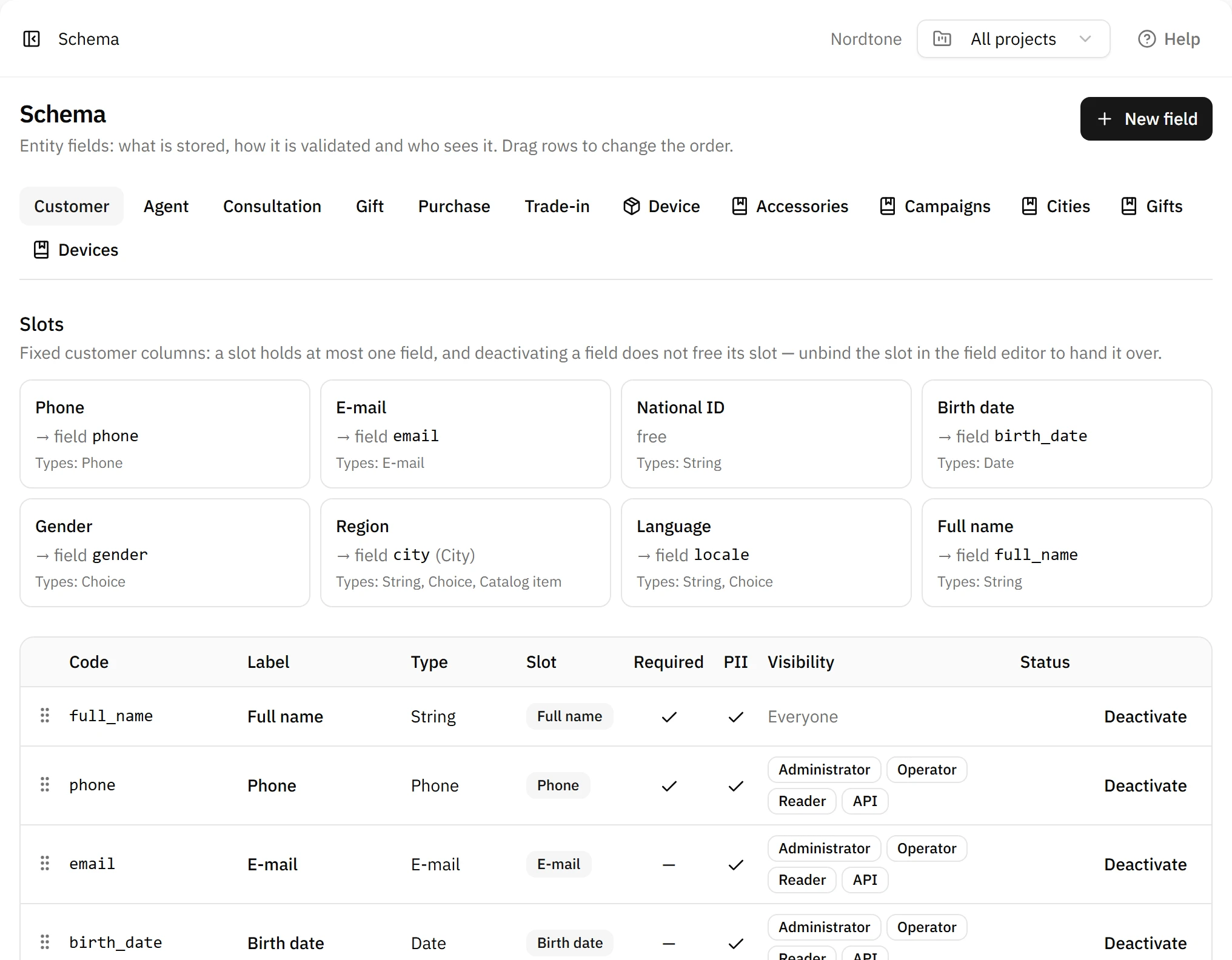
Entities
The tabs above the list are the entities that have a schema:
- Customer — fields of the customer card;
- Agent — fields of the agent registry;
- one tab per interaction type — for example, “Purchase” or “Trade-in”;
- one tab per asset type (with a box icon) — for example, “Device”;
- one tab per catalog (with a bookmark icon) — fields of the catalog items, for example “Gifts” or “Cities”.
A disabled type or catalog stays in the tabs, dimmed and marked “inactive”: its schema can still be edited. Interaction and asset types themselves are created under Entity types, catalogs under Catalogs.
Slots
A slot is a special customer column whose meaning the CRM itself knows: the phone is used for OTP codes, the ID document for finding duplicates, the full name for searching by name. A customer has eight slots: “Phone”, “E-mail”, “National ID”, “Birth date”, “Gender”, “Region”, “Language” and “Full name”. An agent has two — phone and national ID — used to match the agent against customers. Interactions, assets and catalogs have no slots.
A slot card shows which field holds it (“→ field phone”) or that it is “free”, and which field types the slot accepts: the phone slot takes only “Phone”, the birth date slot only “Date”, the region slot “String”, “Choice” or “Catalog item”. A slot holds at most one field.
Field list
The table lists every field of the entity, disabled ones included: code, label, type, slot, required mark, “PII” mark (personal data), visibility and status. The visibility column shows “Everyone” or a list of roles and “API”. A disabled field carries the “Inactive” status.
The row order is the order of fields in forms and tables. To change it, drag a row by the handle on the left. With the keyboard: space picks a row up, the arrow keys move it, space drops it. The new order is saved at once; if someone changed the field list in the meantime, the order is not saved and the page is refreshed.
A field's label opens its form.
New field and editing
- Choose the entity tab and press New field.
- Enter the Code — lowercase Latin letters, digits and single underscores, starting with a letter, up to 64
characters. For example,
favorite_category. - Fill in the Label in at least one language — the other languages fall back to it.
- Choose the Type and, if needed, the Slot.
- Check Required and Personal data if needed, and set the rules and visibility.
- Press Create field.
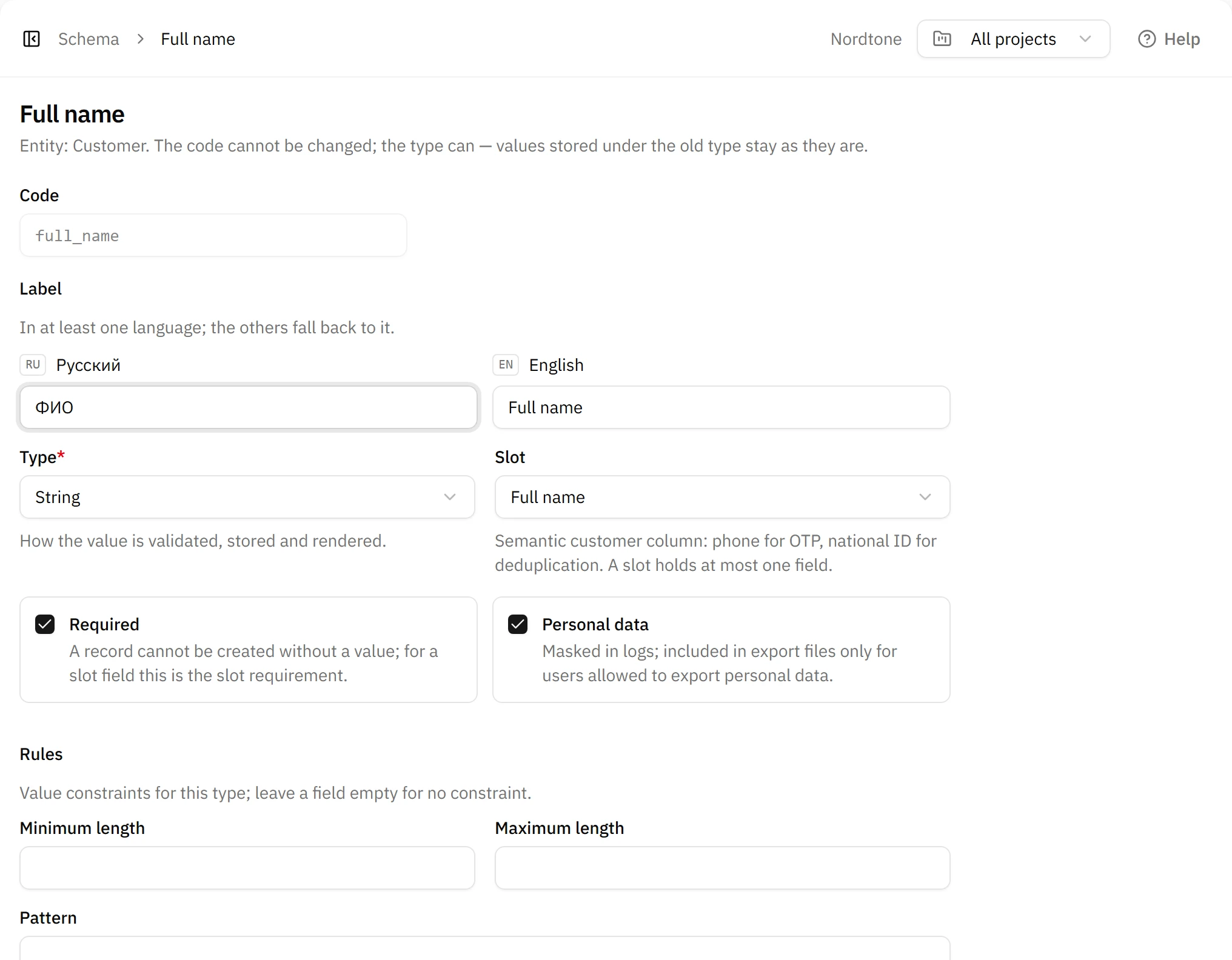
What the form sets:
- Code — the value key in the API and presets. It can't be changed after creation.
- Type — how the value is validated, stored and shown: “String”, “Text”, “Integer”, “Decimal”, “Yes/no”, “Date”, “Date and time”, “Choice”, “Multiple choice”, “Phone”, “E-mail” or “Catalog item”.
- Slot — only for customers and agents. Taken slots and slots that don't accept the type are unavailable in the list, with the reason next to them: “taken: …” or “does not accept this type”.
- Required — a record can't be created without a value.
- Personal data — the value is masked in logs and goes into export files only for users allowed to export personal data.
Rules and choices
The Rules block depends on the type: a string has minimum and maximum length and a pattern (a regular
expression), text has length, numbers have a minimum and maximum, a decimal also has decimal places, dates have a
minimum and maximum (a date or today, a date-time or now), multiple choice has minimum and maximum choices, and a
phone has a default country and allowed countries. An empty rule means no constraint. For example, Nordtone's “Birth
date” field doesn't accept a date later than today.
The “Catalog item” type has a single rule, Catalog: the field takes its values from that catalog. That's how Nordtone's customer field “City” takes its values from the “Cities” catalog.
The “Choice” and “Multiple choice” types have a Choices block: each choice has a value, which goes to the API and storage as is, and a label for people.
Visibility
The Visibility block decides who sees the field in forms, tables and the schema. A hidden field doesn't exist for that audience at all: the role neither sees it nor can fill it in.
- All roles — including roles created later. Clear it to pick individual roles.
- API clients — apps receive the field in the schema and in record data and can write it.
A new field is visible to all roles and the API.
Changing the type and slot
A field's code is fixed, but its type and slot can change. If the field already has values, the form warns you: stored values are not converted and may fail the new type's validation on the next edit of a record; after a slot change the values are read from a different place, while stored ones stay where they were. The CRM asks for confirmation before saving.
Disabling a field
The Deactivate button in a field's row removes it from forms, the API and validation. Values in records are kept, and the slot stays with the field. The Activate button brings the field back. Fields can't be deleted.
Schema in the API
Apps get an entity's schema through the API (GET /schema/{entity}): active fields visible to the
API, in display order, plus slots and types. The body of a customer, interaction or asset record is validated against
the same fields. The schema is edited in the admin panel or by a preset.