
Docs
File imports
Loading catalogs, decision table rows and agents from XLSX and CSV — column mapping, check, apply and report.
An import loads data from an XLSX or CSV file in one batch. The admin panel has it in three places: for catalogs, for rows of decision tables and for agents. The workflow is the same everywhere: upload a file, map the columns, check and apply.
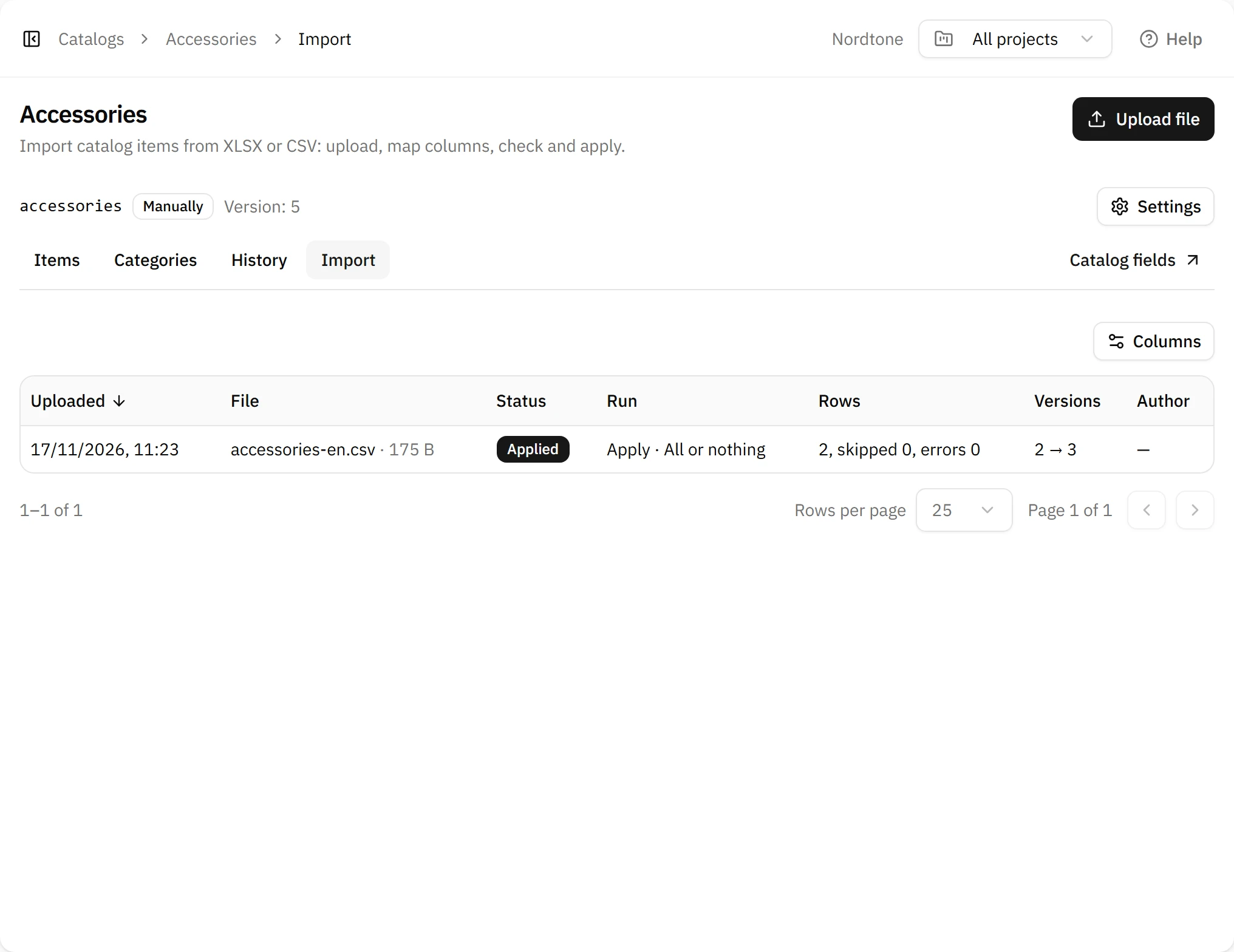
How an import works
Each place has its own import log: the upload date, file, status, how the import was run, how many rows were processed, skipped and failed, versions and author. Everyone who can see the data sees the log; roles allowed to edit the data upload files and run imports. A log row opens the import page.
Imports run in the background. While an import is queued or running, the page refreshes on its own. A catalog, a decision table and the agent registry each run one import at a time — a second run has to wait until the first one finishes.
Uploading a file
- Press Upload file.
- Choose an XLSX or CSV file. The first row of the file holds column headers.
- For a CSV file, optionally set the encoding (UTF-8 or Windows-1251) and the delimiter (semicolon, comma or tab). By default both are detected automatically.
- Press Upload. The import page opens with the file's columns.
The upload window shows the size and row limits. By default they are 10 MB, 10,000 data rows and 100 columns.
Mapping columns
The File columns section lists each file column, sample values and the field it will be written to. The CRM fills in the field itself: from the previous import into the same place or by matching the header with a field name. Check the suggestion and fix it where needed. A column set to Do not import changes nothing.
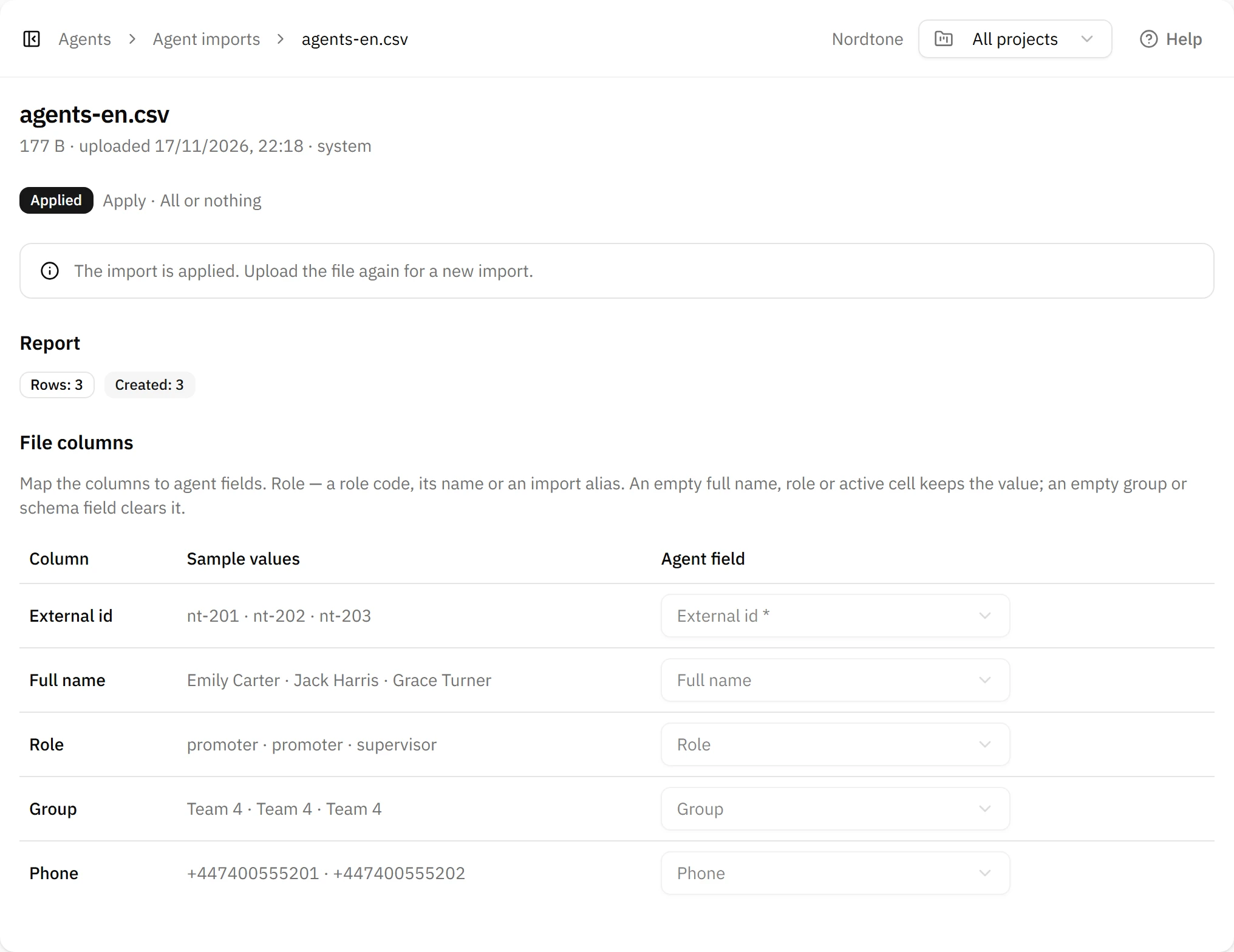
A field can be mapped to one column only. The key field is required: the item code for a catalog, the row code for a decision table, the external id for agents. If the field chosen last time is no longer available, the column is marked “field no longer available” — pick another one.
Check and apply
Below the columns are the mode, the deactivation checkbox and the run buttons. The mode is:
- All or nothing — any row error cancels the whole import and nothing is written. This is the default.
- Skip rows with errors — rows with errors are skipped, the rest are written.
The “Deactivate … missing from the file” checkbox is meant for a full export from another system: records missing from the file are deactivated. Its label and rules differ per place — see the sections below. The CRM remembers the mode, the checkbox and the mapping of the last run and offers them next time.
The Check button is a dry run: the CRM parses the whole file and builds a report but writes nothing. The Apply button writes the changes after asking for confirmation. If the file was checked with the same mapping and mode, the confirmation shows how many rows will be skipped and how many records will be deactivated.
Report and row errors
After a run the page shows the Report: how many rows the file has, how many records were created, updated, activated, deactivated and left unchanged, how many rows had errors and how the version changed.
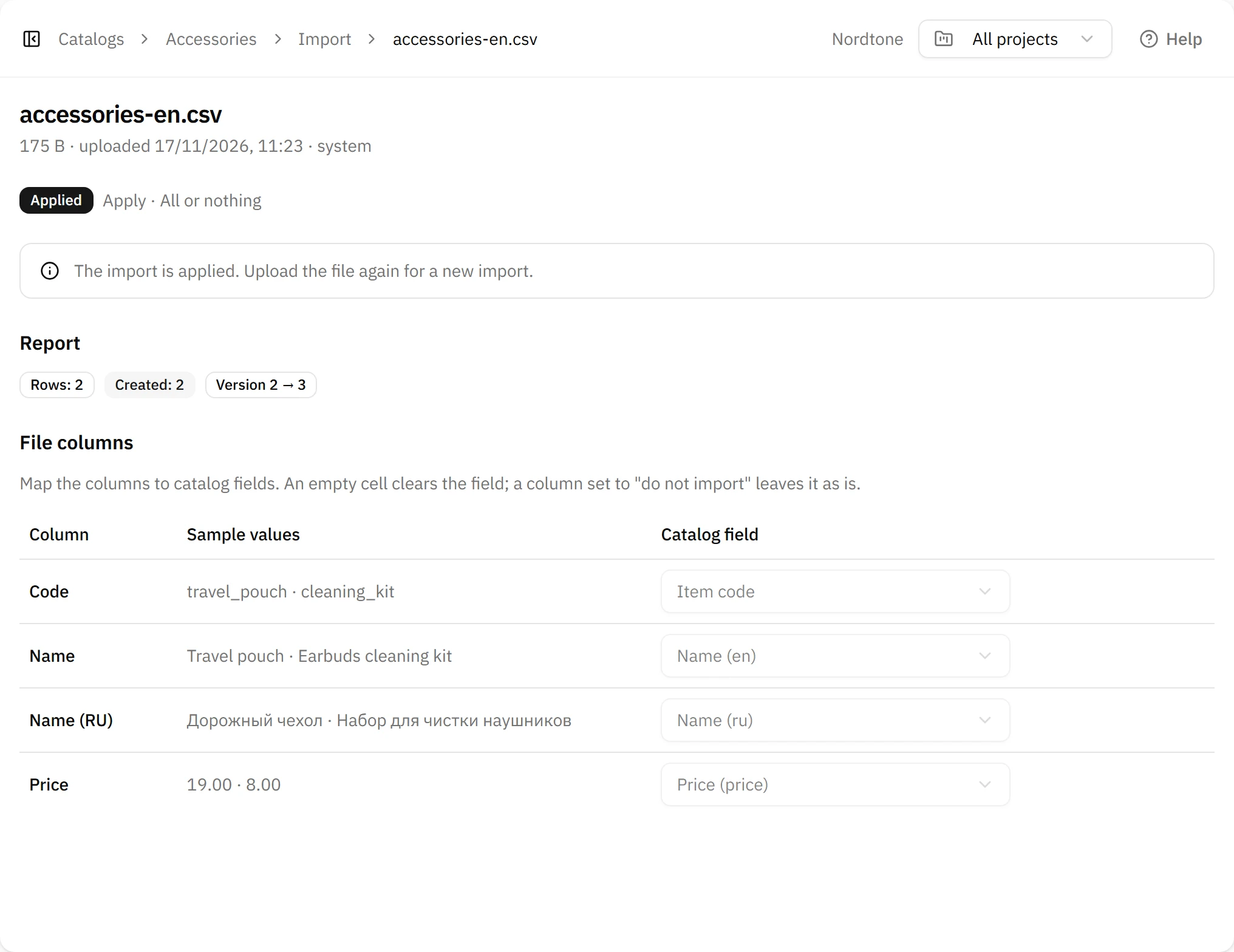
Errors are listed in a table: the file row number, the column and the reason — for example, “The code is missing”, “This code already appears above in the file” or “The number cannot be read exactly — format the column as text in Excel”. A long list is cut, and the report says how many of the total errors are shown.
Statuses
| Status | Meaning |
|---|---|
| Uploaded | the file is uploaded, the import has not run yet |
| Queued | the run is accepted and waits for its turn |
| Running | the import is in progress |
| Checked | the check is done, nothing was written |
| Applied | the changes are written |
| Rejected | “All or nothing” found row errors — nothing was written |
| Failed | the import did not finish; the reason is shown on the import page |
If a run hangs, the page says the job seems to have stopped, and you can run the import again.
File retention
An import file is kept for 30 days after upload (a CRM setting defines the period). Then the file is deleted, while the log row and the report stay. An import whose file is gone cannot run — upload the file again.
Catalogs
A catalog import lives on the Import tab of the catalog page. Roles with the “Catalogs → View” permission see the log; roles with “Catalogs → Edit and import” upload and run imports. Imports work both for manually maintained catalogs and for catalogs from the master system; an inactive catalog does not accept imports.
Columns map to the item code, the name in each language, the active flag, the category code, bundle components
(code*qty; …), campaign start and end, project codes separated by ; and the catalog fields. An empty cell clears
the field. All changes from the file are written to the catalog as one version.
The Deactivate items missing from the file checkbox is meant for a full export from the master system. Items of rows with errors are not deactivated.
A catalog export file is already in the import format: edit it and upload it back.
Decision table rows
A row import opens with the Import button on the decision table page. Roles with the “Decision table rows → View” permission see the log; whoever edits rows of this table can run an import.
Columns map to the row code, priority, the “From” and “Until” dates, cells of the table columns, result fields and limits. Only rows that changed get a new version. A result field without a column in the file is taken from the latest version of the row.
The Disable rows missing from the file checkbox disables current and future rows whose code is not in the file.
The export of the same table makes a handy template: it comes out in the import format, and importing it unchanged gives “Unchanged”.
Agents
An agent import opens with the Import button above the agent registry. Roles with the “Agents → View” permission see the log; roles with “Agents → Create and edit” run imports.
Agents are matched by external id: a new id creates an agent, an existing one updates it. Columns map to the full name, role, group, active flag and the agent schema fields. A role can be given by its code, name or import synonym. An empty full name, role or active cell leaves the value as is, while an empty group or schema field clears it. The import does not change agents' personal codes.
The Deactivate agents missing from the file checkbox deactivates every active agent of the organization whose external id is not in the file. Rows with errors count as present. After applying, the CRM recalculates rule labels that depend on the agent registry.