Docs
Customer card
Everything about a customer on one page — fields, identities, timeline, consents, verifications, interactions, accounts and assets.
The card opens from the customer list or from a customer link in other sections. Roles with the “Customers → View” permission can see it; fields, tabs and actions depend on the role's permissions.
Header
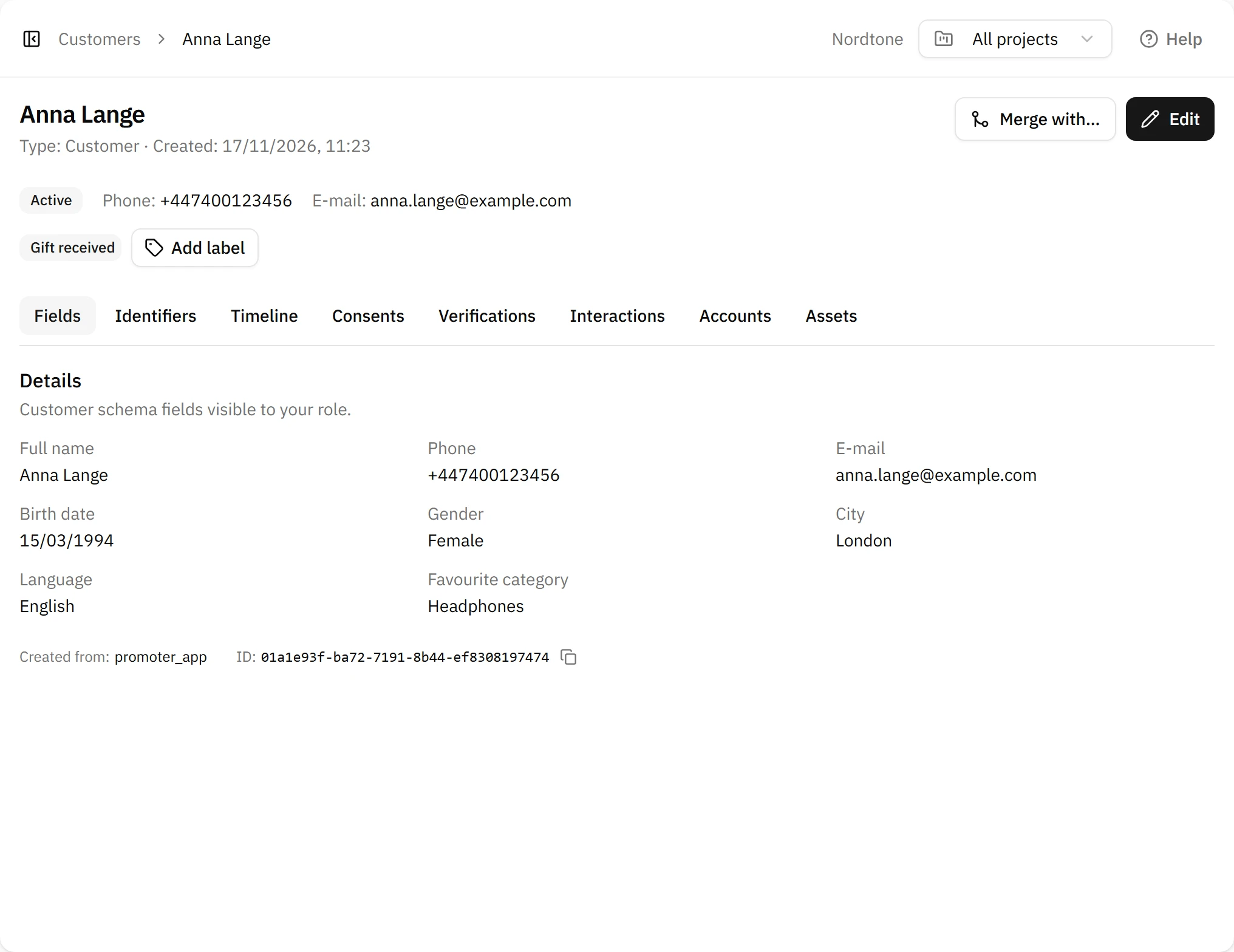
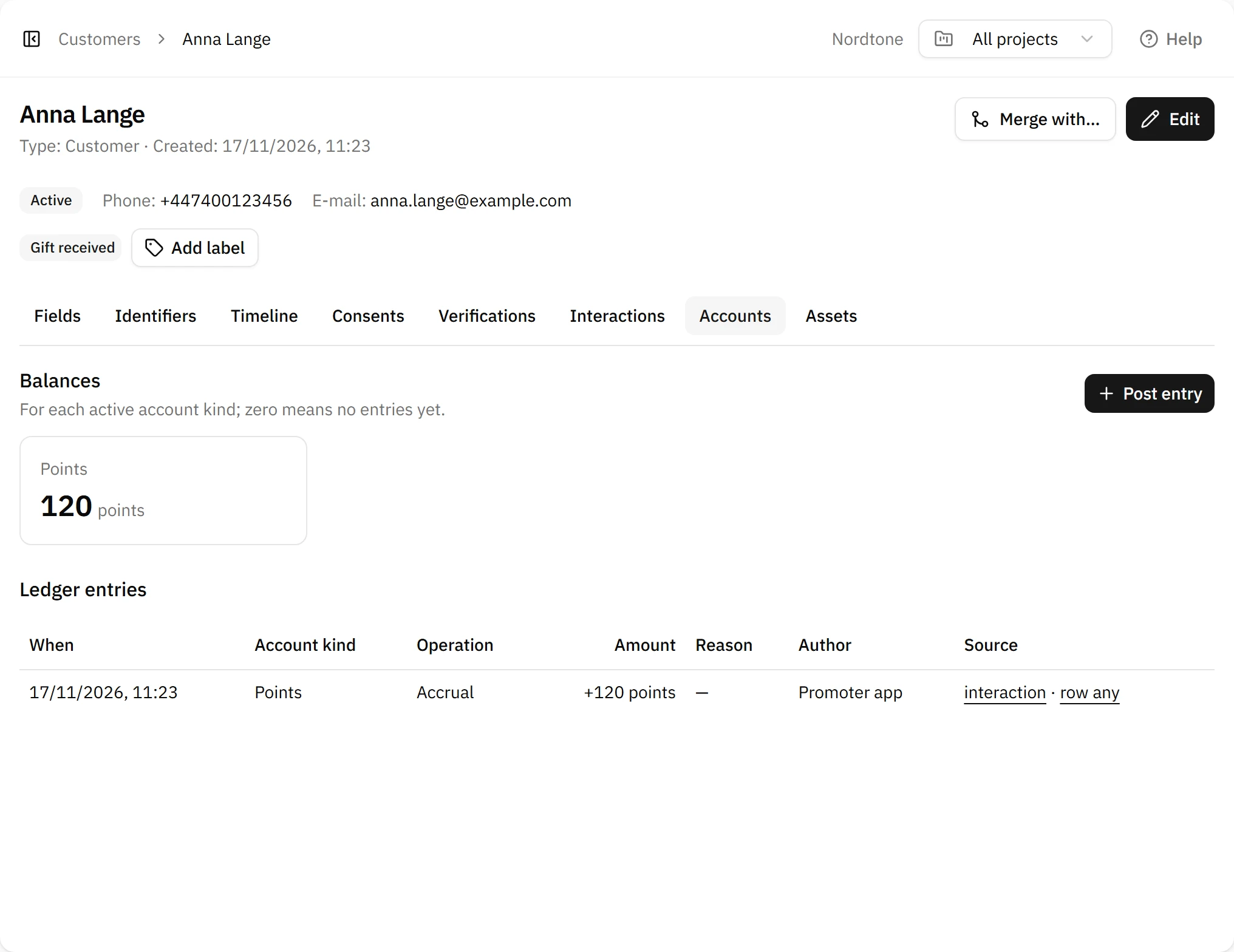
The title is the customer's full name or, without one, their first identity or the start of their ID. Below it are the type, creation date, status, values of the phone, e-mail and ID document slot fields (if your role can see the field), and labels. Roles with the “Customers → Create and edit” permission can add and remove labels by hand and open the field form with Edit. The Merge with… button opens duplicate merge; it is shown on an active customer to roles with the “Customers → Merge duplicates” permission.
The card of a customer merged into another one is read-only, with no edit or merge buttons: the data has moved to the primary customer, while this customer's history stays here.
The tab is part of the page address (?tab=timeline), so you can bookmark or share a link to a specific tab.
Fields
The customer schema fields visible to your role; below them, where the customer was created from and their ID with a copy button.
Identifiers
Phone, e-mail and ID document are changed through the form fields. Identities of custom types — a QR token, a promo code — are added and removed here. A value that already belongs to another customer can't be added.
Timeline
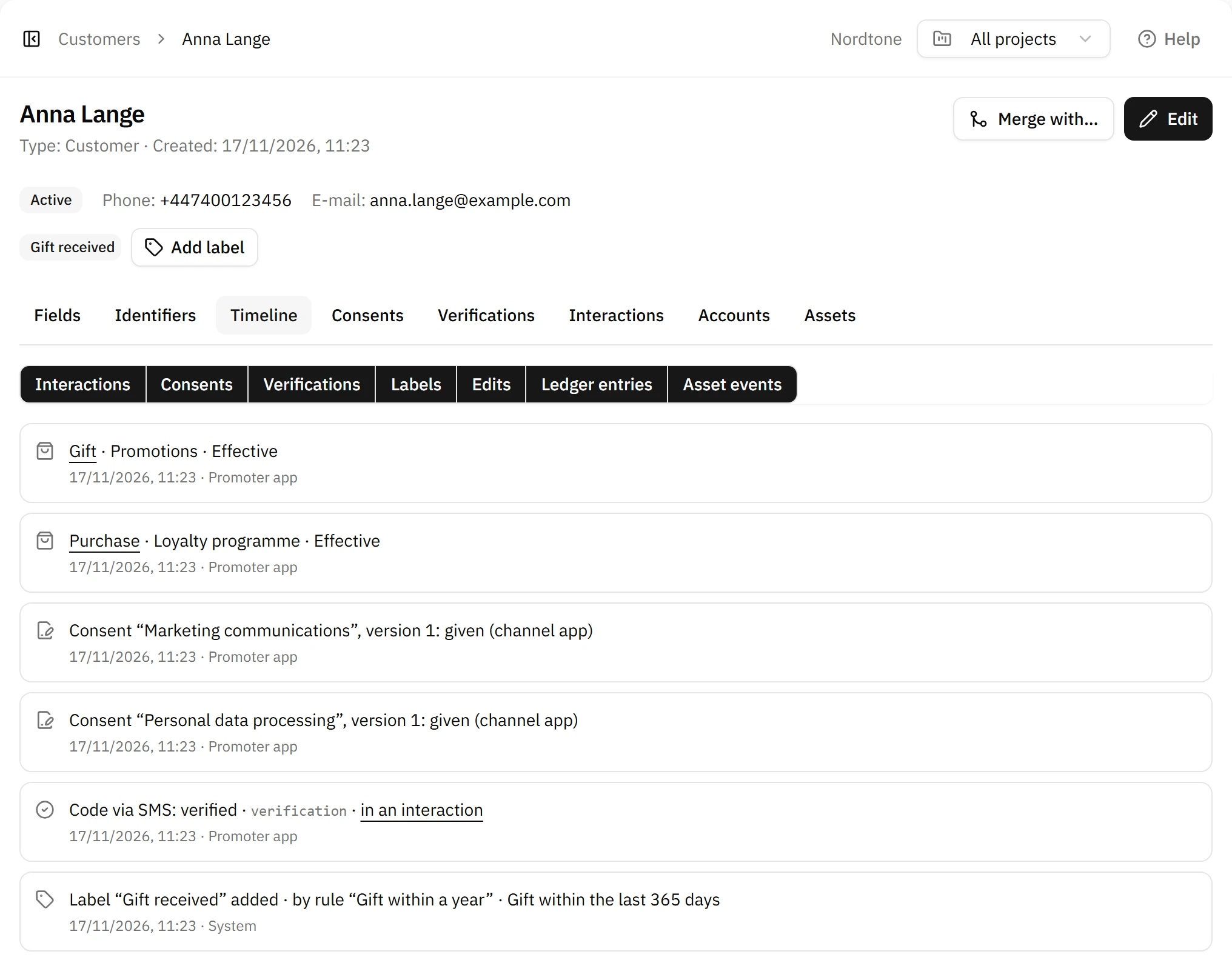
Every event of the customer, newest first: interactions, consents, verifications, labels, field edits, ledger entries and asset events. The Event kinds filter keeps the kinds you need.
Consents
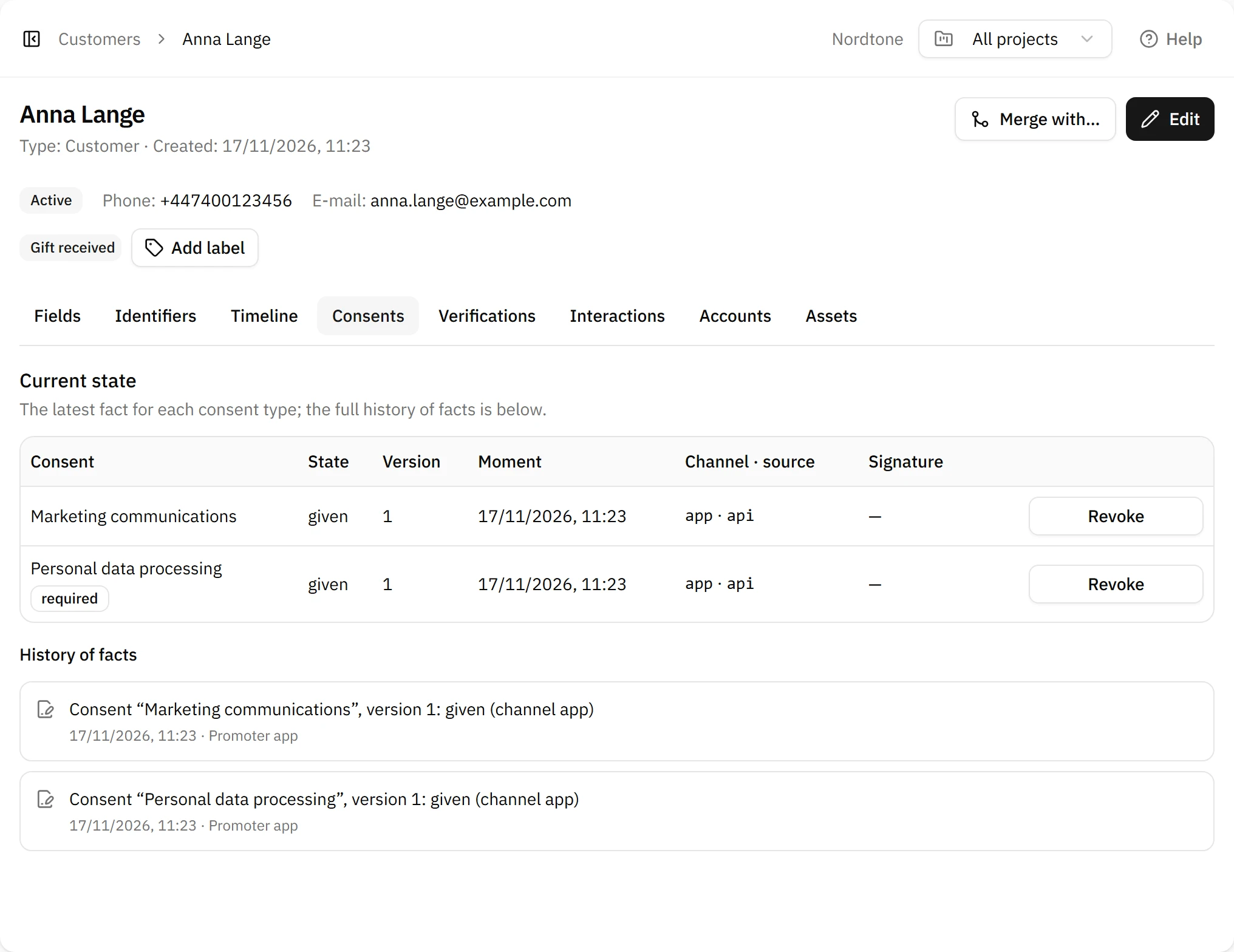
The latest fact for each consent type, with the full history of facts below. Consent types and their versions are set up in Consents.
Verifications
One-time code (OTP) checks of this customer. All customer verifications opens Verifications filtered by the customer, with the provider, attempts and failure reasons.
Interactions
The customer's latest interactions. The tab is shown to roles that can view interactions.
Accounts
Balances for each active account kind and ledger entries with a kind filter. Zero means there have been no entries yet.
Assets
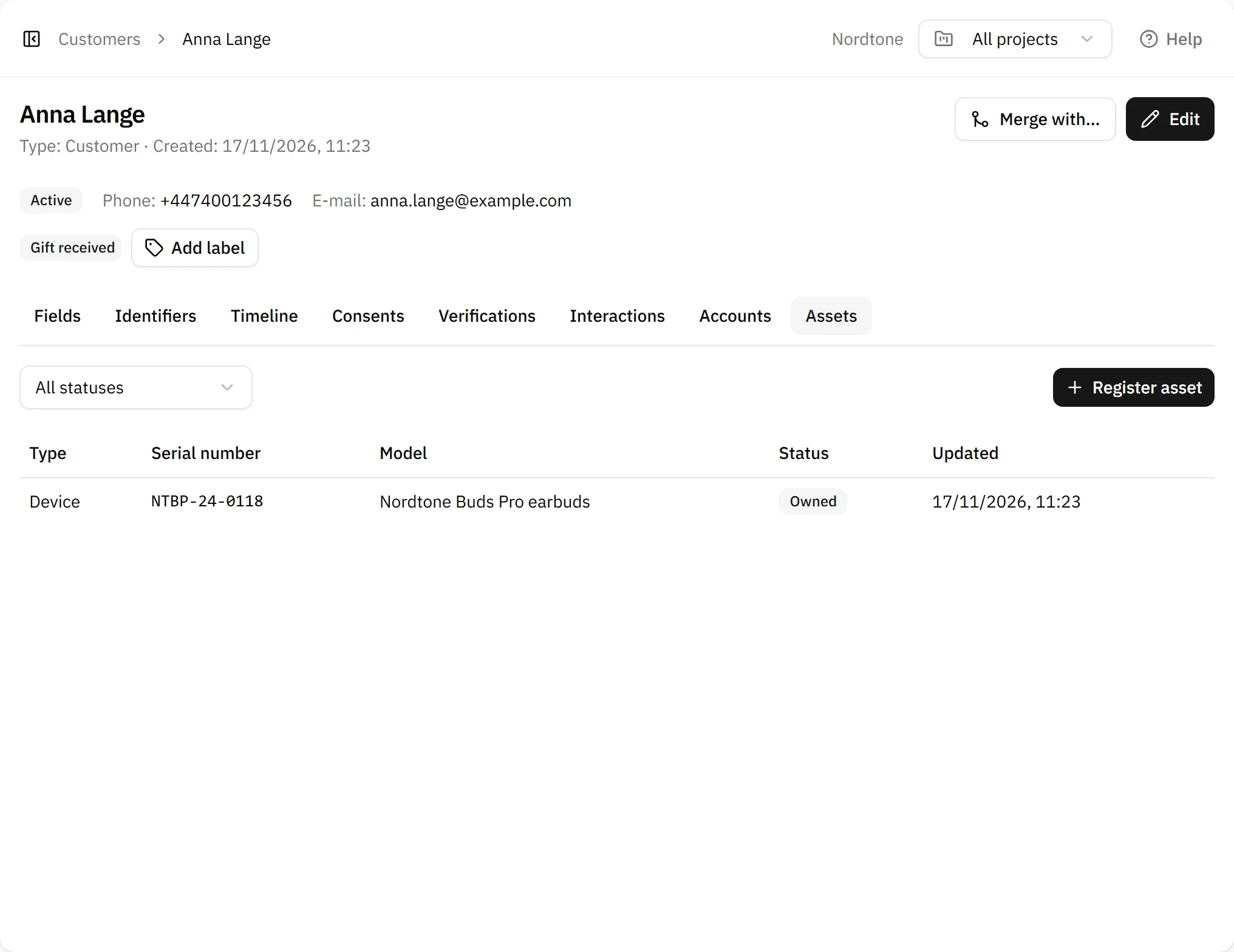
Assets registered to the customer, with type and status filters; a row opens the asset page.