
Docs
Webhooks
Subscriptions to CRM events — receiver address, events, signing secret, delivery log and manual retry.
Webhooks tell external systems — an ERP, BI, a website — about changes in the CRM without polling the API. A
subscription tells the CRM which events to send and where. When an event happens, the CRM sends it as a POST request
to the receiver address, signed with the subscription's secret.
The section is in the Settings menu. Roles with the “Settings → All settings, users and roles” permission (only the system “Administrator” role has it) can see it. It has two tabs: Subscriptions and Deliveries.
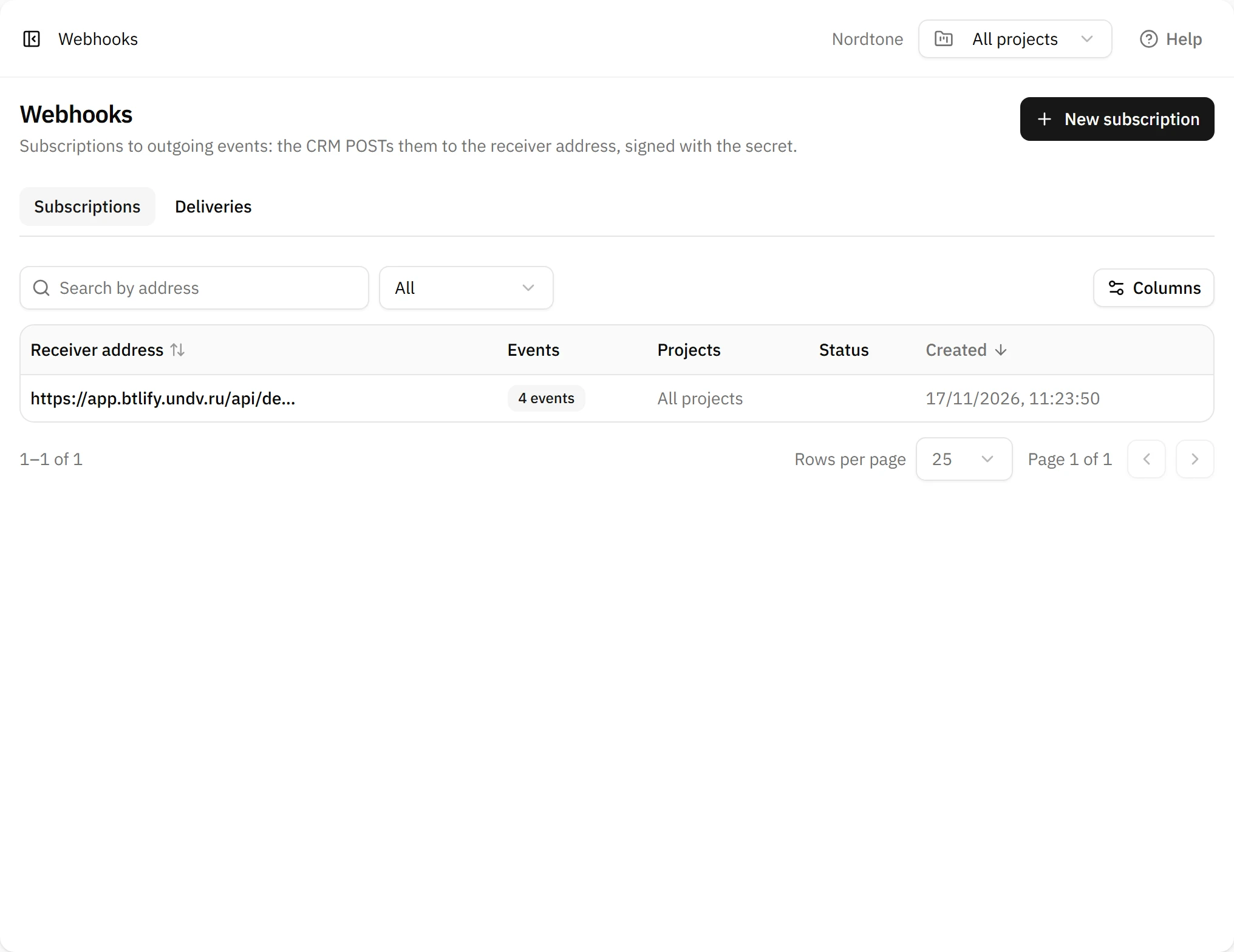
What's on the screen
The subscription list columns are the receiver address, the number of events (the list is in the tooltip), projects and the creation date. “All projects” means there is no project filter. An inactive subscription is marked “Inactive”. The search box looks up addresses, and the status filter keeps active or inactive subscriptions. A row opens the subscription page.
Subscription
- Click New subscription.
- Enter the Receiver address — where the CRM will send events.
- Tick the events — at least one.
- Tick projects if needed.
- Click Create subscription.
The subscription page opens with the signing secret above the form and a Copy button. The secret is shown once: copy it right away and hand it to the receiver's developers.
The subscription page is also where you edit it: the address, events and projects, and the signing secret. Form changes are saved with Save. The header shows the status and the Delivery log, Deactivate (or Activate) and Delete subscription buttons.
Receiver address
The address must use https and lead to a public network: the CRM rejects private, local and reserved
addresses. It can't contain a user name and password or a # fragment. The address is checked both when you save it
and before every delivery attempt.
If another administrator has just changed the subscription address, the CRM won't save your edit: the form shows the current data — review it and save again.
Events
| Event | Code |
|---|---|
| Customer created | customer.created |
| Customer updated | customer.updated |
| Customers merged | customer.merged |
| Customer labels changed | customer.labels_changed |
| Interaction created | interaction.created |
| Interaction updated | interaction.updated |
| Interaction voided | interaction.voided |
| Ledger entry | ledger_entry.created |
| Asset changed | asset.changed |
| Catalog version | catalog.changed |
| Decision table version | decision_table.changed |
Events are thin: they carry ids and codes, and the receiver fetches the details from the API.
Projects
Ticked projects limit the subscription's events to those projects. An empty list means all projects. Events without a project — about a customer, labels, manual ledger entries, asset changes outside an interaction, catalogs and tables for all projects — arrive regardless of the filter.
Signing secret
Every CRM request carries the Btlify-Signature header — an HMAC-SHA256 signature made with the subscription's secret.
The receiver uses it to check that the request came from the CRM and wasn't altered on the way. The secret value is
shown only when it is issued — after the subscription is created and after a new secret is issued. The subscription
page shows when the current secret was issued.
To change the secret, click Issue a new secret and confirm. The new secret applies at once, while the previous one keeps signing requests alongside it for a day — enough time for the receiver to switch. The page shows until when the previous secret is valid. If the previous one was already replaced the same day, the oldest one stops working immediately.
Activating, deactivating and deleting
The Deactivate button stops the subscription. Pending deliveries to its address are cancelled, and once reactivated, the subscription won't get events recorded while it was off.
The Delete subscription button removes it for good: pending deliveries are cancelled and the subscription can't be restored. Deliveries of a deleted subscription stay in the log until the end of the retention period.
How the CRM delivers events
- A
2xxanswer from the receiver within 10 seconds means the event is delivered. - Any other answer, a timeout or a dropped connection — the CRM retries after 1 min, 5 min, 15 min, 1 h, 3 h, 6 h and 12 h. After the eighth failed attempt the delivery gets the “Failed” status.
- The CRM doesn't follow redirects.
- An event may arrive more than once: the receiver drops repeats by the event
id. Event order isn't guaranteed — rely on the event moment and data from the API.
Delivery log
The Deliveries tab is the log of events sent to all of the organization's subscriptions: what was sent, where, how many attempts there were and how they ended. The log keeps deliveries for the last 30 days (the default; the exact period is shown under the title). Times are in the organization's time zone. The Delivery log button on a subscription page opens the log filtered by that subscription.
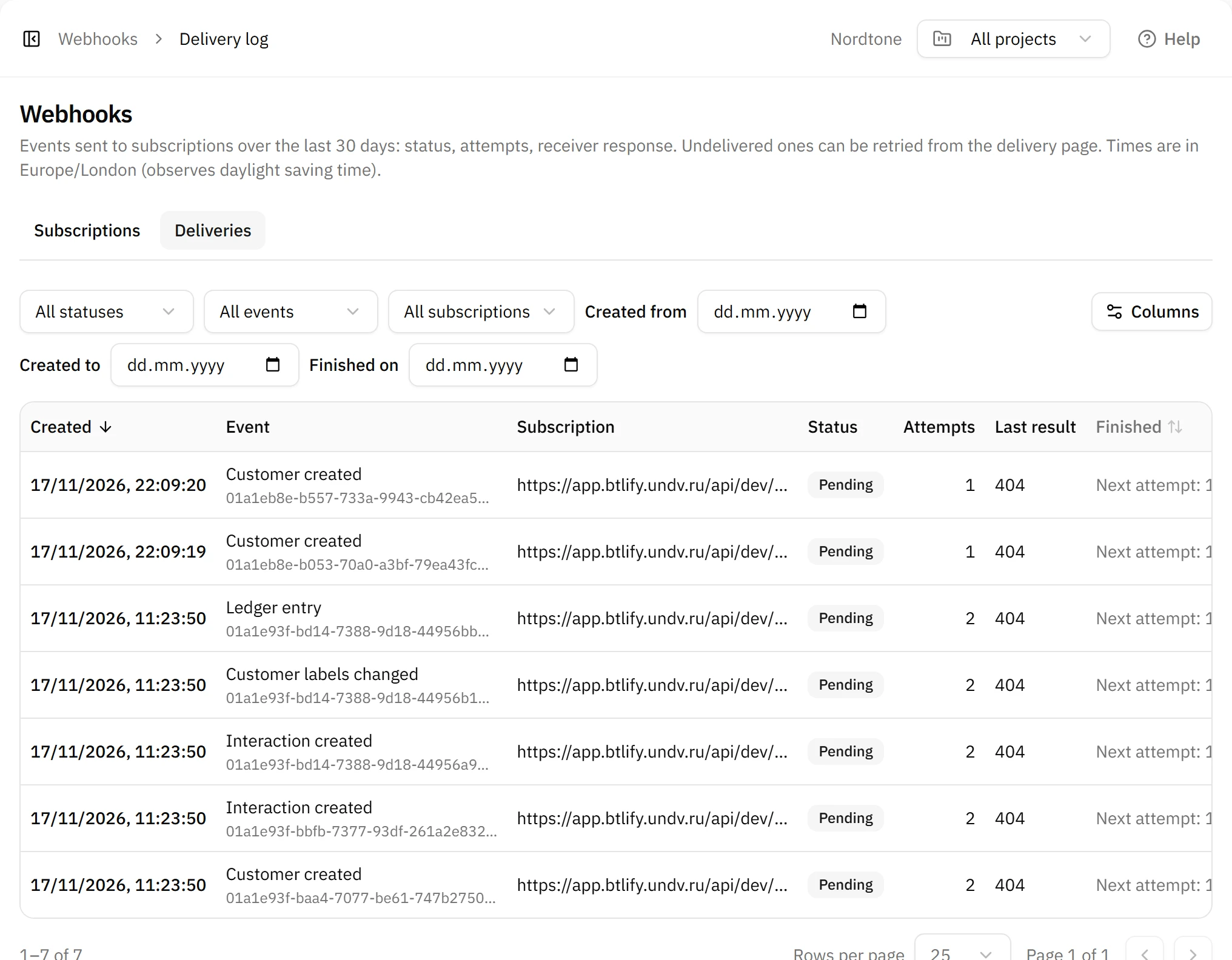
The columns are when the delivery was created, the event and its id, the subscription, status, number of attempts, the last result (the receiver's response code or the kind of failure) and the finish time; a delivery that is still pending shows the time of the next attempt. Filters cover status, event, subscription (deleted ones included), the creation period (Created from, Created to) and the finish day (Finished on). The webhook failures card on the home page leads here too — to today's failed deliveries.
| Status | Meaning |
|---|---|
| Pending | another attempt is coming — the column shows when |
| Retry pending | a manual retry is queued |
| Delivered | the receiver answered 2xx |
| Failed | retries ran out, the delivery didn't finish within two days or a manual retry failed |
| Cancelled | the subscription was deactivated or deleted before sending |
Kinds of failure in the result column: “Timeout”, “Connection failed”, “Address rejected”, “CRM-side failure” and “Not finished within two days”.
Delivery
A log row opens the delivery page.
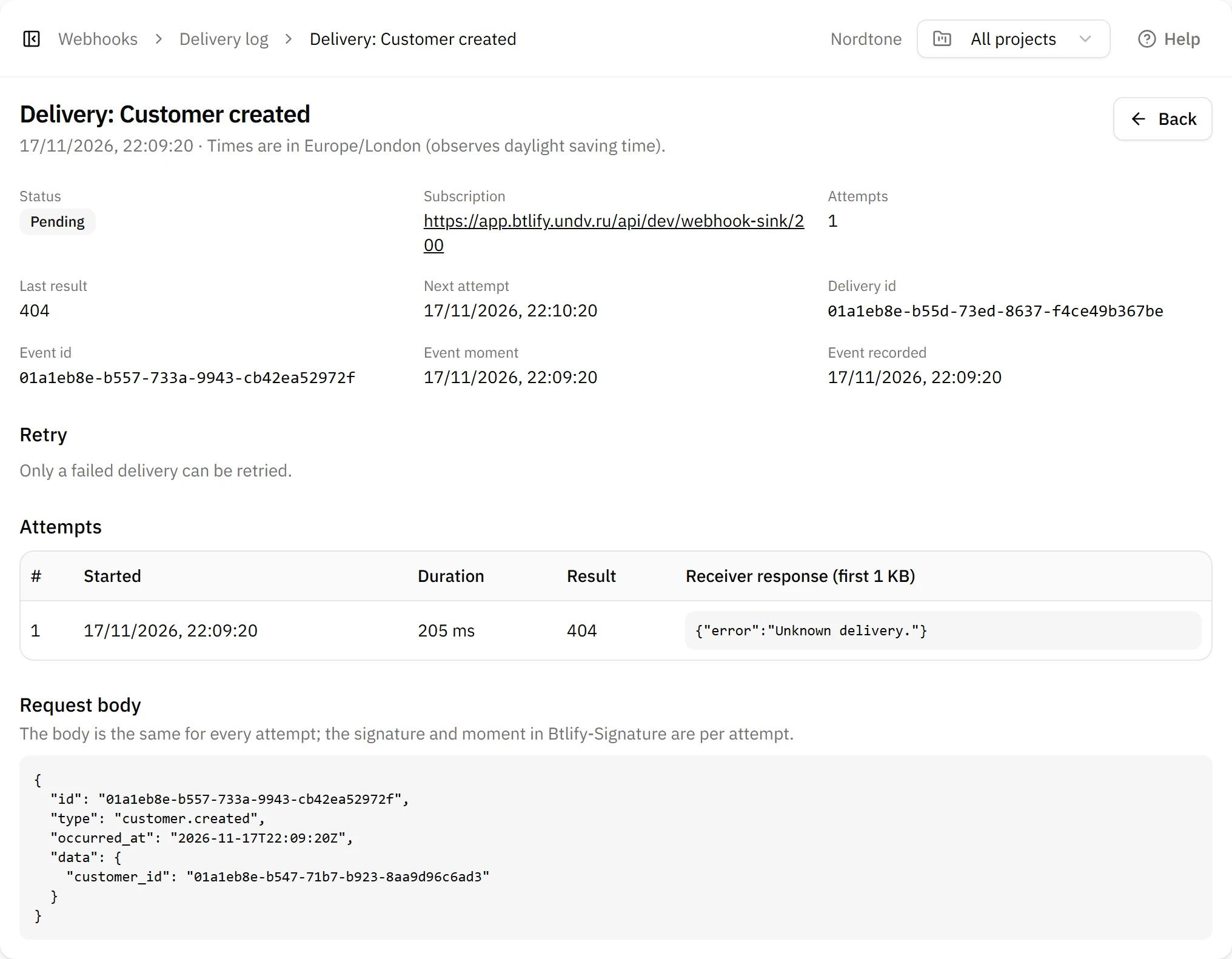
The page shows the status, subscription, number of attempts, last result, the finish time or next attempt time, the delivery id and event id, the event moment and the moment it was recorded. Below:
- Attempts — each attempt with its start, duration, result and the first kilobyte of the receiver's response; an attempt started by hand is marked “manual retry”;
- Request body — the JSON the receiver got. The body is the same for every attempt, while
the signature and moment in
Btlify-Signatureare per attempt.
Manual retry
An undelivered event can be sent again — for example, after the receiver has been fixed.
- Open a delivery with the “Failed” status.
- In the Retry block, click Retry delivery.
- Confirm.
The event goes out with the same id — to the subscription's current address and signed with its current secret. While
the retry waits in the queue, the status is “Retry pending”. If the receiver again doesn't answer 2xx, the delivery
stays failed with no further scheduled retries.
If a retry isn't possible, the block names the reason instead of the button: the delivery isn't “Failed”, the subscription is deleted or inactive, or the subscription no longer accepts this event — its type or project was removed from the subscription. Activate an inactive subscription, and the retry becomes available.
Working with the API
The request format — the {id, type, occurred_at, data} envelope, the Btlify-* headers, signature verification and
the data of each event — is described in the Events section of the API documentation. The receiver gets
details about a customer, interaction or ledger entry with ordinary API requests on behalf of its own
API client.