
Docs
Fields and types
A new interaction type with its own fields — a required field, a catalog field, visibility by role and a result driven by a field.
Every interaction type carries its own data: a purchase has devices, a consultation has the outcome of the conversation. In this guide Nordtone sets up a “Product demo” type for field activations: a promoter demonstrates a device, notes whether the customer is ready to buy and leaves a callback note that not every role should see. Settings are changed by a role with the “Settings → All settings, users and roles” permission — only the system “Administrator” role has it.
A type and its settings live in the Entity types section, while the type's fields live in the Schema section. The guide goes through both and comes back to the type once the fields exist.
What you need
- To be signed in with the “Administrator” role (Roles).
- A project where the type will be available — “Field activations” in the example (Projects).
- A catalog for a field that takes its values from one — “Devices” in the example (Catalogs).
Interaction type
- Open Settings → Entity types, the Interaction types tab, and press New type.
- In Code enter
product_demo; in Label enter “Демонстрация товара” and “Product demo”. - In the Projects block check “Field activations”. With none checked, the type is available in every project.
- Press Create type.
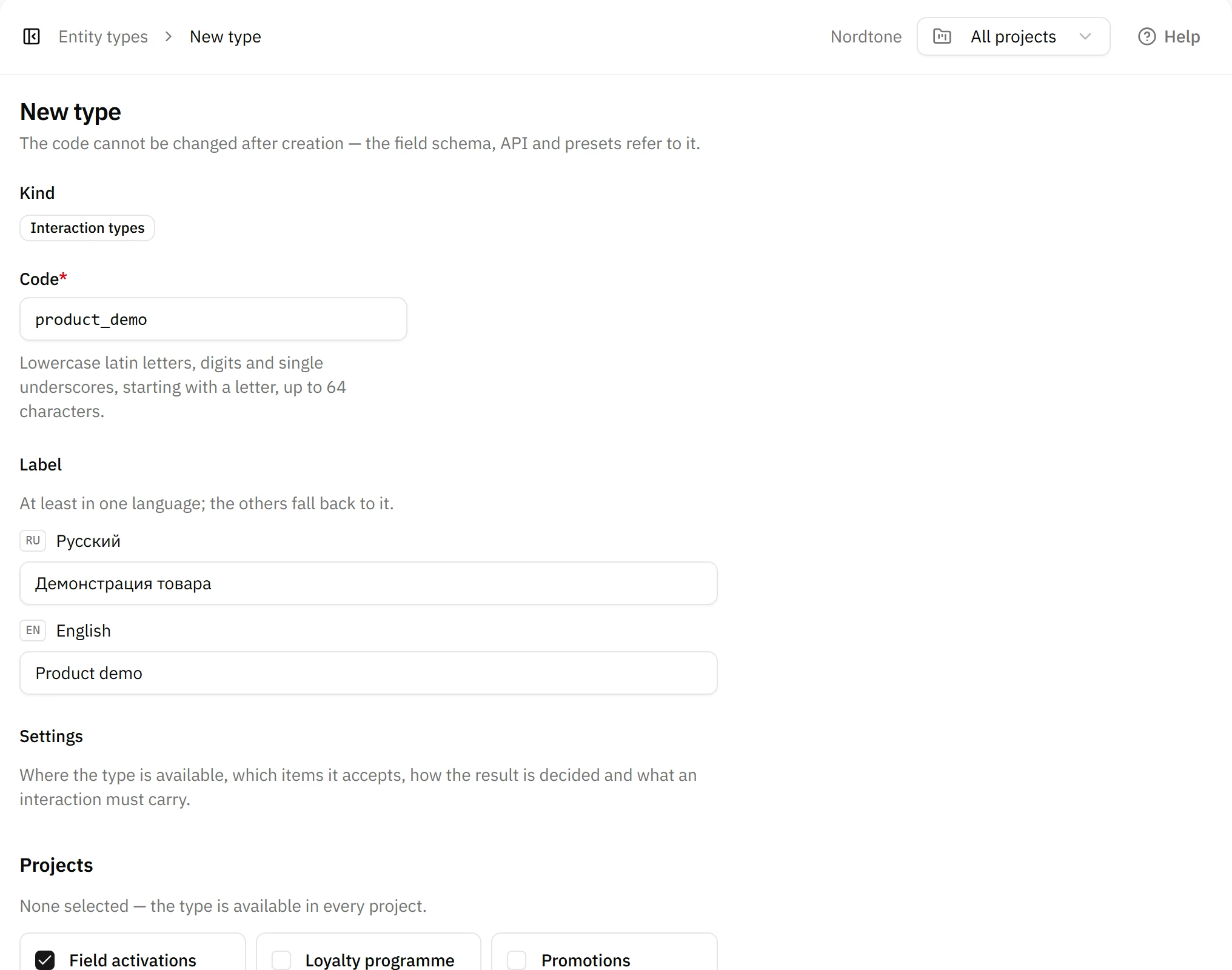
The type code can't be changed after creation: apps put it in their requests. For now the Result block only offers the default result — the type has no fields yet. The other settings — items, attachments, consents — are described on the Entity types page.
Type fields
- Open Settings → Schema and choose the “Product demo” tab.
- Press New field, enter the code
demo_deviceand the label “Device”. - In the Type list choose “Catalog item”, then in the Rules block pick “Devices” from the Catalog list.
- Check Required and press Create field.
- Add the
ready_to_buyfield the same way — “Ready to buy”, type “Yes/no”, not required. - Then the
callback_notefield — “Callback note”, type “Text”, with Maximum length 500 in the rules and the Personal data box checked. Don't submit the form yet: the next section sets this field's visibility.
A required field is checked on write: a demo without a device won't be created, and the API rejects a value that isn't in the catalog. Fields are reordered in forms and tables by dragging rows on the tab (Schema).
Who sees a field
In the note the promoter writes when and how to call the customer back — readers and analysts don't need to know that.
- In the
callback_notefield form, clear All roles in the Visibility block. The organization's roles appear, all checked. - Uncheck “Reader” and “Analyst”, keep “Administrator” and “Operator”.
- Keep API clients checked: the promoter app has to write the note.
- Press Create field.
For a role without access the field doesn't exist at all: it doesn't see it in the interaction card or list and can't fill it in. Roles created later won't see the field either until they are checked in its visibility. More in Visibility.
Result from a field
Now that the type has a yes/no field, the demo's result can be based on it.
- Go back to Settings → Entity types, the Interaction types tab, and open “Product demo” — the link in the list is its code
product_demo. - In the Result block choose “Ineffective” in the Default list.
- In the Schema field list choose “Ready to buy”, and in the Effective values block check “Yes”.
- Press Save.
A demo with “Ready to buy: yes” becomes effective, one with “no” ineffective, and one without a value falls back to the default — ineffective as well.
Asset type
Asset fields are set up the same way. The type is created on the Asset types tab of Entity types — it needs at least one status (Asset types) — and its fields on its own tab in Schema, marked with a box icon. Asset type fields are filled in when an asset is registered in the customer card (Registering an asset) and through the API.
Check the result
- The “Product demo” tab of Schema has three fields.
demo_deviceis marked required, and the visibility column ofcallback_notereads “Administrator”, “Operator” and “API”. - A
GET /schema/interaction:product_demorequest with the token of an API client that hasschema:readreturns all three fields: they are visible to the API. - Once the app sends its first demos, choose “Product demo” in the type filter of the interaction list — columns for its fields appear, and the result column reads “Effective” or “Ineffective”. A user with the “Reader” role won't see the note column.
What's next
- Schema — all field types, rules and changing a field's type.
- Entity types — items, attachments, required consents and blocking labels.
- Custom role — a role with the right permissions and field visibility.
- A rule with a label — a label based on interaction history, such as effective demos.