
Docs
A rule that sets a label
How to add a label, build a rule on a customer's interaction history, test it on a customer before enabling it and find the label on the customer card.
By the end you will have a rule that sets a label on customers from their history by itself and removes it once the condition no longer holds. The Nordtone example: a “Home audio lead” label goes to everyone who had an effective consultation on “Home audio” in the last 90 days. Labels and rules are set up by roles with the “Settings → All settings, users and roles” permission — only the system “Administrator” role has it.
What you need
- The “Settings → All settings, users and roles” permission.
- An interaction type to count the history by, with the fields you need. At Nordtone it is “Consultation” with the “Topic” and “Outcome” fields; a consultation's result is decided by “Outcome” — see the interaction type settings.
- A customer to test the rule on — for example, one with a recent consultation on the Interactions tab of their card.
Add the label
A rule can only set a label that already exists under Entity types.
- Open Settings → Entity types, the Labels tab, and press New type.
- Enter
home_audio_leadin Code. - In Label, enter “Home audio lead” for English and «Интерес к домашнему звуку» for Russian.
- In the Settings block, set Label kind to Segment: a segment label is handy for selecting customers.
- Press Create type.
The label code can't change later. Label kinds are described under Entity types.
Build the rule
- Open Settings → Rules and press New rule.
- Enter
home_audio_lead_90din Code. - In Name, enter “Home audio consultation within 90 days” for English and «Консультация по домашнему звуку за 90 дней» for Russian.
- In Label, pick “Home audio lead”.
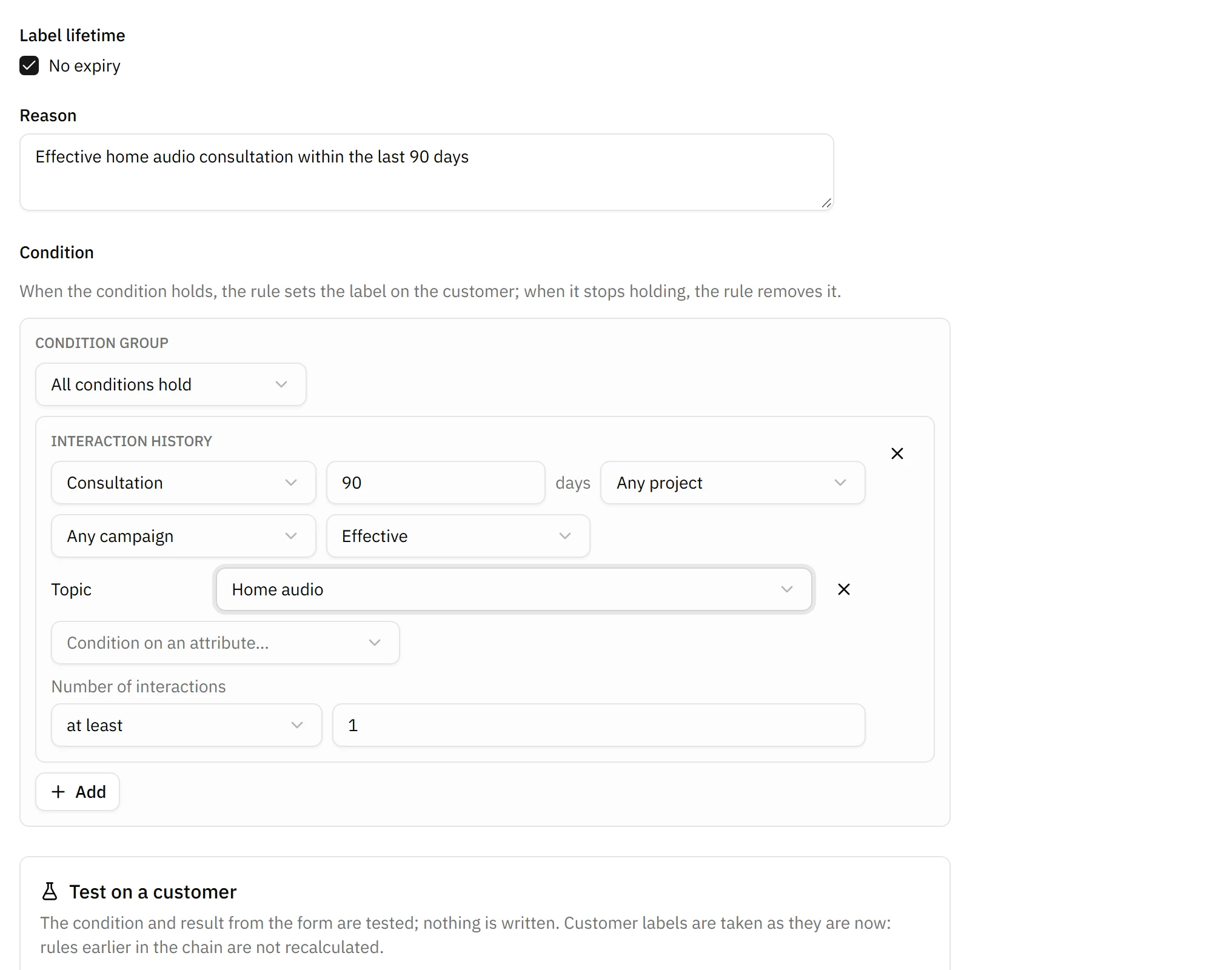
- Leave the No expiry box ticked: the label stays as long as the condition holds.
- In Reason, enter “Effective home audio consultation within the last 90 days” — it shows next to the customer's label.
Set the condition
The condition is built in the condition builder, described in detail on the Rules page.
- In the Condition block, press Add and pick Interaction history.
- In the Interaction type list, pick “Consultation”.
- In the number box before days, enter
90. - Leave the project and campaign as they are — Any project and Any campaign; in the result list, switch Any result to Effective.
- In the Condition on an attribute… list, pick “Topic”, then “Home audio” in the field that appears.
- Under Number of interactions, keep at least and
1.
Test it on a customer before saving
The test writes nothing and works on an unsaved rule too.
- In the Test on a customer block, find a customer by phone, identifier or full name.
- Press Test.
- Read the outcome: The label will be set if the customer has a matching consultation, or Nothing changes if not. The leaf table shows how many consultations were found.
If the outcome isn't what you expected, adjust the condition and test again. Then press Create rule — the rule is created disabled and its page opens.
Enable the rule
- In the header of the rule page, press Enable.
- Confirm with Enable in the dialog.
Enabling starts a batch recalculation: the label goes to every matching customer. From then on the rule fires by itself after each of a customer's interactions, and once a day it removes the label from customers whose consultation has dropped out of the 90-day window. See When a rule fires.
Check the result
- On the rule page, Last batch run shows Succeeded and the “evaluated, set, removed” counters. Every run is under Journal — see the run journal.
- In Data → Customers, pick “Home audio lead” in the All labels filter — only customers with the label remain (search and filters).
- The card header of such a customer shows the “Home audio lead” label. Its tooltip gives the source — “by rule” with the rule name — the date and the reason. The label can't be removed by hand — only the rule removes it.
- The Timeline tab has a “Label “Home audio lead” added” event.
What's next
- Rules — disabling a rule and what happens to its labels.
- A decision table with a limit — what a customer gets and how many times. A rule's label can be a condition of a table row — see the labels column.
- An external system learns about a label being set or removed from the
customer.labels_changedevent — see Webhooks and the Webhook guide; the API returns customer labels too.