
Docs
Decision tables
Decision table rows — list, filters, evaluation for a customer, row versions and periods, limits, import and export.
The Decision tables section holds the tables' data: their rows. A decision table picks rows by request parameters and customer conditions — for example, which gift a customer gets in a campaign and how many times. Columns, parameters and the result schema come from the table definition in the settings, under Table definitions; here you only edit rows.
Roles with the “Decision table rows → View” permission can see the section. Roles with the “Decision table rows → Edit and import” permission can edit rows and run imports.
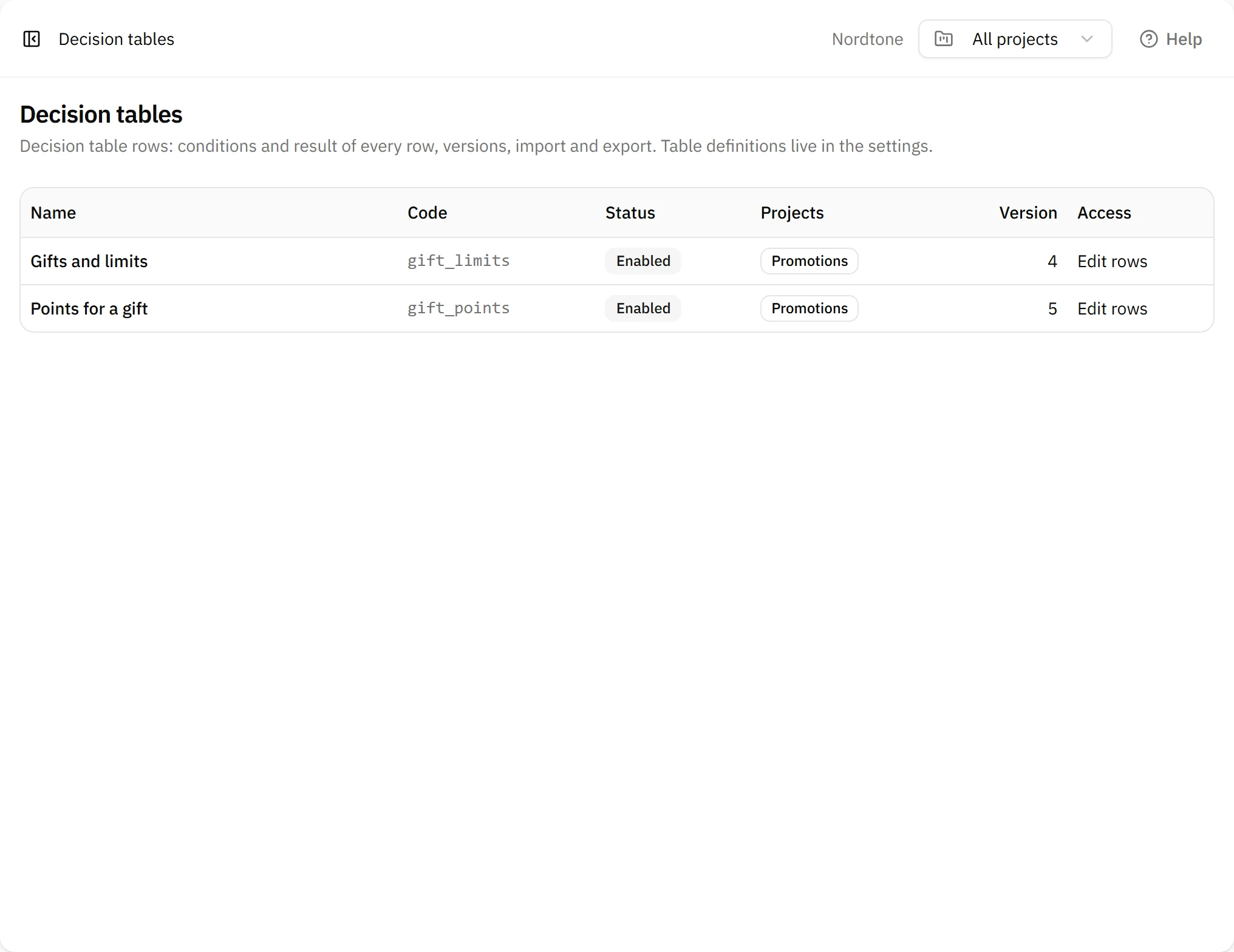
Table list
The list shows the tables visible to you: a role limited to projects sees the tables of its projects. Each table has a name, code, status (“Enabled” or “Disabled”), the projects where it can be evaluated (“All projects” if none are selected), the definition version and your access: “Edit rows” or “View only”. The name opens the table screen.
Tables are created by an administrator in the settings or by a preset.
Table screen
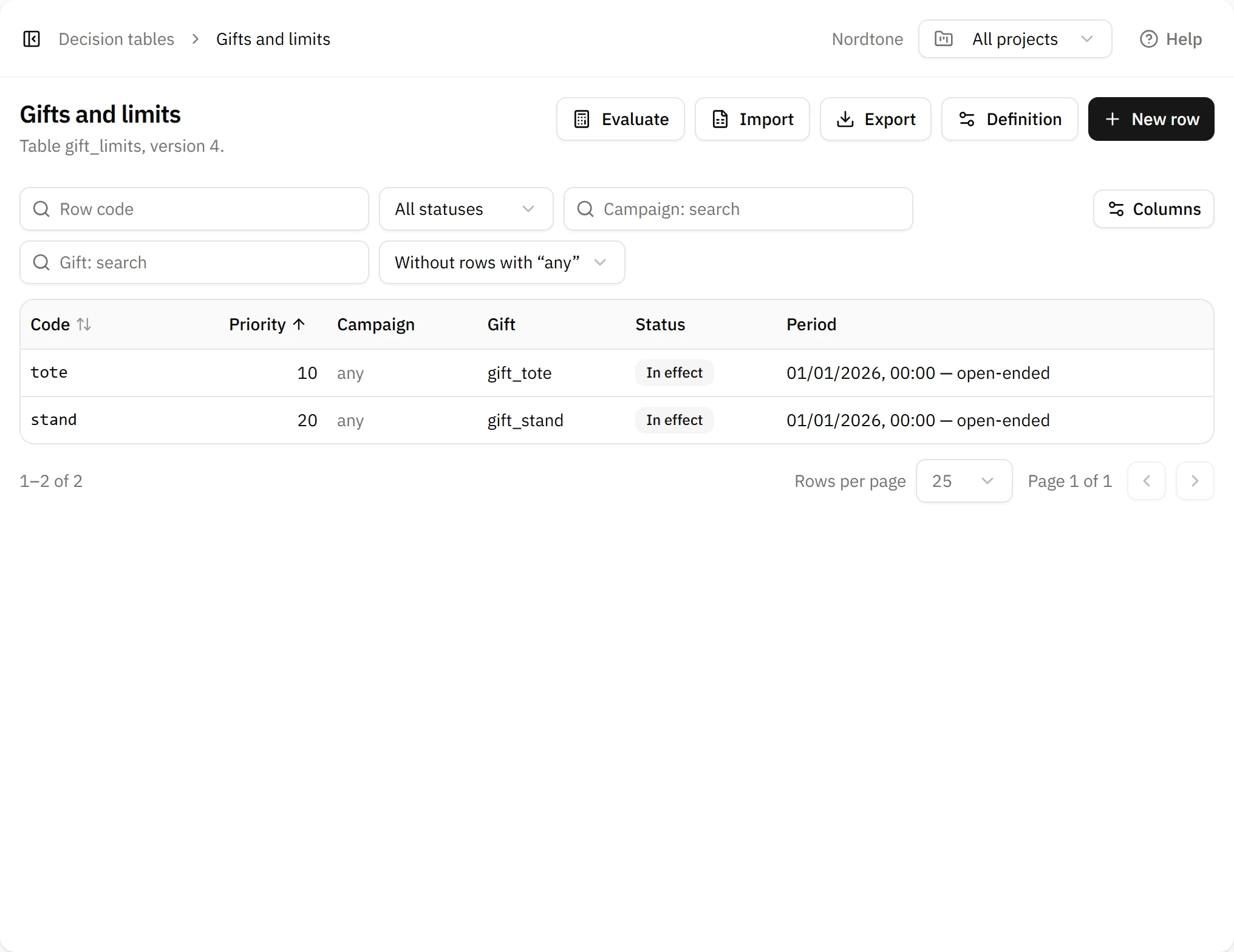
Below the title are the table code and its definition version. Rows go by priority. The columns are the row code, priority, the table's key columns, the row status as of now and the period of its last version. “any” in a key column means the row matches whatever the parameter value is. A row in the list opens the row page.
Buttons above the list:
- Evaluate opens the evaluation panel — shown to everyone who can see the table;
- Import — the row import log of this table (see Imports);
- Export — export rows to a file (see below);
- Definition opens the table definition in the settings — shown to roles with the “Settings → All settings, users and roles” permission;
- New row — shown if you can edit the rows of this table.
If the table is disabled, a banner appears above the list: evaluation does not return the table, but rows can be edited — they take effect once the table is enabled. Without the edit permission, a line above the list says the rows are view-only for you.
Search and filters
The Row code box searches by part of the code. The status filter keeps rows that are in effect now, have not started yet or have ended. Key columns have their own filters: a value picker for option and yes/no columns, a search box for the rest. A column filter looks at the row's last version and keeps rows with that value; to add rows with “any” in that column, pick “Also rows with “any”” in the “Rows with “any”” filter. You can sort by code and priority.
Evaluate for a customer
The Evaluate for a customer panel shows which rows of the table a customer would get. Evaluation records nothing and uses no limits; it works on a disabled table too.
- Press Evaluate above the row list.
- In the Customer field, find the customer by identifier or full name.
- Optionally set the Moment: empty means now; a future moment is allowed.
- Fill in the table's request parameters — for example, the campaign and the gift.
- Press Evaluate in the panel.
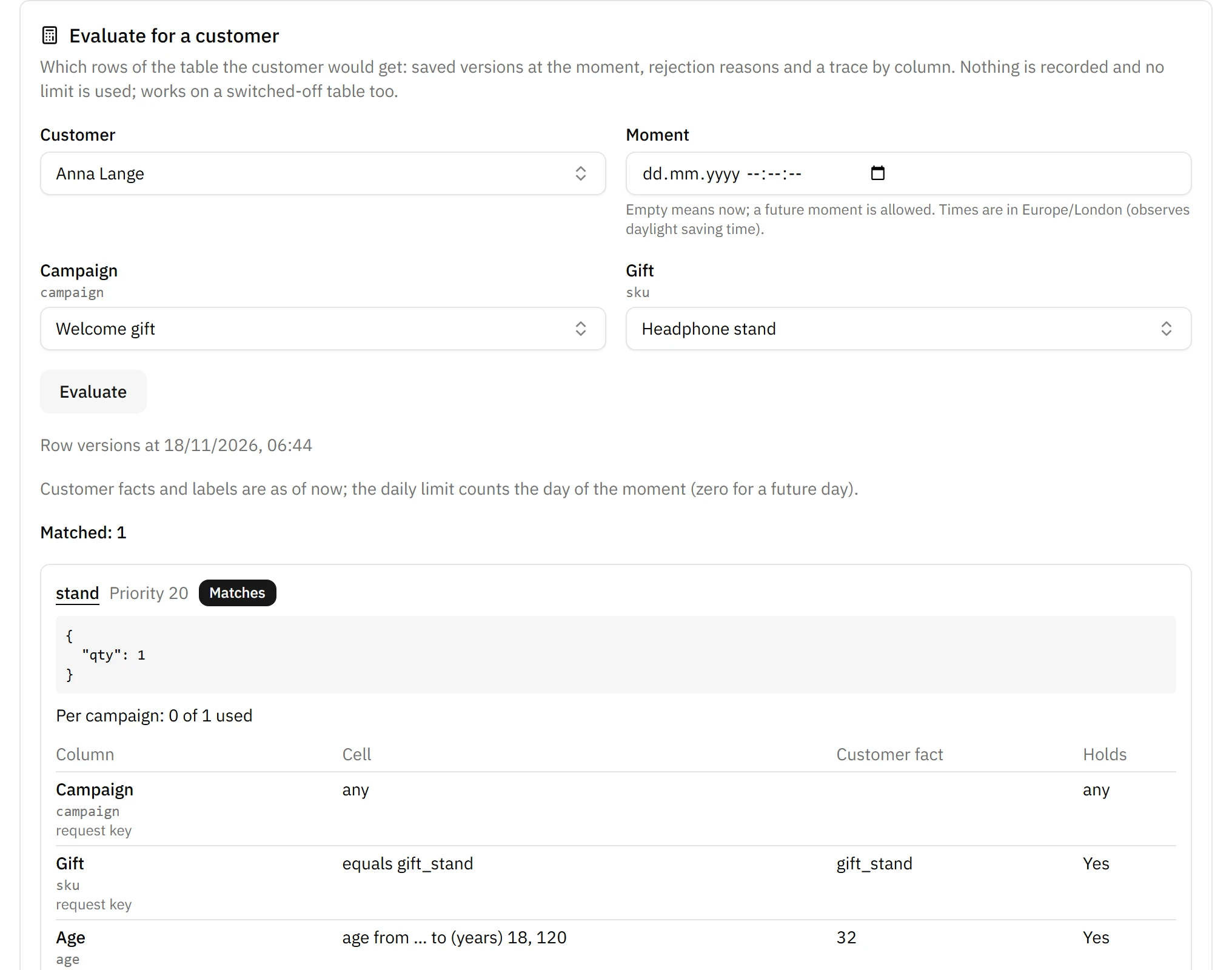
The result is split into “Matched” and “Rejected”. Each row shows its code, priority, row result and limit usage (“0 of 1 used”). The trace by column shows the row cell, the customer fact and whether the condition holds. A rejected row gets a reason: “Does not qualify”, “Blocked by a label” or “Limit reached”.
Row versions are taken at the given moment, while customer facts and labels are as of now. The daily limit counts the day of the moment. If you change the input after evaluating, the panel warns that the result refers to the previous data.
Rows: create and view
A row consists of a code, priority, cells, result, per-customer limits and validity period.
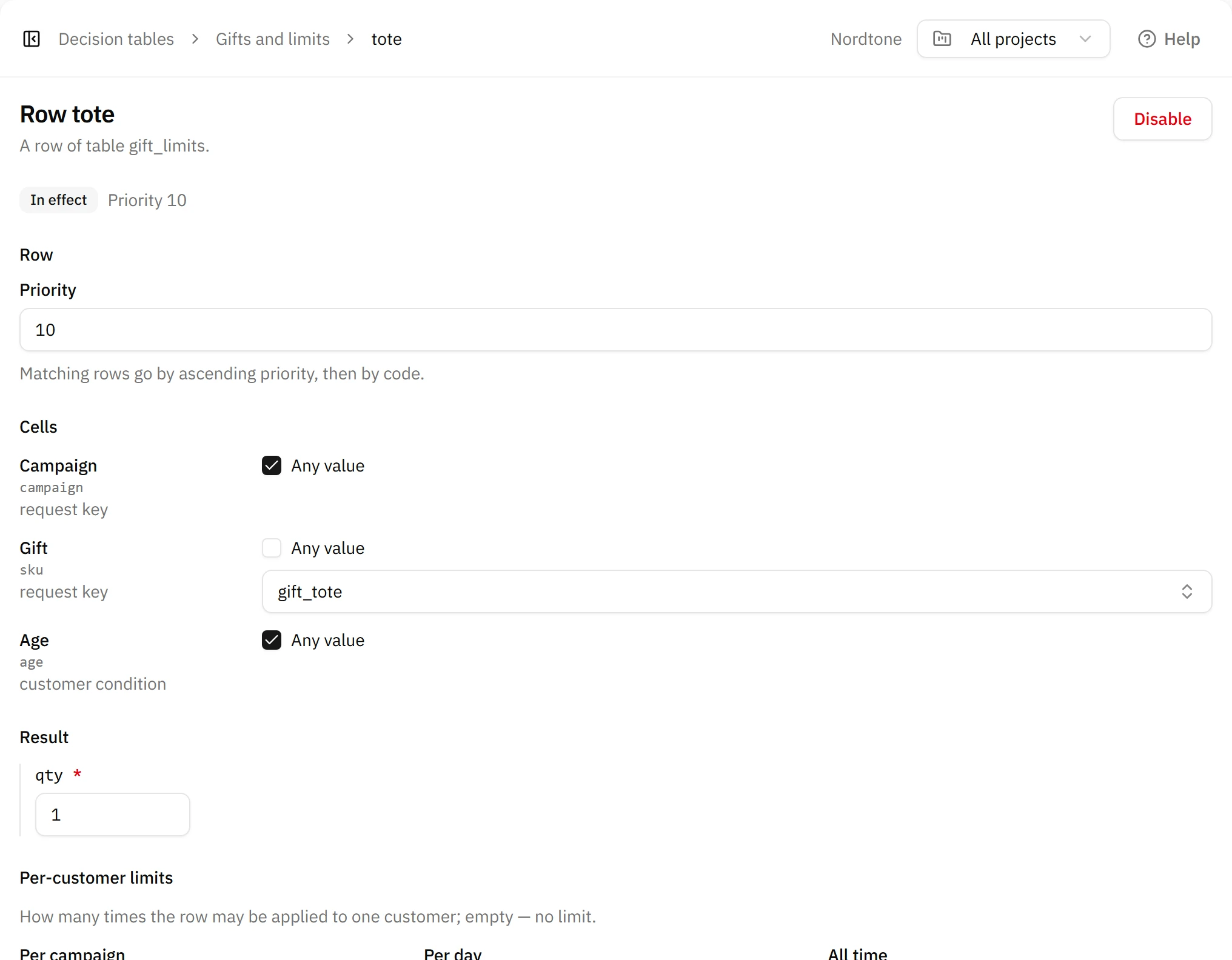
New row
- On the table screen, press New row.
- Enter the row Code — it cannot be changed later — and the priority. Matching rows go by ascending priority, then by code.
- Fill in the cells. Each column shows whether it is a request key or a customer condition. With “Any value” ticked, the cell matches any value.
- Fill in the result — its fields come from the table's result schema.
- Optionally set limits and the validity period.
- Press Create row. The row page opens.
The same evaluation panel sits below the form: it checks the row as it is in the form now, without saving. The row period is not taken into account there.
Row page
The page shows the row status, priority and the edit form with the same sections as a new row: row, cells, result, per-customer limits, validity period. The Save button stores the changes. Without the edit permission, the page shows the cells and result of the last version instead of the form, and the evaluation panel checks the saved row at the chosen moment.
If the row's last version fails the check against the current table definition — for example, after the result schema was changed — the page shows a red banner with the list of problems.
Versions and validity period
Every save of a changed row creates a new version. The From and Until fields set the version period: an empty “From” means from the moment of saving, an empty “Until” means open-ended. “From” can be changed only while the row has not started; editing a row already in effect creates a new version from the moment of saving.
At the bottom of the page is the Version history: the version number, period, who recorded it and when (or “system”), and a “What — Before — After” table of changes. Show JSON expands the whole version.
Per-customer limits
Limits set how many times the row may be applied to one customer: per campaign, per day and all time; an empty field means no limit. The per-campaign limit exists only if the table definition has a campaign parameter. A limit is used not by evaluation but by an interaction that refers to the row; the evaluation panel shows how much has been used.
Switching a row on and off
The Disable button on the row page stops the row now: evaluation will not return it and interactions referring to it will be rejected. A row that has not started yet simply never takes effect. An ended row has Enable instead: the row takes effect now with the content of its last version, and the dialog lets you set “Until” right away.
Import and export
Rows can be loaded from an XLSX or CSV file: upload, column mapping, check and apply. Only changed rows get a new version, and rows missing from the file can be disabled. See Imports for how it works.
The Export button exports rows in the import format: XLSX or CSV. With At moment empty, you get the rows “now”, active and scheduled; at a past moment, the rows in effect then. The file is prepared in the background and appears in My exports. Everyone who can see the table can export it.
Through the API
Applications read the table and its rows and evaluate the table for a customer through the API. Unlike the panel, the application then creates an interaction that refers to the matched row — and uses the limit. Rows are edited in the admin panel or by import.